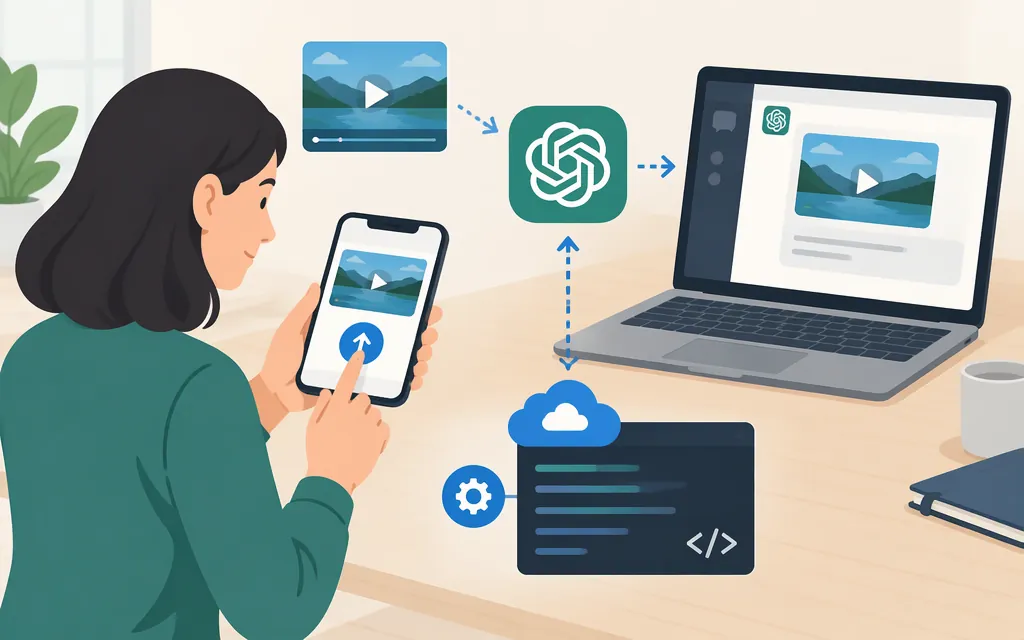
Yes. ChatGPT can accept video files as attachments through supported upload methods, including on Free plans. Availability varies by platform, upload method, and account, so the option may not appear for everyone or in every ChatGPT experience. Even when an upload succeeds, OpenAI warns that analysis may be incomplete or audio may be interpreted inaccurately. [1]
For a quick question about a clip, try attaching it if the option is available. For a production application, don’t assume a ChatGPT attachment and an API request work the same way: the API workflow below uses still images and text, not a direct video upload to the selected model. [3][4]
How to try uploading a video
- Open a ChatGPT chat and look for the attachment control. Where supported, choose the option to add photos or files and select the video.
- Wait for the video to appear as an attachment before sending your message. Availability varies by platform, upload method, and account. [1]
- Ask a focused question, such as: “Describe the main events in order. Give approximate timestamps, separate what you observed from what you inferred, and flag anything you couldn’t inspect.”
- Check important details against the original video—especially names, numbers, quotes, and claims about a specific moment. OpenAI cautions that the analysis may not cover the entire video or interpret its audio accurately. [1]
If you can’t select the video: OpenAI suggests checking whether it can be attached through Files instead of Photos. [1] You can also use the fallback below.
The cited ChatGPT guidance does not establish one universal set of eligible accounts or platforms, or video-specific file formats, size limits, or duration limits. Don’t infer video limits from limits for other file types. [1]
If video upload isn’t available: use a transcript and selected images
- Use an existing transcript, or create one outside this ChatGPT conversation. Keep timestamps with the relevant lines.
- Paste the relevant timecoded excerpt into the chat, or attach it as a supported text file such as TXT or Markdown. [2]
- Add still images of the relevant moments using + → Add photos & files; you can also drag an image into the text area or paste one from your clipboard. Label each image with its timestamp. [1]
- Ask a focused question that ChatGPT can answer from the transcript and images—for example, “Based only on this excerpt and these frames, what happens around 00:42?”
This can provide spoken context and selected visual evidence, but it does not recreate continuous motion or full audio/video analysis. If the answer depends on what happens between the still images, check that part of the original video yourself. [1]
What ChatGPT may—and may not—do with an uploaded video
ChatGPT may use tools to analyze an uploaded video, but acceptance of the attachment does not guarantee a complete review. OpenAI says analysis can be incomplete or inaccurate, including for audio. Treat an answer as a starting point, not a verified transcript or frame-by-frame audit. [1]
For an occasional clip question, direct upload may be convenient when it is available and you can review the result. For precise dialogue, timestamps, or important visual details, check the relevant moments against the source. For captions or repeatable production output, plan for a workflow that can produce and verify those specific deliverables rather than assuming a video upload will do so.
ChatGPT upload vs. a production API workflow
A ChatGPT upload does not establish that an API accepts the same video file directly. OpenAI’s current model documentation lists gpt-6.1-terra as a visual-reasoning model, and the model catalog describes current models as accepting text and image input. The cited documentation does not list video input for this model. The documented implementation below therefore preprocesses a video into timestamped still images and text; that is a model-and-endpoint-specific route, not a claim that every OpenAI API model has the same capabilities. [3][4]
A documented image-and-text API path
For a production application that needs visual context from a recording:
- Extract selected frames in your application. Keep each frame’s timestamp. Sampling is a tradeoff: the API receives still images, so events between selected frames may be missed.
- Send the frames and task to the Responses API. OpenAI’s image guide documents image analysis with the Responses API. A request uses a vision-capable model and places the instruction and image inputs in the request’s
inputcontent. For example, using the OpenAI SDK:
const response = await client.responses.create({
  model: "gpt-6.1-terra",
  input: [{
    role: "user",
    content: [
      { type: "input_text", text: "Describe these video frames in timestamp order. Frame timestamps: 00:10, 00:20." },
      { type: "input_image", image_url: "data:image/jpeg;base64,<BASE64_FRAME_1>" },
      { type: "input_image", image_url: "data:image/jpeg;base64,<BASE64_FRAME_2>" }
    ]
  }]
});

console.log(response.output_text);
Replace each placeholder with an encoded frame; the Responses API also supports image inputs by URL. The API key should be kept server-side. Use a model that currently documents image input, and account for the images and accompanying text in the request and model’s input/context limits. [3][4][5]
- Transcribe the audio separately if the task depends on speech. OpenAI documents file transcription at
POST /v1/audio/transcriptions, withgpt-transcribeas the recommended model for recorded speech. The API returns transcript text; the current guide documents a 25 MB file limit and supported audio inputs including MP3 and WAV. This is an API transcription route—not ChatGPT’s consumer audio-upload feature. [6][7] - Validate the answer. Compare important claims with the source video and make the relevant timestamps available for review. Frame sampling can omit brief actions or details, so it is not equivalent to continuous video input.
The OpenAI Cookbook also contains an archived example of extracting video frames and sending them as images. Treat it as historical implementation context; it is not proof of direct video support in a current model or endpoint. [8]
Which route should you choose? Use ChatGPT directly for an occasional clip question if video attachment is available and a reviewable answer is enough. For an API-based product, the documented gpt-6.1-terra plus Responses API path is an application-built frame-and-text workflow; add the separate transcription endpoint if speech matters. The documentation cited here does not establish direct video input for that model and endpoint. [3][4][6]
Bottom line
You can upload a video to ChatGPT through supported methods, but availability varies by platform, upload method, and account. Check important conclusions against the footage. For a production API workflow, distinguish a documented image-and-text pipeline—with optional separate audio transcription—from direct video input; the cited model documentation does not establish the latter for gpt-6.1-terra and the Responses API. [1][3][4][6]
Sources
ChatGPT Image Inputs FAQ — OpenAI Help Center
Uploading files and audio to ChatGPT — OpenAI Help Center
GPT-6.1 Terra Model — OpenAI API
Images and vision — OpenAI API
API Overview — OpenAI API Reference
File transcription — OpenAI API
Processing and narrating a video with GPT-4.1-mini’s visual capabilities — OpenAI Cookbook