Short answer
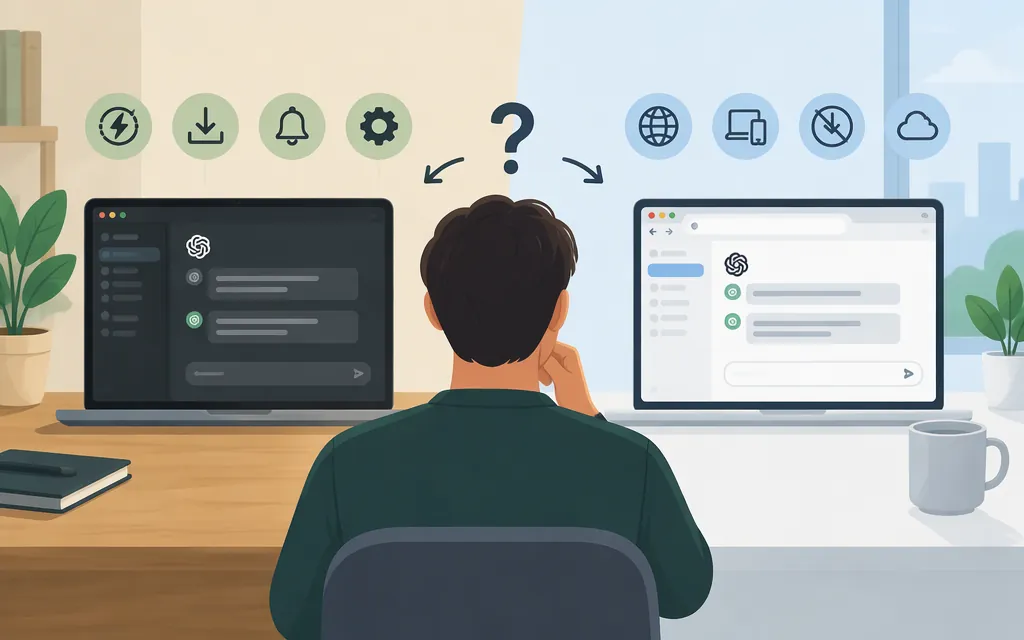
For everyday ChatGPT conversations, choose the browser if you want to get started without installing a desktop app. Choose the desktop app if you need a desktop-only workflow such as Codex with local development files and tools, or an eligible Work task that uses approved files or tools on your connected computer. That local Work access is conditional: it depends on workspace availability and permissions, and the computer must remain online and connected while the task needs it. (Desktop app guide; local Work sync guide)
If you’re building model-powered features into your own production application, neither ChatGPT interface is the integration route. Use the OpenAI API. API billing is separate from ChatGPT billing. (Billing guide)
ChatGPT desktop app vs. browser
| What matters | Desktop app | Browser |
|---|---|---|
| Getting started | Install the app and sign in. The new desktop app includes ChatGPT’s Chat and Work views, alongside Codex, on macOS and Windows. | Use ChatGPT on the web without installing the desktop app. Chat and cloud Work are available on the web. |
| Working with your computer | Codex is a desktop view for software development with local files, repositories, terminals, and developer tools. Eligible Work tasks can use approved files and tools on a connected computer when local Work access is enabled for the workspace. | Codex is not selectable on the web, but Codex Cloud supports coding tasks across desktop and web. Work tasks that need a connected computer are subject to the same local-access and workspace conditions. |
| Quick access and app context | On macOS, OpenAI documents Option + Space to open the Chat Bar for Work with Apps; the shortcut can be changed. Connecting an app requires adding it and granting any necessary permissions or extensions. | The desktop-specific shortcut and documented Work with Apps flow are not established here as browser features. |
| Continuing work elsewhere | Cloud Work chats can continue on the web. A local Work task can continue across devices only where local Work sync is available and enabled; steps needing the computer still require it online and connected. | Cloud Work chats can continue here. Codex Cloud tasks can also be started and continued on the web. |
| Models and tools | Options depend on your plan and workspace settings. | Options also depend on your plan and workspace settings. Check the model and tool choices in the interface you plan to use rather than assuming every option is identical. |
OpenAI distinguishes cloud Work chats from local Work access. Local work sync is available only where enabled for the workspace and rollout; members need access to both local Work and cloud Work. Workspace permissions must be enabled, and the user must review the consent prompt. The documentation describes access to approved files and tools on the connected computer, but does not establish a universal list of accessible files, apps, or tools. (Local Work sync guide)
Desktop eligibility
The macOS download guide lists macOS 14 and either Apple Silicon (M1 or later) or an Intel processor. OpenAI’s Windows app guide lists Windows 10 (x64 or arm64), version 17763.0 or higher, but explicitly describes an early version. The new desktop app guide confirms availability on macOS and Windows but does not establish whether that older Windows minimum applies to the new app. Check the current app listing before installing on Windows; don’t treat the early-version minimum as confirmed eligibility for the new app. Workspace permissions and feature availability are separate from installation requirements. (macOS requirements; Windows app guide; new desktop app guide)
A practical example
If you want to develop software with a repository on your computer, use the desktop app’s Codex view. For a supported cloud coding task, Codex Cloud is available across desktop and web. If a Work task needs approved files or tools on your computer, confirm that local Work access is enabled for your workspace and keep the computer online while the task needs it. The available documentation does not establish that every local file, app, or tool can be accessed. (Desktop app guide; Work and Codex guide; local Work sync guide)
Does the desktop app have better model access?
There’s no basis here for saying the desktop app always has more models than the browser, or that every user sees identical choices. OpenAI says model availability depends on plan and workspace settings. Check the model picker in the account and interface you intend to use. (Work and Codex guide)
Which one should you use?
- Choose the browser for everyday ChatGPT use when you prefer not to install an app or your task works in Chat or supported cloud Work.
- Choose the desktop app if you need Codex with local development files and tools, or an eligible Work task needs approved access to your connected computer. Check workspace access first.
- Use both if you switch between local-computer work and supported cloud tasks. Local tasks depend on the connected computer; cloud chats and tasks have different cross-device behavior.
- Don’t choose based on a blanket stability claim. The sources here do not establish that the desktop app is generally more stable than the browser.
Building a production application? Use the API
The desktop app and ChatGPT in a browser are user-facing interfaces. To integrate OpenAI models into your own application, use the OpenAI API. ChatGPT and API billing are managed separately. (API quickstart; billing guide)
Bottom line
Use the browser for installation-free everyday access. Choose the desktop app when you need its desktop-specific Codex workflow or eligible local Work access—subject to workspace permissions and computer connectivity. Check model choices in your own account. For a production integration, use the OpenAI API, not either ChatGPT interface.
Sources
Moving to the new ChatGPT desktop app
Agent Security and local work sync in ChatGPT