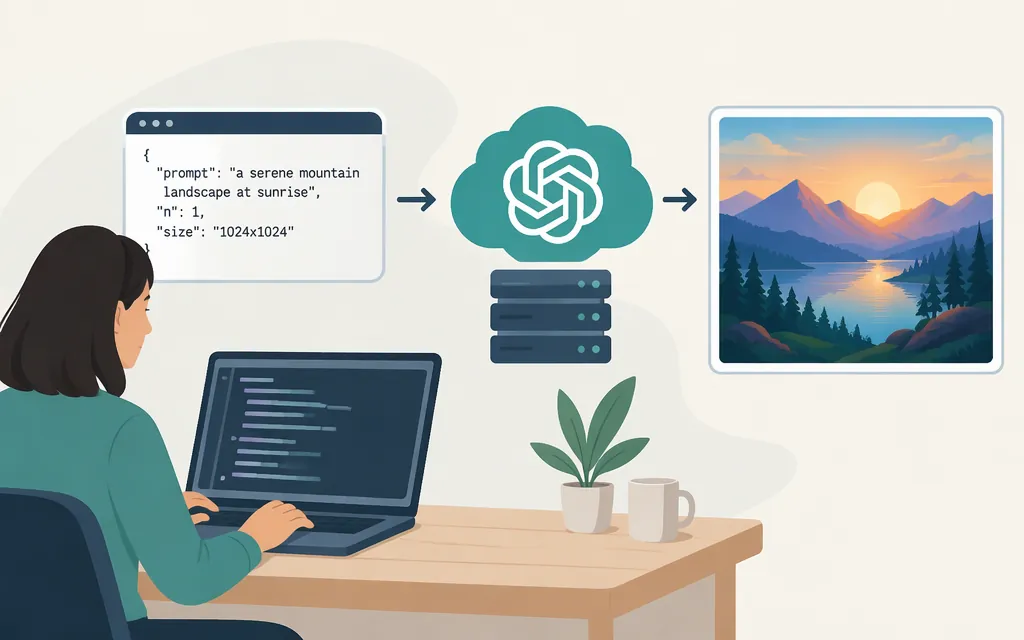
If you want your app to create a new image from a prompt, use OpenAI’s Images API. For a single image-generation request, call POST /v1/images/generations; the current GPT Image 2.6 options include gpt-image-2.6-flare for faster iteration and gpt-image-2.6-sunburst for detailed work and more precise edits. If you want a conversational workflow with iterative edits, the Responses API is another option—but check its supported model and tool combinations for your use case. (developers.openai.com)
This guide reflects OpenAI’s published API documentation and product information as of November 9, 2026. GPT Image 2.6 was announced on November 4, 2026. (openai.com)
First, distinguish image generation from image analysis
These are different API tasks:
- Image generation: create an image from a text prompt. Use the Images API, or use a supported image-generation tool in the Responses API.
- Image analysis: send an existing image for a model to interpret. Use a vision-capable model through an API path that supports image inputs; this is not the image-generation request shown below. (
developers.openai.com)
The examples here focus on generating an image. ChatGPT’s consumer image features and an API integration are not interchangeable: your application must make an API request and handle its result.
Generate one image with Python
Prerequisites
- An OpenAI API project and API key.
- Python and the OpenAI Python SDK:
pip install openai. - An environment variable named
OPENAI_API_KEY. The SDK reads the key from the environment. Some GPT Image use may require API organization verification in the developer console. (developers.openai.com)
Set the key in your shell rather than embedding it in app code:
export OPENAI_API_KEY="your_api_key_here"
Make the request and save the result
from openai import OpenAI
import base64

client = OpenAI()

result = client.images.generate(
    model="gpt-image-2.6-flare",
    prompt="A small ceramic bluebird on a windowsill at sunrise, editorial illustration",
    size="1024x1024",
    quality="low",
)

image_bytes = base64.b64decode(result.data[0].b64_json)
with open("bluebird.png", "wb") as image_file:
    image_file.write(image_bytes)
Run the script. If the request succeeds, it writes the generated image to bluebird.png. The Images API generation route is POST /v1/images/generations; GPT Image 2.6 model IDs, quality settings, and image sizes are documented in OpenAI’s API references. (developers.openai.com)
Choose Flare or Sunburst
Start with Flare when response time matters most. Choose Sunburst when detail, layout, or edit accuracy matters more. These are starting points, not guarantees of a particular result: compare both on representative prompts and outputs from your own workload. OpenAI describes Flare as the faster option and Sunburst as the option for detailed visual work and more precise edits. (developers.openai.com)
The example requests a 1024 × 1024 image at low quality to keep the first test straightforward. Change the size or quality only after confirming the available settings for your chosen model and testing the effect on your application’s image requirements. The API also documents output format and other image controls. (developers.openai.com)
Connect image generation to a chat application
A chat model or tool call does not perform your application’s image API request on its own. Your application must execute that request and decide how to deliver the returned image. A typical flow is:
- Receive the user’s message.
- Decide whether the request needs image generation or another action.
- Call the Images API from your application backend.
- Handle the image result, then deliver it through your app—for example, by saving it to storage and displaying it in the conversation.
For a simple prompt-to-image feature, call the Images API directly. For a conversational image experience with multi-turn edits, OpenAI’s guide recommends the Responses API; its image-generation tool can produce image output within a conversation. Use the current supported-model documentation for the exact combination you deploy. (developers.openai.com)
For production, keep API credentials on a trusted backend, not in browser or mobile-app code. OpenAI describes API keys as secret credentials and recommends separate service-account credentials for deployed applications or automated workloads. Also handle API errors in your application, and validate the returned image before displaying or storing it. (developers.openai.com)
If you meant image analysis
To describe, inspect, or extract information from an existing image, use a vision-capable input workflow instead of the generation call above. OpenAI’s documentation distinguishes analyzing images through the Responses API or Chat Completions API from generating image output through the Images API. Check the current image-input guide for the supported model, payload, and image-delivery method that match your application. (developers.openai.com)
In short: use gpt-image-2.6-flare or gpt-image-2.6-sunburst with the Images API to create images; use a vision input workflow to analyze images; and have your application backend make and handle the API call. Avoid copying older DALL·E-era examples without checking current documentation: OpenAI’s API reference marks DALL·E 2 as retired and lists newer GPT Image model IDs. (developers.openai.com)
Sources
Create image | OpenAI API Reference
Images and vision | OpenAI API
API keys and service accounts | OpenAI API