Short answer
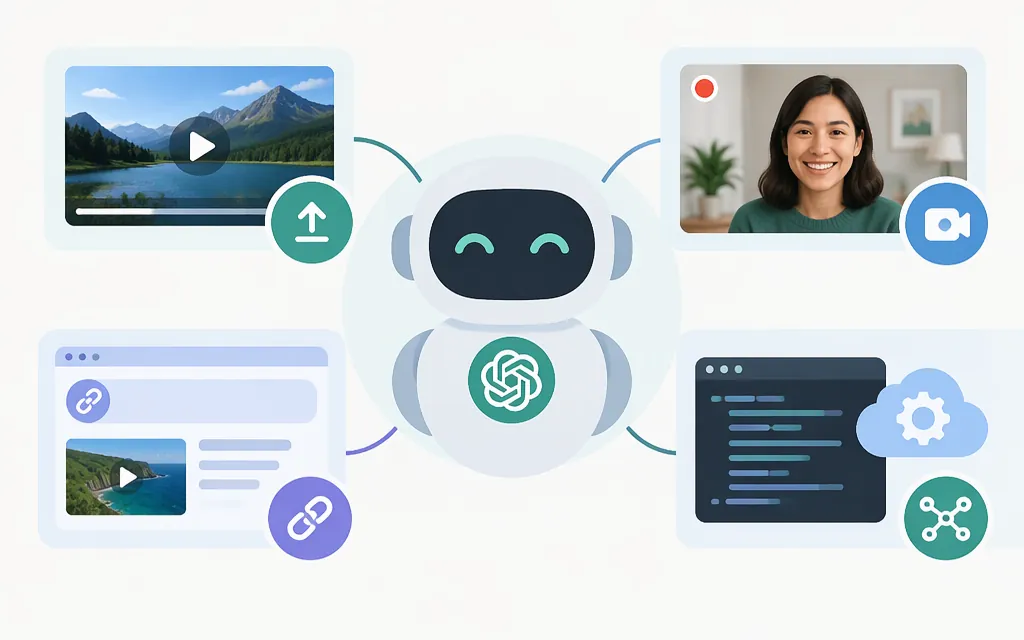
ChatGPT video attachments and live camera sharing are separate features. OpenAI says ChatGPT may analyze uploaded videos, but analysis can be incomplete or inaccurate. Availability varies by platform, upload method, and account. (ChatGPT Image Inputs FAQ)
For the production API, GPT-6.1 Terra accepts text and images—not video—and is available through the Responses API. A documented alternative is to extract frames and send them as images, adding a separate transcription step if speech matters. This is preprocessing, not native video input. (GPT-6.1 Terra model page)
| What you want to do | What the documentation supports | Practical next step |
|---|---|---|
| Ask ChatGPT about a prerecorded video | ChatGPT may analyze uploaded video attachments, but results can be incomplete or inaccurate. Access varies by platform, upload method, and account. | Use an upload method available to your account and check important answers against the source. |
| Show ChatGPT live camera video | OpenAI’s Voice help distinguishes modes: Advanced supports video sharing on eligible mobile accounts; Live does not. The documented retirement date for Advanced and Standard Voice is December 11, 2026. | Check Voice settings and current availability for your account. |
| Paste a video link | The official material reviewed here does not confirm that a link lets ChatGPT analyze the video’s visual content. | Don’t treat a URL as equivalent to a video attachment. Use a documented input path or provide relevant frames and context. |
| Analyze video through the production API | GPT-6.1 Terra’s model page lists text and image input and says video is not supported. | Use the Responses API with extracted images; transcribe audio separately if needed. |
ChatGPT: video upload is different from live camera
Uploading a prerecorded video
OpenAI’s Help Center says ChatGPT may analyze uploaded videos, but the analysis may be incomplete or inaccurate. Availability varies by platform, upload method, and account. (ChatGPT Image Inputs FAQ)
Attach the file using an upload control available in your ChatGPT client, then ask a focused question—for example, “At what point does the speaker demonstrate the reset?” Check the answer against the source, especially when timing, exact wording, or a brief visual detail matters.
Live camera video in Voice
Live camera sharing is a real-time interaction, not a way to submit a prerecorded clip. OpenAI’s Voice help says video and screen sharing are available in the Advanced Voice experience on eligible mobile apps; the Live voice option does not support video or screen sharing. The documented retirement date for Advanced and Standard Voice is December 11, 2026. Check current Voice settings before relying on this feature. (ChatGPT Voice)
What about video links?
The official Help Center material reviewed here confirms video attachments and separately describes live camera sharing. It does not establish that pasting a YouTube or other video URL gives ChatGPT access to the video’s visual content. A link may expose other information in some contexts, but that is not confirmation of video analysis. If the visuals matter, use an input path documented for your account or provide representative still frames and context.
Production API: a documented image-and-audio path
Keep ChatGPT features separate from API capabilities. OpenAI’s model page identifies GPT-6.1 Terra with the API model ID gpt-6.1-terra. It lists text and image as input modalities, video as unsupported, and the Responses API as a supported endpoint. That gives developers a concrete image-analysis choice, but not a native video-input contract. (GPT-6.1 Terra model page)
For visual analysis, extract frames and send them as image inputs in a Responses API request. The model page confirms image input and Responses API support; consult the current image-input guide for the applicable request details. Sending sampled images is preprocessing, not uploading a video to the model.
If speech matters, OpenAI’s file-transcription guide recommends gpt-transcribe for completed recordings. It documents the /v1/audio/transcriptions endpoint, supported inputs of MP3, MP4, MPEG, MPGA, M4A, WAV, and WebM, and a 25 MB file limit. Submit extracted audio as a supported audio file; don’t use the original video as a substitute for video input. (File transcription guide)
Selection summary: use gpt-6.1-terra with the Responses API for frame-based visual analysis, and add gpt-transcribe through /v1/audio/transcriptions when a transcript is useful. Your application preprocesses and combines the images and transcript; this is not direct video upload. (GPT-6.1 Terra model page)
A practical workaround: sample frames and optionally transcribe audio
If you need to analyze a video through the API, a bounded alternative is:
- Extract timestamped frames from the source video. Choose frames relevant to the task rather than assuming one dense contact sheet preserves every detail.
- Send the frames as image inputs with timestamps and a focused prompt, such as: “Describe the visible changes in these frames in time order. Separate what is directly visible from what you infer.”
- If speech matters, transcribe the audio separately using the documented file-transcription workflow. Keep transcript timestamps if available and treat the transcript as potentially imperfect.
- Combine visual observations and transcript text for a summary or answer, then check important claims against the original clip.
This approach gives you control over the material the model receives, but sampled frames cannot show every moment. As a practical inference, sparse sampling is riskier for rapid movement, brief on-screen text, or events between sampled frames. A transcript can add speech context, but transcription errors can introduce false context. Sample around important timestamps and verify the result by watching the source.
Frame sampling may be reasonable for a slow demonstration with few scene changes. It is riskier for sports, rapid movement, brief on-screen text, or events that occur between sampled frames. Don’t use historical forum cost estimates as a current API budget; current cost depends on the models and inputs selected.
Bottom line
- Prerecorded clip in ChatGPT: video attachments may be analyzed through supported methods, but results can be incomplete or inaccurate. (ChatGPT Image Inputs FAQ)
- Live camera: a separate Voice feature; Advanced supports video on eligible mobile accounts, while Live does not. The documented retirement date for Advanced and Standard Voice is December 11, 2026. (ChatGPT Voice)
- Video link: the official material reviewed here does not confirm that a link alone enables visual video analysis.
- Production API: GPT-6.1 Terra accepts image input but does not support video input. Use timestamped extracted frames, and add audio transcription only when needed. (GPT-6.1 Terra model page)
Before deployment, confirm current model input modalities and limits in the official documentation, and test with representative clips—including fast changes, small text, and silent sections.
Sources
GPT-6.1 Terra Model | OpenAI API