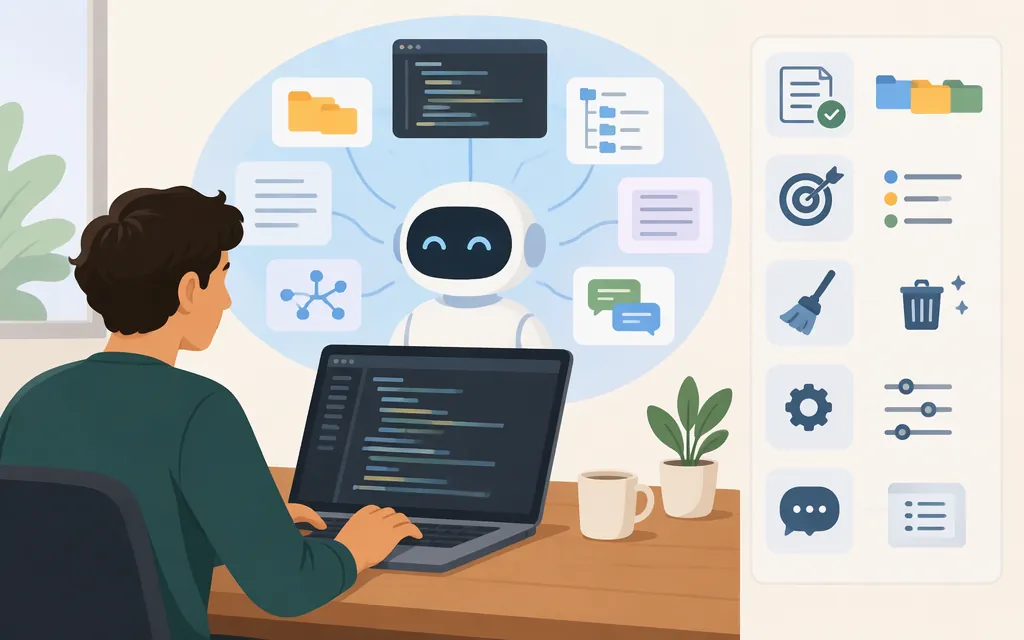
What does “context” mean in Claude Code?
Claude Code context is the information available to the model as it works through a session—not just the messages you typed. It can include project instructions, files Claude reads, conversation history, tool results, and other session content. Some context loads before your first prompt; other content is added as Claude works. A subagent can work in its own context window, keeping large reads out of the parent session and returning a smaller result. (Claude Code context-window docs)
Keep three ideas separate:
- Session context is the working information Claude Code has for a task.
- A model’s context window is the capacity available for a particular model and provider configuration. Don’t assume the CLI, API, and different providers share one universal limit.
- Usage or billing tokens describe how requests are processed and charged. Context size alone does not tell you the cost: Claude Code uses prompt caching, which can change how repeated input is billed. (Prompt caching docs)
For a current view of what is filling a Claude Code session, run /context. It shows what is using the window; it is not, by itself, a complete cost report or a promise about the limit for every model or provider. (Commands docs)
Which context action should you choose?
Start with two questions: Is this still the same task? And is the context already in the session helping more than it is distracting? Then choose the smallest reset or delegation that solves the problem.
| Situation | Action | Why—and what to watch for |
|---|---|---|
| Same task; recent files, decisions, and reasoning are still useful | Continue | Avoids rebuilding relevant state. For example, after implementing a feature, you might ask Claude to document that same change. If the next task needs different constraints or files, “related” alone is not a reason to keep the old session. |
| Claude explored useful files but pursued the wrong approach | /rewind |
Open the rewind menu and choose what to restore. Depending on the menu option, you can rewind the conversation, code, or both. Review the choice before confirming: rewinding code can undo tracked edits, and not every change is tracked. (Checkpointing docs) |
| Same task continues, but the conversation has accumulated dead ends or debugging residue | /compact |
Summarizes conversation history to free context while preserving continuity. If you know what matters next, give a focus, such as “keep the fix plan and relevant files; drop the test-debugging detours.” Treat the summary as potentially lossy and verify important decisions afterward. (Context-window docs) |
| New task, different goals, or you want to choose what conversation information carries forward | /clear or start a fresh session |
Clears the conversation rather than carrying its history forward. It does not mean project instructions or other persistent context are removed: those may load again when a session starts. If continuity matters, paste a short handoff with completed work, relevant files, decisions, and anything ruled out. (Commands docs; context-window docs) |
| A side investigation will generate lots of intermediate output, but the main task needs only its conclusion | Use a subagent | Keeps the investigation in a separate context and brings back a result. This is useful for a broad audit or spec check; it is less useful if you need all of the investigation details in the main thread. (Context-window docs) |
Worked example: You have finished an authentication change. If the next request is to document that exact change and the session is still focused, continue. If Claude read the right files but picked an unsuitable implementation, use /rewind and choose whether to restore the conversation, code, or both. If you are still implementing the same feature but the thread is cluttered, compact with a focus. If you are moving to roadmap planning, clear or start fresh and carry over only the decisions that still matter.
Inspect and reduce unnecessary project context
- Check before changing anything. Run
/contextto see what is filling the window. Remember that some content loads automatically and other content enters when Claude reads files or receives tool output. Official context-window documentation describes startup content such as project instructions, memory, skill descriptions, and MCP tool names, as well as additional content during work. The exact mix depends on your setup. (Commands docs; context-window docs) - Review persistent instructions. Remove stale, duplicated, or unrelated guidance from project instructions. Keep durable facts and constraints that Claude needs across tasks; scope specialized rules to the relevant area instead of putting every detail into a single, project-wide file. Anthropic’s best-practices guidance recommends keeping
CLAUDE.mdshort and scoping rules to parts of the codebase. (Best-practices docs) - Don’t assume edits update context already loaded in the current session. The available documentation excerpts do not establish when edits to
CLAUDE.mdor other persistent instructions take effect in an open session. For a clean comparison, start a fresh session after editing, then run/contextagain; treat this as a way to avoid relying on stale session state, not as a claim that every kind of persistent context reloads identically. - Reduce unnecessary inputs. For the current task, avoid asking Claude to read unrelated directories or repeatedly including large outputs it does not need. If a side task is noisy, delegate it and request the conclusion rather than its full working trail.
- Check again after cleanup. Run
/contextin the session you intend to use. Don’t treat an estimate from a community script or a character-to-token conversion as an official count or product limit.
Choosing a model or API for production
Claude Code and the model are different parts of the system: Claude Code provides the tools and manages the context the model sees. If you want to embed that agent loop in your own application, Anthropic’s Agent SDK is the documented route for programmatic control of tools, permissions, and output. A direct model API call is not, by itself, the same thing as running Claude Code’s agent loop. (Agent SDK agent-loop docs)
Before selecting a production setup, verify these points for the actual workload and channel:
- Integration type: Are you running Claude Code as a developer tool, embedding an agent through the Agent SDK, or calling a model API directly? Choose documentation for that integration—not just a model name.
- Exact model and provider: Pin the intended model identifier or provider-specific deployment. Claude Code’s model configuration documentation notes that model aliases can resolve differently across providers; a familiar alias does not guarantee the same model everywhere. (Model configuration docs)
- Context capacity and conditions: Check the documented limit and any extended-context option for that exact model on that provider. The available information here does not establish a universal limit or which models, accounts, or API channels qualify. Verify the applicable conditions in current documentation before relying on a capacity figure.
- Workflow compatibility: Confirm the target surface supports the features your application needs. Anthropic’s overview says the terminal CLI, VS Code, and JetBrains support third-party providers; do not infer that every provider supports every Claude Code feature or that other surfaces do too. (Overview docs)
- Deployment details: From the selected provider’s current documentation, verify the required authentication, endpoint or deployment name, region or account access, and operational limits. There is no single production configuration established here for every provider.
- Usage and cost: If cost matters to the choice, compare the actual provider’s current billing units and applicable cache or usage treatment. A context-window size is not a price, and a sample session log or community estimate is not an invoice reconciliation. (Prompt caching docs)
Practical selection rule: Start with the task and the provider you can actually deploy. Compare candidate models against your workload’s requirements, then verify the exact model identifier, context conditions, required Claude Code or SDK features, and provider configuration before rollout. The information available here does not establish a general Sonnet-versus-Opus suitability ranking or production test result, so don’t treat one as a recommendation for your workload without checking current model documentation and evaluating your own requirements.
Bottom line
Continue when the current session is still useful; rewind when you need to choose a better branch; compact when the same task continues but the thread is noisy; clear or restart when the task changes; and delegate side work when only its conclusion belongs in the main conversation. Use /context to inspect the session, and keep session context, model capacity, and billed usage distinct. A reset clears conversation continuity, not necessarily persistent project context. For production, verify the exact model, provider, context conditions, and integration path—never infer them from a model alias, third-party sample, or a general context-window claim.
Sources
Explore the context window — Claude Code Docs
Checkpointing — Claude Code Docs
Model configuration — Claude Code Docs
Best practices for Claude Code — Claude Code Docs