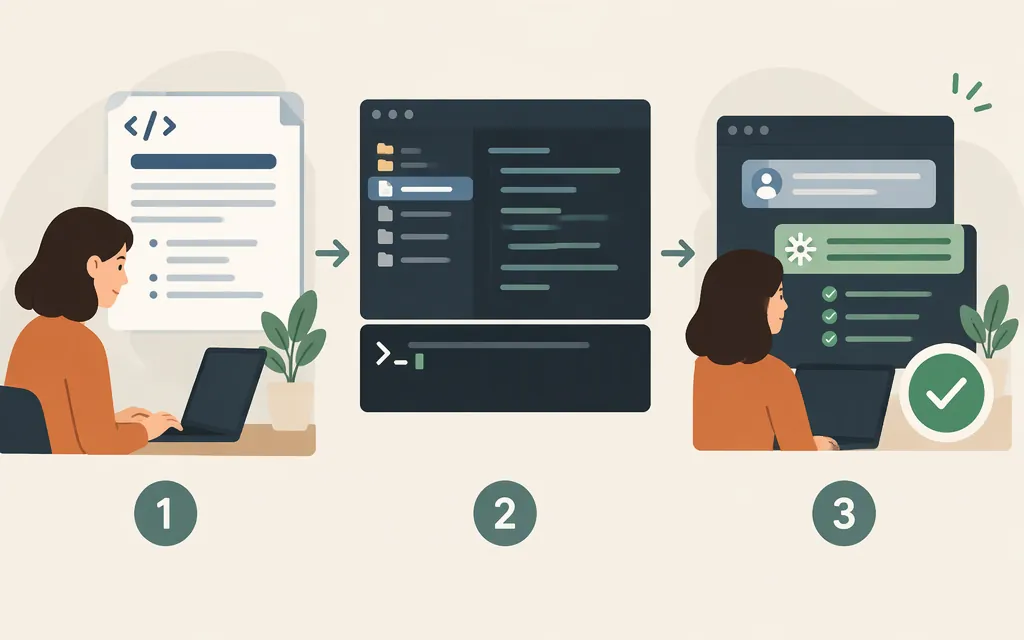
A Claude Code Skill is a reusable set of instructions for a recurring task. To create one, make a Skill folder, add a SKILL.md with a description and workflow, then check whether Claude Code recognizes and follows it. You do not need a production model API just to create a Skill for use in Claude Code. A Skill file is not, by itself, API credentials or proof of an API integration.
Create a Claude Code Skill
For a Skill that belongs to one repository, create this structure at the repository root:
your-project/
└── .claude/
    └── skills/
        └── review-change/
            └── SKILL.md
For a personal Skill, use ~/.claude/skills/review-change/SKILL.md. It is intended for your projects on that machine; the project path keeps the Skill with the repository so it can be shared with the team. Anthropic’s Claude Code documentation describes Skills as SKILL.md files and supports direct invocation with a slash command. The Claude Agent SDK documentation also lists personal and project Skill directories. Check the current Claude Code documentation if your setup uses added directories, plugins, or synced Skills.
Create SKILL.md with YAML frontmatter and task instructions. The following is an illustrative starting point, not a tested Skill for every project. The example assumes you are in a Git repository with a code diff to review:
---
name: review-change
description: Use when asked to review a code change in this repository for correctness, missing tests, and project-convention issues.
---

# Review a code change

1. Inspect the current diff and identify the files it changes.
2. Read relevant surrounding code and project instructions.
3. Look for correctness issues, regressions, and missing tests.
4. Report findings first, with file and line references where possible.
5. If you find no issues, summarize what you reviewed and note any checks not run.

Do not edit files unless the user asks for fixes. Do not claim tests passed unless you ran them.
The description tells Claude what the Skill is for and helps it decide whether the Skill fits a request. Keep the workflow focused: say when to use it, what steps to follow, what constraints matter, and what a satisfactory result looks like. In this example, the folder is named review-change, and the direct-invocation example below uses /review-change. Supporting files are optional; add them only if the workflow needs them.
Check that it works
Check recognition, task matching, and output quality separately:
- Check recognition: In Claude Code, type
/and look for the Skill, or try invoking it directly with/review-change. - If it is not listed or invocation fails: Check that the folder is under the intended personal or project
skillsdirectory, the file is named exactlySKILL.md, and the frontmatter is valid YAML between---markers. Then start a fresh session or follow the current Claude Code troubleshooting guidance for refreshing Skills. Do not edit the description until you have confirmed Claude Code can see the Skill. - Check automatic matching: In a repository with a code diff, try: “Review the current diff for correctness and missing tests. Don’t edit files.” See whether Claude selects the Skill for that request. Automatic selection is separate from direct invocation.
- Check output quality: Confirm that Claude follows the review steps, respects the no-edit instruction, and distinguishes checks it actually ran from checks it did not run. If the Skill is recognized but the workflow is weak, then revise the description or instructions and try again.
These are suggested checks, not a report of a test run. Claude Code documentation says Skills can be invoked directly or used when relevant, and includes guidance for evaluating and troubleshooting them.
Is a Skill the right mechanism?
Choose based on what you want Claude Code to do:
- Reusable task instructions or workflow: use a Skill, such as the review checklist above.
- Rules that should apply throughout the project: put them in
CLAUDE.md, such as the project’s package manager or test command. Claude Code describesCLAUDE.mdas persistent context and Skills as reusable knowledge and workflows. - Connection to an external service or tool: investigate MCP. Claude Code describes MCP as a way to connect to external services and tools.
- An action tied to a lifecycle event: consider a Hook. Claude Code describes Hooks as actions that run when Claude Code reaches a lifecycle event.
These mechanisms solve different problems. A Skill does not guarantee that Claude will choose it automatically every time. Invoke it directly when you want to explicitly request that workflow.
Does creating a Skill set up a production model API?
No—not by itself. Creating a Claude Code Skill gives Claude Code reusable instructions; it does not establish that an application can authenticate to an API, call a particular model, or handle an API response correctly. If your application needs to call Claude programmatically, treat that as a separate integration. Anthropic’s Messages API reference documents POST /v1/messages; select a model and follow current API documentation for authentication, request fields, response handling, and any capabilities your application needs.
Practical decision: If a person is using Claude Code to perform a repeatable task in a codebase, start with a Skill. If your product needs to send model requests from its own application, plan and test an API integration separately. Do not rely on third-party Skills tutorials for current model names, endpoints, or production request examples.
Sources
Extend Claude with skills — Claude Code Docs
Explore the .claude directory — Claude Code Docs
Extend agents with skills — Claude Code Docs