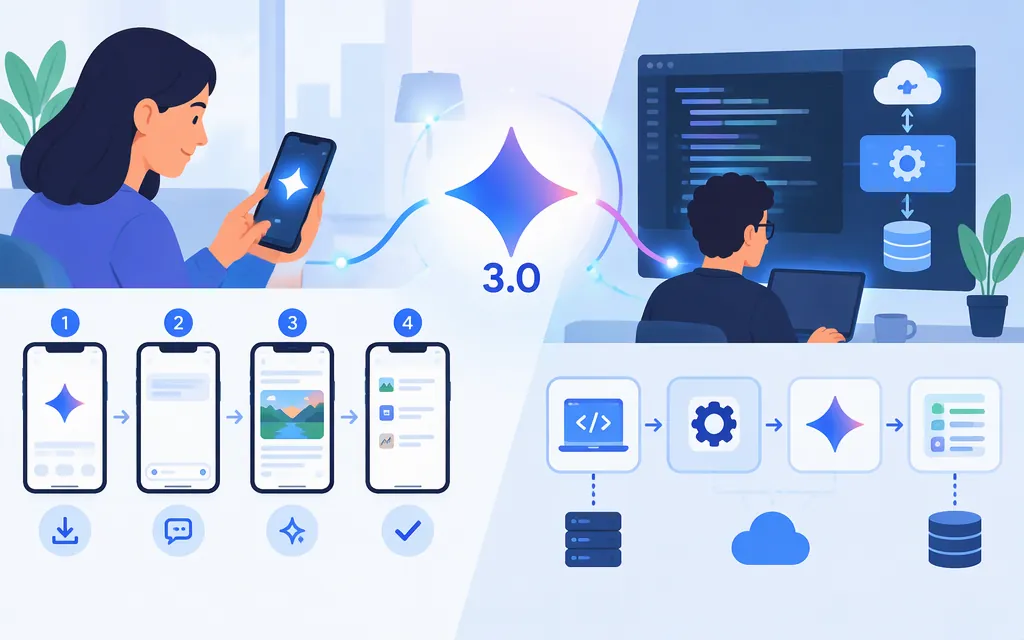
Short answer: Google’s official product naming is Gemini 3, not Gemini 3.0. The original Gemini 3 Pro Preview API model was shut down on March 9, 2026, so don’t build a new integration around its old model ID. For the app, open Gemini, enter a prompt, and use the model menu to choose an option currently available to your account. For an API integration, Google currently documents the stable model ID gemini-3.8-flash; the Python example below uses Google’s production-ready GenAI SDK. (ai.google.dev)
What “Gemini 3.0” means now
“Gemini 3.0” is a common way to phrase a search, but Google’s official announcement called the product Gemini 3 and Gemini 3 Pro. The older Gemini 3 Pro Preview model is no longer callable through the API: Google’s model page says it was shut down on March 9, 2026. Google’s current API model documentation lists gemini-3.8-flash as a stable model. Treat that as a current model choice in the Gemini family, not as the retired Gemini 3 Pro Preview under a different name. (blog.google)
Use Gemini in the app
- On a computer, go to Gemini and sign in if you want to use account-specific features or save activity. Google also documents adding an image or file from the prompt box. (
support.google.com) - Type a request in the box at the bottom and submit it. For example: Turn these meeting notes into five action items, with an owner and due date for each. Mark missing details as unknown.
- To choose a model yourself, open the model menu and pick one of the options shown for your account. Google says the app can select a model automatically; what you can choose depends on your plan and remaining usage. Current Help documentation describes choices such as Flash and Pro, as well as higher-tier options, rather than a universal Gemini 3.0 button. (
support.google.com) - Review the answer before using it. Check names, numbers, dates, and any claims that matter; ask Gemini to show its reasoning in a checkable format or to identify what it could not confirm.
A Google announcement from November 18, 2025 said to select Thinking to use Gemini 3 Pro in the app. That is a dated launch instruction, not the right description of the current model menu. (blog.google)
Call a Gemini model through the API
This example makes a text request with the stable gemini-3.8-flash model using the official Python SDK. Google describes its GenAI SDK as production-ready and recommends it for Gemini API development. (ai.google.dev)
1. Create a key and keep it on your server
Create a Gemini API key in Google AI Studio, then set it as an environment variable in the environment where your Python program will run. On macOS or Linux, for example:
export GEMINI_API_KEY=YOUR_API_KEY
Install the SDK:
pip install google-genai
Do not put the key in browser JavaScript, a mobile app, a public repository, or a prompt. Google documents API-key authentication and recommends secure key handling; its current guidance distinguishes standard keys from authorization keys and says new AI Studio keys created since May 28, 2026 are authorization keys by default. (ai.google.dev)
2. Send a request
Save this as gemini_example.py and run it in the same environment where GEMINI_API_KEY is set:
from google import genai

client = genai.Client()

response = client.models.generate_content(
    model='gemini-3.8-flash',
    contents='Summarize this text in three bullets. Flag any claim that needs verification: Our team will launch the new support portal on May 12. Jordan owns the help-center update. The budget is still under review.'
)

print(response.text)
Expected result: The program prints a text response from the model, likely including the launch date, Jordan’s task, and the unresolved budget. That is an illustrative expected result, not a tested output or a guarantee; verify the response against the input before relying on it. The model ID, SDK call, and response.text pattern follow Google’s current text-generation documentation. (ai.google.dev)
3. Keep app access and API access separate
A Gemini app subscription and Gemini API usage are different. Google says AI-plan benefits for developer usage apply within the AI Studio web interface; direct API use is managed and billed separately. The API pricing page describes free access for getting started and paid usage for production applications with higher rate limits. Check the API pricing and your project’s quota before deploying; app plan access does not itself mean your API calls are covered. (ai.google.dev)
Which route should you choose?
- Use the Gemini app to try prompts, work with files, or get help without writing integration code. Model options and usage depend on your account, plan, and available limits. (
support.google.com) - Use the Gemini API when an application or backend needs to send requests programmatically. Choose a model ID currently listed in the API docs—this tutorial uses stable
gemini-3.8-flash, not the shut-downgemini-3-pro-preview. Keep credentials server-side and manage API billing and quota separately from any app subscription. (ai.google.dev)
Whichever route you use, treat the output as a draft or aid, not proof. Check important details against a trusted source or the original file before acting on them.
Sources
Gemini 3 Pro preview | Gemini API
Text generation - generateContent API