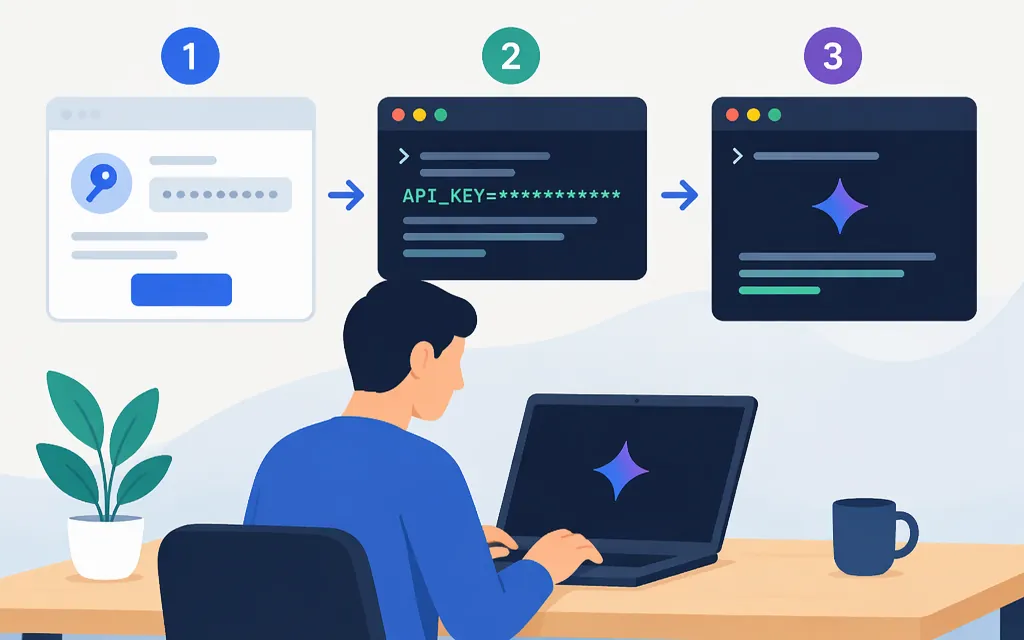
The short answer
Yes. Gemini CLI supports authentication with a Google AI Studio Gemini API key. Create or find a key in Google AI Studio, set it as the GEMINI_API_KEY environment variable, then select Use Gemini API key in the CLI. If you already have an authenticated session, use the CLI’s /auth command to change the authentication method. (Gemini CLI authentication guide; CLI commands)
This assumes Gemini CLI is installed. If it isn’t, follow the official installation guide. A CLI key configures the terminal tool; it does not by itself integrate Gemini into your application. For an app, make a direct Gemini API request from a trusted server-side environment, as shown below.
1. Create or find your API key
- Open Google AI Studio’s API keys page and sign in.
- Create a key or select one associated with the Google Cloud project you intend to use. Every Gemini API key is associated with a Google Cloud project. For a new AI Studio user, Google says it creates a default project and key after the user accepts the Terms of Service. In the AI Studio key-creation flow, use the project you intend to use. (Google’s API-key documentation)
Google’s documentation says that starting May 28, 2026, new keys created in AI Studio are authorization keys by default. It also says the Gemini API rejects unrestricted standard keys, while standard keys with explicit restrictions continue to work. Follow the current AI Studio key-creation flow rather than relying on older instructions about unrestricted keys. (Google’s API-key documentation)
2. Set the key and authenticate Gemini CLI
Set the variable in the same terminal session from which you will launch the CLI. These examples use a placeholder—replace it locally with your key, and do not share or commit a command containing the real key.
macOS or Linux:
export GEMINI_API_KEY="YOUR_GEMINI_API_KEY"
gemini
Windows PowerShell:
$env:GEMINI_API_KEY = "YOUR_GEMINI_API_KEY"
gemini
On first-run setup, select Use Gemini API key when prompted. If Gemini CLI is already authenticated with another method, enter /auth in the CLI and select Use Gemini API key. The CLI documentation identifies /auth as the command for changing the authentication method. (Authentication guide; CLI commands)
After selecting the API-key method, test it with a harmless prompt such as Reply with exactly: CLI-OK. A returned answer shows the CLI completed a model request; the test is evidence that the intended key was used only if Use Gemini API key is the selected authentication method.
The official CLI guide specifies the GEMINI_API_KEY environment variable. Don’t assume that putting GEMINI_API_KEY=... in a .env file is sufficient by itself: the CLI must receive the value as an environment variable, whether set in the shell or loaded from a file by the applicable configuration. (Gemini CLI authentication guide)
Keep the key private. Don’t put it in source control, screenshots, public logs, or browser-side application code. For a production app, inject the secret through your server’s secret-management or environment configuration. Google recommends protecting API keys against unauthorized use. (Google’s API-key documentation)
3. CLI authentication vs. direct API integration
| Goal | Use this approach | What it does |
|---|---|---|
| Ask Gemini for help in your terminal | Gemini CLI with GEMINI_API_KEY |
Authenticates the CLI session so you can prompt it from the command line. |
| Add Gemini to a website, service, or backend | Direct Gemini API call or official SDK | Your application sends a request to the API and handles the response, errors, and credentials. |
The CLI’s API-key quota is not a promise about direct API usage. Gemini CLI’s quota page lists an unpaid API-key allowance of up to 250 model requests per user per day, limited to Flash-model requests; paid API-key usage varies. For a direct application integration, check the current Gemini API pricing and API rate limits for your project and model. (Gemini CLI quota and pricing)
Google’s pricing page distinguishes free access, which is limited to certain models and may use submitted content to improve Google products, from paid access, which offers higher rate limits and says content is not used to improve products. Review the current terms and pricing for your intended use before choosing a tier. (Google AI Studio pricing)
4. Minimal direct API test
This curl example is for an application or service calling the Gemini API directly—not a command to configure Gemini CLI. It uses the generateContent endpoint and gemini-3.8-flash, which Google’s text-generation documentation uses in its example. Keep the key in the environment of a trusted backend rather than embedding it in a client app. (Google’s text-generation documentation)
curl -sS \
  "https://generativelanguage.googleapis.com/v1beta/models/gemini-3.8-flash:generateContent" \
  -H "x-goog-api-key: ${GEMINI_API_KEY}" \
  -H "Content-Type: application/json" \
  -X POST \
  -d '{"contents":[{"parts":[{"text":"Reply exactly: API-OK"}]}]}'
A successful response is JSON containing a generated candidate; the text is in candidates[0].content.parts[0].text. For the test prompt, expect the generated text to be API-OK. The response may also contain metadata. If the request returns an error, check the key, selected project, model access, and applicable limits. (Google’s text-generation documentation)
Which route should you choose?
- Choose Gemini CLI authentication when you want to use Gemini from your terminal. Follow the Use Gemini API key flow and set
GEMINI_API_KEY. - Choose direct API integration when your own software needs to send prompts and consume model responses. Use a server-side credential and review the API’s current model access, pricing, and quotas.
- Don’t treat the CLI’s free request allowance as your application’s API quota or pricing. They are separate usage contexts; check the relevant official quota and pricing pages for your project before deploying. (Gemini CLI quota and pricing)
Sources
Gemini CLI authentication setup
Gemini CLI: Quotas and pricing