The short answer
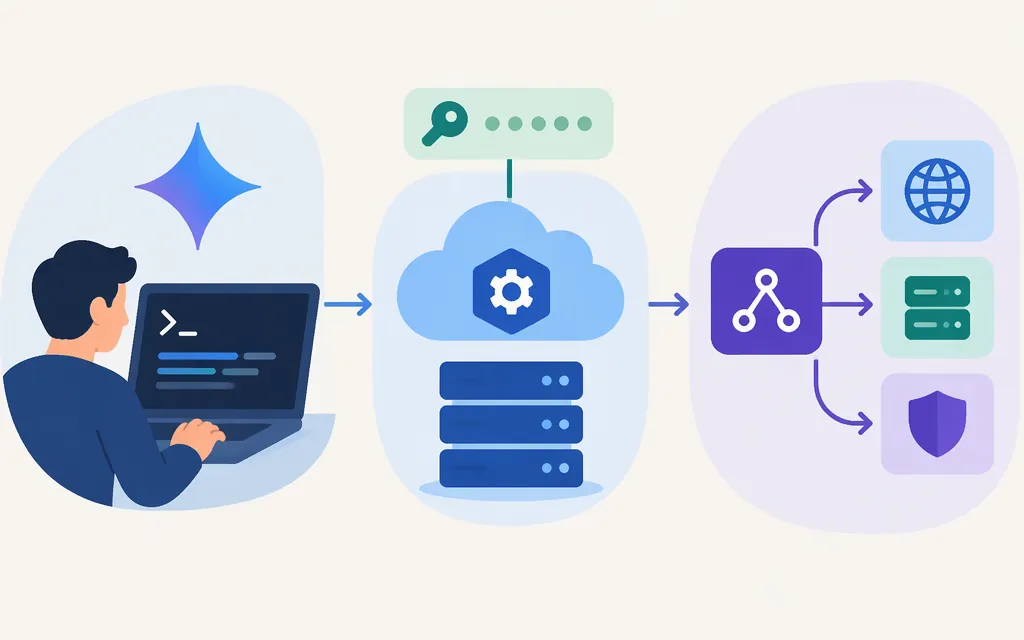
“Gemini CLI to API” can mean three different things:
- Use a Gemini API key with the official Gemini CLI. This authenticates the CLI so you can use it in a terminal; it does not turn the CLI into an API server.
- Call the Gemini API directly from an application. Use Google’s API endpoint or an official SDK when your application needs model responses.
- Put a third-party proxy in front of Gemini. The
geminicli2apiGitHub project documents OpenAI-compatible and Gemini-style endpoints, but it is a separate project—not an official Google integration.
Which should you choose? Use CLI key authentication when you want to work in the terminal. Call the official API directly when you are building an application. Consider a proxy only if you specifically need its compatibility layer and have reviewed and tested its code and deployment for your use case. Google’s current CLI guide lists API-key authentication as an option; its Gemini API documentation separately shows direct API requests. (Gemini CLI authentication guide)
Option 1: Authenticate Gemini CLI with a Gemini API key
The official Gemini CLI documentation says to obtain a key from Google AI Studio, set the GEMINI_API_KEY environment variable, and choose Use Gemini API Key when authenticating. The guide recommends Google-account sign-in for most users, but lists API-key authentication for AI Studio users and headless use. (Gemini CLI authentication guide)
macOS or Linux:
export GEMINI_API_KEY="YOUR_GEMINI_API_KEY"
gemini
Windows PowerShell:
$env:GEMINI_API_KEY = "YOUR_GEMINI_API_KEY"
gemini
These commands set the key for the current shell session. Follow the CLI’s authentication prompt and select the API-key option. Keep the key private; do not commit it to source control or expose it in browser-side code. See Google’s Gemini API key guidance.
This route is still CLI use, not an API integration for your own service. For example, gemini -p "Summarize this text" submits a prompt through the CLI; it is not an HTTP request to a Gemini API endpoint. (Gemini CLI authentication documentation)
Option 2: Call the production Gemini API directly
For an application, the direct route is the Gemini API’s generateContent endpoint. Google’s documentation shows a REST request authenticated with x-goog-api-key and a JSON contents payload. The following is a minimal pattern; set GEMINI_API_KEY securely in the environment and replace the model ID if needed for your application. (Google text-generation documentation)
curl "https://generativelanguage.googleapis.com/v1beta/models/gemini-3.8-flash:generateContent" \
  -H "x-goog-api-key: $GEMINI_API_KEY" \
  -H "Content-Type: application/json" \
  -X POST \
  -d '{"contents":[{"parts":[{"text":"Explain what an API is in one sentence."}]}]}'
Check the HTTP status and inspect the returned JSON for generated content. For application development, Google also provides SDKs, which can handle request construction without manually writing the REST call. Check the current model documentation and pricing before selecting a model or estimating operating cost. (Google text-generation documentation)
Option 3: Use the third-party geminicli2api proxy
The repository README describes geminicli2api as a FastAPI proxy with two interfaces:
- OpenAI-compatible:
POST /v1/chat/completionsandGET /v1/models - Gemini-style:
GET /v1beta/models,POST /v1beta/models/{model}:generateContent, andPOST /v1beta/models/{model}:streamGenerateContent
It also lists GET /health. These are paths documented by the project; they are not a Google-operated service or independently verified guarantees about the current code. Although the README calls it a “Gemini CLI to API” proxy, the captured documentation does not explain whether or how it invokes the official CLI executable. Treat it as a separate proxy project rather than assuming it is interchangeable with the CLI or official Gemini API. (geminicli2api README)
Proxy password and Google credentials are different
The README labels GEMINI_AUTH_PASSWORD as required for access to the proxy. Separately, it lists upstream credential and project settings such as GEMINI_CREDENTIALS, GOOGLE_APPLICATION_CREDENTIALS, GOOGLE_CLOUD_PROJECT, and GEMINI_PROJECT_ID. In other words, a client’s password for the proxy is not the same thing as the credentials the proxy uses upstream. The README does not fully explain credential acquisition or when each project setting is required. (geminicli2api README)
The project documents several client authentication forms, including a bearer password. Its native Gemini example uses that form and posts JSON to a local generateContent route:
curl "http://localhost:8888/v1beta/models/MODEL:generateContent" \
  -H "Authorization: Bearer YOUR_PROXY_PASSWORD" \
  -H "Content-Type: application/json" \
  -d '{"contents":[{"role":"user","parts":[{"text":"Explain what an API is in one sentence."}]}]}'
This is an illustrative adaptation of the repository’s documented request pattern, not a tested command. It assumes the proxy is running locally on port 8888, its configured password matches, upstream credentials are set, and MODEL is a model identifier accepted by that installation. The README does not establish a complete response schema, so inspect the returned status and JSON rather than relying on a presumed output shape. (geminicli2api README)
Is the proxy production-ready?
The README gives Docker and Docker Compose commands, but container instructions alone do not establish production readiness. The captured project documentation does not establish security for public deployment, credential-handling safeguards, service reliability, rate limiting, scaling behavior, or service-level commitments. It also claims access to Google’s free Gemini API quota without documenting eligibility or limits; do not treat that statement as an official pricing guarantee. (geminicli2api README)
For a production decision, verify the current repository and test the specific version you plan to deploy. In particular, assess how credentials are stored and rotated, restrict access to the proxy, check logging and error behavior, and plan for rate limits and operational failures. If you do not need the proxy’s OpenAI-compatible interface or another specific feature, calling the official Gemini API directly avoids adding this extra service to your request path. Google’s API and CLI quota guidance is separate from the proxy’s claims; confirm applicable limits and costs for your chosen authentication method and model. (Google text-generation documentation)
Bottom line
- Want Gemini in your terminal? Set
GEMINI_API_KEYand authenticate the official CLI with the API-key option. - Building an application? Call the official Gemini API directly or use its SDK.
- Need an OpenAI-compatible intermediary? Evaluate
geminicli2apias third-party software; its README documents proxy routes, but does not prove production readiness or that it wraps the CLI executable.
Those are three distinct integration paths—not interchangeable meanings of “Gemini CLI to API.”
Sources
Gemini CLI authentication setup
Text generation — generateContent API