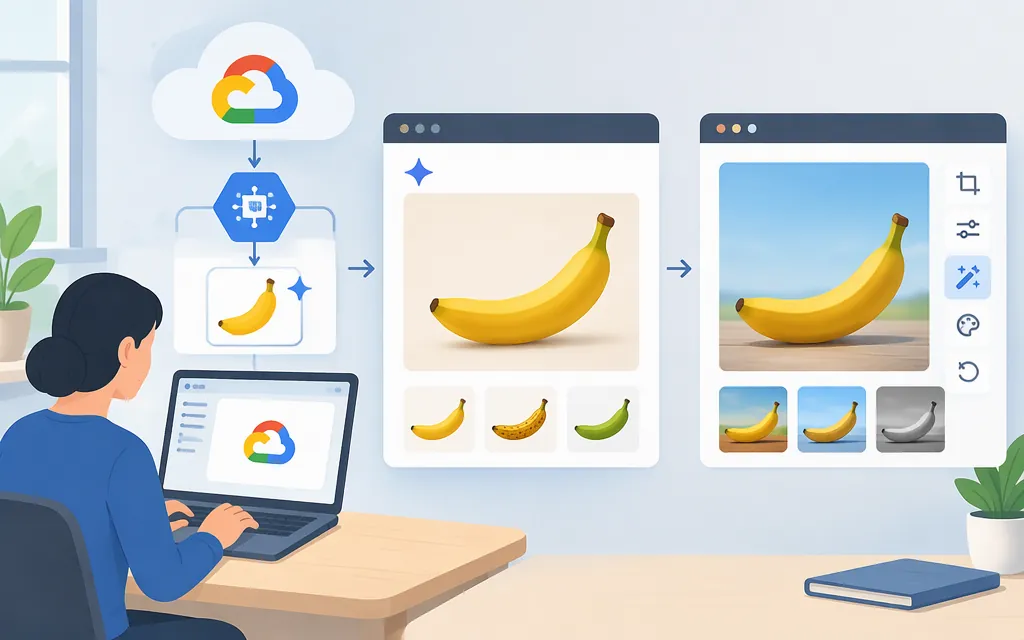
“Gemini Nano Banana API” usually means Google’s Gemini image-generation and editing capability—but the provider matters. Google’s current image-generation guide lists Nano Banana 2.1, model ID gemini-nano-banana-2.1, as its primary high-efficiency model. A third-party gateway may expose a similarly named model through its own endpoint and API key; that is not the same route as Google’s API. (aistudio.google.com)
For a new integration, start with Google’s current Nano Banana image-generation guide and its recommended Interactions API. Google still supports the older generateContent API; the compact REST examples below use that interface and identify it as the compatibility-style option—not as the API Google recommends for new projects. (aistudio.google.com)
Identify the provider before you copy an API example
The name Nano Banana is used for a family of Gemini image models, not one universal endpoint. Google’s current guide lists Nano Banana 2.1 (gemini-nano-banana-2.1), Nano Banana 2 Lite (gemini-3.1-flash-lite-image), Nano Banana 2 (gemini-3.1-flash-image), Nano Banana Pro (gemini-3-pro-image), and the original Nano Banana (gemini-2.5-flash-image). Google recommends Nano Banana 2.1 for new projects; it describes the original Nano Banana as a legacy model. (aistudio.google.com)
The technical reference captured for MixRoute, for example, uses api.mixroute.ai and a MixRoute API key. Those are MixRoute-specific credentials and routes—not Google’s endpoint or a Google API key. If you choose an aggregator, use its current docs and verify which underlying model it provides. (aistudio.google.com)
Decision: use Google’s Gemini API if you want Google’s documented route and Google API credentials. Consider a third-party gateway only if its separate routing or billing is useful to your setup—and evaluate its endpoint, key handling, model mapping, price, and service terms separately.
Prerequisites and authentication
For the examples below, you need a Google Gemini API key, Python 3, and the requests package. Create a key through Google AI Studio, then put it in an environment variable rather than hard-coding it into source code or a client-side app. Google’s API documentation recommends the Interactions API for new applications; the examples here use the still-supported Generate Content interface for a direct REST request and a familiar response shape. (aistudio.google.com)
python -m pip install requests
export GEMINI_API_KEY="YOUR_GOOGLE_GEMINI_API_KEY"
Keep the key on a server you control. Do not expose it in browser JavaScript, a public mobile app, or a committed repository.
Generate an image with Google’s Gemini API
This example sends a prompt to Google’s generateContent endpoint using the current Nano Banana 2.1 model ID. It requests a 1K square image, then decodes and saves the returned image part. Google’s model page lists 1K, 2K, and 4K output for Nano Banana 2.1, with 1K as the default; use only settings supported by the chosen model. (ai.google.dev)
import base64
import os
import requests

url = (
    "https://generativelanguage.googleapis.com/v1beta/"
    "models/gemini-nano-banana-2.1:generateContent"
)
headers = {
    "x-goog-api-key": os.environ["GEMINI_API_KEY"],
    "Content-Type": "application/json",
}
payload = {
    "contents": [{
        "parts": [{
            "text": "A clean product photograph of a red ceramic mug on a white background."
        }]
    }],
    "generationConfig": {
        "responseModalities": ["IMAGE"],
        "imageConfig": {"aspectRatio": "1:1", "imageSize": "1K"},
    },
}

response = requests.post(url, headers=headers, json=payload, timeout=180)
response.raise_for_status()
result = response.json()

saved = False
for candidate in result.get("candidates", []):
    for part in candidate.get("content", {}).get("parts", []):
        image = part.get("inlineData")
        if image and image.get("data"):
            mime_type = image.get("mimeType", "image/png")
            extension = {"image/png": "png", "image/jpeg": "jpg", "image/webp": "webp"}.get(mime_type, "bin")
            with open(f"generated.{extension}", "wb") as file:
                file.write(base64.b64decode(image["data"]))
            saved = True
            break
    if saved:
        break

if not saved:
    raise RuntimeError(f"No image returned. Inspect the API response: {result}")

print("Saved generated image.")
Expected outcome: the script writes generated.png (or the extension indicated by the returned MIME type) to the current directory. The sample illustrates a request pattern; it has not been run as a live API test here. If the response contains no image, inspect the returned candidate and safety or completion details rather than assuming the request succeeded.
Edit an existing image
For an edit, send the source image and the editing instruction together. This example uses a local PNG file and includes its raw Base64 bytes in an inlineData part. The image data should not have a data:image/...;base64, prefix.
import base64
import os
import requests

image_path = "source.png"
with open(image_path, "rb") as file:
    image_base64 = base64.b64encode(file.read()).decode("ascii")

url = (
    "https://generativelanguage.googleapis.com/v1beta/"
    "models/gemini-nano-banana-2.1:generateContent"
)
headers = {
    "x-goog-api-key": os.environ["GEMINI_API_KEY"],
    "Content-Type": "application/json",
}
payload = {
    "contents": [{
        "parts": [
            {"text": "Make the mug blue while preserving its shape, lighting, and background."},
            {"inlineData": {"mimeType": "image/png", "data": image_base64}},
        ]
    }],
    "generationConfig": {
        "responseModalities": ["IMAGE"],
        "imageConfig": {"aspectRatio": "1:1", "imageSize": "1K"},
    },
}

response = requests.post(url, headers=headers, json=payload, timeout=180)
response.raise_for_status()
result = response.json()

saved = False
for candidate in result.get("candidates", []):
    for part in candidate.get("content", {}).get("parts", []):
        image = part.get("inlineData")
        if image and image.get("data"):
            mime_type = image.get("mimeType", "image/png")
            extension = {"image/png": "png", "image/jpeg": "jpg", "image/webp": "webp"}.get(mime_type, "bin")
            with open(f"edited.{extension}", "wb") as file:
                file.write(base64.b64decode(image["data"]))
            saved = True
            break
    if saved:
        break

if not saved:
    raise RuntimeError(f"No edited image returned. Inspect the API response: {result}")

print("Saved edited image.")
Google’s official cookbook demonstrates image generation and editing with the Google Gen AI SDK and Interactions API. For a new project, use that current guide as the starting point; check its current request and output examples when moving this workflow to the recommended interface. (github.com)
Settings and production checks
- Model and output size: Nano Banana 2.1’s documented ID is
gemini-nano-banana-2.1; its listed output tiers are 1K, 2K, and 4K. Other Nano Banana models have different names and limits, so don’t copy settings across models without checking the selected model’s reference. (ai.google.dev) - Limits: Gemini API rate limits vary by model and project. Google says they can include requests per minute, tokens per minute, requests per day, and image-specific limits; check the active limits for your project in AI Studio rather than assuming a universal quota. (
ai.google.dev) - Errors: check HTTP errors before parsing a response. For a missing image, inspect the response details and the model’s completion or safety information. Google’s image-generation guide covers output handling and limitations. (
ai.google.dev) - Cost: don’t rely on old third-party “per image” figures as Google’s current price. Check Google’s current Gemini API pricing for the selected model and confirm the applicable billing conditions before budgeting. Google’s model documentation also notes that other modalities, such as text or video, may incur additional charges. (
aistudio.google.com) - Data handling: Google says the API’s free and paid tiers have different data-use terms; review the current terms for your tier and deployment before sending sensitive images or prompts. (
aistudio.google.com)
Bottom line
If you mean Google’s Nano Banana API, use Google’s Gemini API documentation and the model ID that matches your chosen image model. For new work, Google currently recommends Nano Banana 2.1 (gemini-nano-banana-2.1) and its Interactions API. Treat third-party endpoints, credentials, model mappings, prices, and performance claims as provider-specific—not as Google’s official API details. (aistudio.google.com)
Sources
Nano Banana image generation — Gemini API | Google AI Studio
Gemini Interactions API — Google AI Studio
Migrating to the Interactions API — Gemini API
Gemini Nano Banana 2.1 — Gemini API
Gemini 2.5 Flash Image (Nano Banana) — Gemini API
Gemini Developer API pricing — Google AI Studio
Gemini Nano Banana 2.1 — Gemini Enterprise Agent Platform