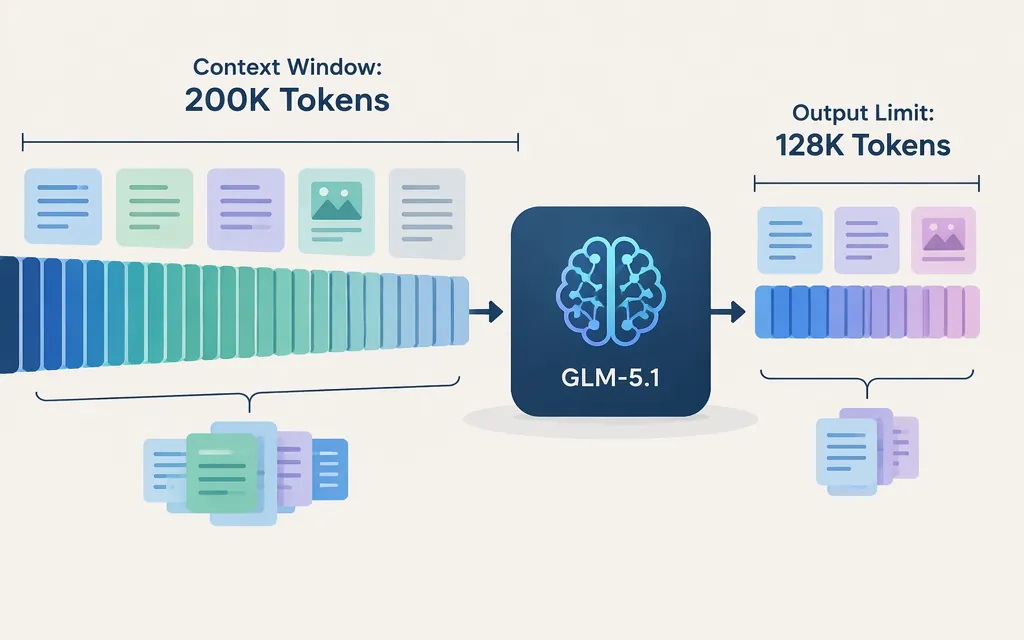
GLM-5.1 context window: the direct answer
Z.AI lists GLM-5.1 with a 200K-token context length and a maximum output of 128K tokens. These are separate listed limits; the figures alone do not establish whether you can use 200K input tokens and 128K output tokens in one request. (Z.AI’s GLM-5.1 model page)
Context window vs. maximum output
Z.AI lists a 200K context length and a separate 128K maximum output. The listed figures do not establish the combined request budget or how the applicable API route accounts for conversation history, tool definitions, and other request components. Those accounting rules remain unconfirmed here. Don’t add the two maxima together or assume that 200K tokens are available for input alone. (Z.AI’s GLM-5.1 model page)
Does the limit apply to your production API?
Check the documentation for the specific provider, API route, and model identifier your application will call. Z.AI’s model page lists the GLM-5.1 limits. Its Coding Plan quick start lists the OpenAI Chat Completions endpoint https://api.z.ai/api/coding/paas/v4. It also says API keys for Individual Plans, Team Plans, and the standard model API are managed separately, and that newly created keys for those three product types are not interchangeable. The cited statement does not establish whether older keys are interchangeable.
For production planning, confirm the model name accepted by your route and its token-budget rules. The listed specifications do not establish that every intermediary deployment uses identical limits or accounting.
Quick context-fit check
- Identify the provider, API route, and model ID used in production.
- Use that provider’s documented token-counting method to estimate the full request, not just the latest user message.
- Compare the request and planned response with the limits documented for that route. The figures above alone do not specify how input and output share a request budget.
- Test a representative long request in the target deployment and check how it handles requests near the documented limit.