Short answer
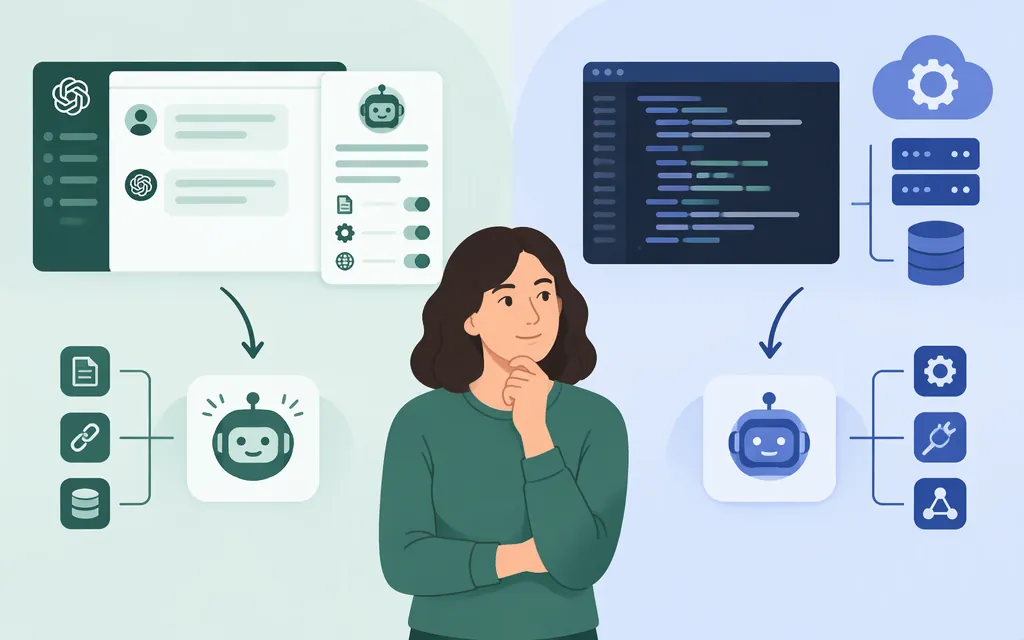
Choose based on where the assistant needs to run: a custom GPT is built for use inside ChatGPT; an API-powered assistant is built into your own application or service. OpenAI describes these as separate paths. Its documentation does not establish that a GPT created in ChatGPT can be called directly as an API resource, so plan on building a separate API integration if your assistant must run in your product. Do not assume a GPT’s instructions, files, or tools transfer automatically.
Check availability before planning a ChatGPT GPT. OpenAI’s current guidance says personal ChatGPT accounts—including Free, Go, Plus, and Pro—cannot create or publish new GPTs. The available guidance also lists December 11, 2026 as the standard retirement date for custom GPTs, and February 11, 2027 for FedRAMP workspaces and affected Enterprise workspaces with an approved deferral. Check your account or workspace’s current notice for creation eligibility and for whether a specific existing GPT remains usable or editable. The exact Enterprise creation cutoff and any exceptions are not established here.
Choose the right build path
| Your goal | Path to consider | What to know |
|---|---|---|
| Use a tailored assistant inside ChatGPT | Create or edit a GPT, if your account or workspace currently permits it | Availability, editing, and sharing depend on the applicable account and workspace conditions. Existing GPTs are also subject to the published retirement notice. |
| Put an assistant in your website, app, or service | Build with the OpenAI API | Your application makes API requests and handles its own instructions, data, interface, and integrations. OpenAI describes API assistants as developer-built experiences outside ChatGPT. |
OpenAI documents GPTs as experiences built and used inside ChatGPT, and API assistants as integrations for an external website or service. Its documentation does not establish that a ChatGPT GPT can be invoked directly through an API. For an external product, use the API build path rather than assuming the GPT itself is an API endpoint.
Build a GPT in ChatGPT, if creation is available
OpenAI’s guidance places GPT creation on the web. Before starting, check the current notice, settings, and permissions for your account or managed workspace. Personal accounts cannot create or publish new GPTs under the availability guidance cited here.
If you’re eligible to create a GPT:
- Open the GPTs area on the web. In ChatGPT, select Explore GPTs in the sidebar, or go to the GPTs page.
- Select Create. Use the builder to describe the assistant or configure it in the editor.
- Set its purpose and behavior. Write instructions that explain its task, tone, boundaries, and how it should respond when it lacks enough information. Add reference knowledge or capabilities only if the current editor offers them and your task needs them.
- Test the draft. Try ordinary requests, ambiguous requests, and questions the reference material does not answer. Check that the GPT follows its instructions and does not invent missing facts. The available documentation excerpts do not establish the current name or location of a testing control, so use the test or preview option shown in your editor, if available.
- Create or update. OpenAI’s guidance says to select Create when creating a GPT in an eligible managed workspace and Update when applying changes to an existing GPT.
- Share only if the option is available. Open the GPT in the editor and select Share if that option appears. Follow the current dialog to finish. Sharing eligibility and the final confirmation controls can depend on workspace settings; check the controls shown in your account.
For example, a project-onboarding GPT could answer from an onboarding guide. Try a question answered directly in the guide, one that requires combining two sections, and one the guide does not answer. These are suggested test prompts, not reported test results.
Already rely on an existing GPT? The published notice lists the applicable retirement dates, but the available excerpts do not establish whether every GPT remains usable or editable until its retirement date, or what happens to each GPT during migration. Check the notice and permissions for the workspace where it was created before relying on continued access. The February 11, 2027 date applies to FedRAMP workspaces and affected Enterprise workspaces with an approved deferral; the standard date listed is December 11, 2026.
Build an API-powered assistant for your application
A practical starting path is to define the task, select a currently available model whose documented capabilities fit it, make a minimal request, and evaluate the response against your requirements. OpenAI’s API quickstart demonstrates the Responses API with the JavaScript SDK and gpt-6-astra. Its model documentation lists GPT-6 Astra for complex reasoning and coding, GPT-6.1 Sol as a balance of capability and cost, and GPT-6 Luna for cost-sensitive, high-volume workloads. These are documented options, not universal recommendations: compare candidates against your use case and acceptance criteria.
1. Write down your requirements
Before selecting a model, specify:
- The user’s task and the response format your application needs.
- What information the assistant may use, and whether it needs tools or access to documents.
- What counts as an acceptable answer, including when it should ask a question or decline to guess.
- Practical constraints, such as response time and expected request volume.
For instance, a support assistant might need to answer from approved help documents, avoid unsupported policy claims, and route uncertain cases to a person. These are requirements to test—not claims that a particular model will meet them automatically.
2. Make a first API request
You’ll need an API key, Node.js or another supported server-side JavaScript runtime, and the official OpenAI SDK. The following follows the documented JavaScript quickstart. Install the SDK, set OPENAI_API_KEY in your terminal, save the code as example.mjs, and run it with Node.js. Keep the key out of browser or mobile client code.
npm install openai
export OPENAI_API_KEY="your_api_key_here"
import OpenAI from "openai";

const client = new OpenAI();
const response = await client.responses.create({
  model: "gpt-6-astra",
  input: "Reply with one sentence explaining what a return policy is."
});

console.log(response.output_text);
Run it with:
node example.mjs
This is a text-generation starting point; by itself, it does not add your company’s documents, user interface, business rules, or production safeguards. Before replacing the model ID, check current model documentation and availability for your API account.
3. Add context or tools only when needed
A basic request may be enough to prototype. If the assistant must answer from documents or interact with another service, review the API’s documented file and tool options and implement the needed integration in your application. Test those pieces separately: a good text response does not show that retrieval, permissions, or an external action works correctly.
Test accuracy before using it with real users
Build a small test set from representative tasks. Include:
- Known-answer cases: questions whose answers can be checked against an approved source.
- Missing-information cases: prompts where the right response is to ask for details or say the source does not answer.
- Ambiguous or conflicting cases: unclear requests, inconsistent source material, and unusual inputs.
- Tool and permission cases: if your application uses tools, check that the right action occurs only for the right request and user.
Set pass/fail criteria before comparing candidate models or configurations. For a support assistant, a pass might require matching the approved help document, avoiding unsupported policy, and routing unanswerable cases to a person. Run the same prompts against candidates, inspect failures, and revise the instructions, context, or integration. This is a practical evaluation method—not a claim that testing guarantees factual accuracy.
Which should you build?
- Consider a ChatGPT GPT if the assistant is meant to be used inside ChatGPT and your account or workspace permits the required creation or editing. Check the applicable retirement notice before relying on an existing GPT.
- Build with the API if the assistant must run inside your own application or service. Start with a documented Responses API request, choose a currently available model based on your requirements, then add and test the context, tools, and application controls you need.
If an existing GPT is important to your workflow, check its workspace’s current creation, access, editing, and retirement notices. Do not assume its files, actions, or behavior will transfer unchanged.
Sources
Creating and editing GPTs — OpenAI Help Center
GPTs in ChatGPT — OpenAI Help Center
Sharing and publishing GPTs — OpenAI Help Center
Custom GPT retirement and migration FAQ — OpenAI Help Center