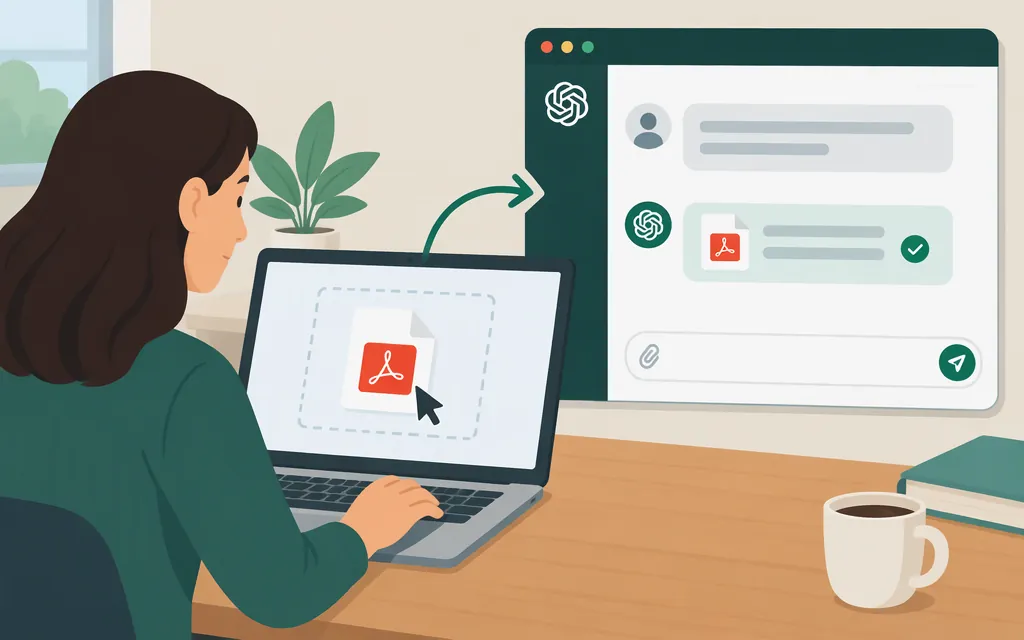
You can attach a PDF to a ChatGPT conversation and ask ChatGPT to work with it. Document uploads are available on Free and paid ChatGPT plans, subject to plan-specific limits and account settings. (help.openai.com)
Upload a PDF in ChatGPT on the web
A common web workflow is:
- Open a ChatGPT conversation.
- Select the attachment or add-file control beside the message box.
- Choose the option to upload a file from your device, then select your PDF.
- Wait for the upload to finish. If your interface shows the file attached in the composer, check that it is there before sending.
- Type a specific request and send it with the file.
OpenAI confirms that you can attach supported files, including PDFs, to a conversation. Its help page does not specify the exact web control label or a particular upload-completion indicator, so controls and signals may differ by interface. (help.openai.com)
For example: “Summarize this report in five bullet points, under 150 words. List important figures separately.”
You can also add PDFs to a Project if you want to keep files, chats, and instructions together for ongoing work. Project file limits depend on plan. (OpenAI Help Center: Projects)
What to ask about your PDF
A focused request helps specify what you want ChatGPT to find or produce. Try:
“Using the attached PDF, summarize the findings in Section 3. Include the page number for each key claim, and say if you can’t find the information.”
Check important figures, quotations, and conclusions against the PDF itself. Treat page references as a guide for your review, not a substitute for checking the source.
If uploading or reading the PDF doesn’t work
- No upload control or an unavailable option? Check that you’re signed in and that file uploads are available for your account and workspace. Upload availability is subject to plan limits and account settings. (OpenAI Help Center: Uploading files)
- The file won’t attach? Check the current file-upload guidance for the accepted formats and limits that apply to your workflow. Limits can vary by upload type, model, plan, workspace settings, and remaining upload allowance. (OpenAI Help Center: Data analysis)
- The answer seems incomplete or a number looks wrong? Ask about a specific page, section, or table, then compare the response with that part of the PDF. Inspect dense tables, small print, and scanned pages yourself rather than assuming their contents were fully read.
For sensitive documents, consider where the file is saved. OpenAI says deleting a chat does not delete a separately saved file; remove that copy from Library or Space if you want it deleted too. (OpenAI Help Center: Chat and file retention)
Using a PDF in a production API application
Uploading a PDF in ChatGPT is a user-interface task. An application uses the API instead, with separate authentication, file handling, limits, and usage. OpenAI’s file-input guide describes PDF inputs for the Responses API, including uploaded file IDs. On vision-capable models, PDF processing can send both extracted text and page images to the model. (OpenAI API: File inputs)
For a production integration, follow the current API guide for the exact request format, supported models, and constraints. The guide is the reference for implementing the file upload or file reference and including it with your prompt; ChatGPT interface steps do not apply to API requests.
Which should you use? For a one-off question about a PDF, attach it in ChatGPT. For an application that needs to accept PDFs programmatically, use the API and validate results with representative documents.
Sources
Uploading files and audio to ChatGPT