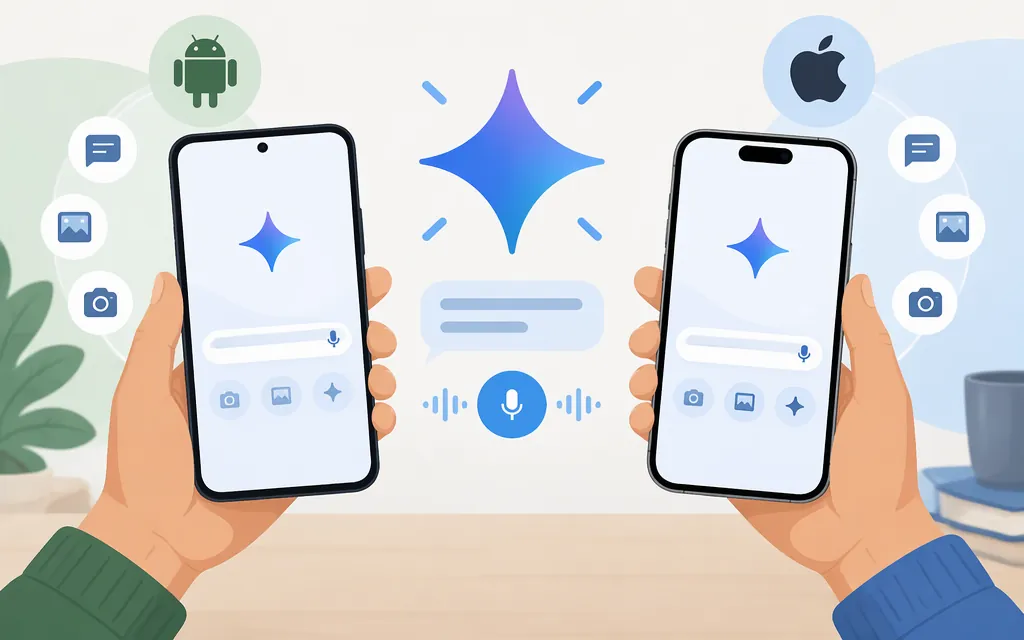
Gemini works through a mobile app on Android and iPhone. On Android, you can also choose Gemini as your phone’s digital assistant. To start a basic chat, open the app, enter a request, and submit it. This guide covers using the consumer app; developers looking to build apps or services can explore Google’s separate Gemini API quickstart.
Get started on Android
- Install or open the Gemini app from Google Play.
- Follow the app’s sign-in prompts. Work or school access depends on whether your account or Workspace license includes Gemini Apps; check Google’s mobile app availability and account requirements or its work and school account guidance.
- Enter a prompt and tap Submit. You can also speak or add content when those options are available.
- If you want Gemini to be your phone’s assistant: Google says to set the Google app as the device’s default assist app before choosing Gemini as the mobile assistant. The setting’s location and label can vary by phone; follow Google’s Android setup instructions.
You can use the Gemini app without making it your default assistant. For hands-free activation, set up Hey Google and Voice Match if those options are available for your device, language, and account. See Google’s Android setup instructions.
Get started on iPhone
- In the App Store, search for Google Gemini and install the app published by Google. You can also use Google’s iPhone and iPad setup instructions.
- Open the app. Google says some features are available without signing in; additional access depends on account eligibility. Work or school users should check Google’s mobile app availability requirements.
- Choose the keyboard to type a prompt or the microphone to speak, then follow the on-screen controls. The available options can vary by feature.
Gemini on iPhone is not the same as replacing Android’s default phone assistant. Google’s U.S. App Store listing notes that Gemini does not currently support some iOS device actions, such as setting alarms or sending SMS directly.
Make your first request
Say what you need and, when useful, specify the format or level of detail. For example:
- Get an explanation: “Explain compound interest in plain English, then give me a simple example.”
- Ask about an image: Add a photo and ask, “What are the main objects in this picture?” Check the answer against the image if accuracy matters. Google describes image input as one way to interact with the mobile app.
- Try a practical request: “Help me make a five-minute dinner plan from rice, eggs, and spinach.” Treat the answer as a suggestion—not a guarantee that Gemini can operate another app or complete the task for you.
Continue the conversation with a follow-up such as “Make it shorter” or “Show that as three steps.” On Android, you may also be able to ask about content on your screen when the screen-context option is available. This is separate from Gemini in Chrome.
Use voice, camera, or screen features
Android voice activation: Depending on your phone and settings, activate Gemini by touch—such as long-pressing the power button—or say “Hey Google.” Availability can vary by device, language, and account.
Gemini Live on Android: Open Gemini, start Live, then use the camera or screen-sharing control shown on your device and follow the prompts. Google’s Android article on Live camera and screen sharing describes controls to pause or stop sharing. Avoid showing private messages, account details, or other sensitive content. That article gives an Android 10-and-2-GB threshold, but don’t treat it as a guarantee of current access; check Google’s current Gemini Live help if the controls are missing.
Gemini in Chrome on Android is a separate feature. Open Chrome and tap Ask Gemini if it is available. On first use, follow the on-screen opt-in. The current page is shared by default in this Chrome feature; use Stop sharing if you don’t want to share it. Gemini in Chrome has its own availability and device requirements. See Google’s Chrome-specific requirements and troubleshooting; don’t apply those requirements to the Gemini app.
If Gemini or a feature isn’t available
The Gemini mobile app’s availability depends on factors including device, language, country or territory, age, and account access. Google’s mobile app availability page lists Android device requirements and says work or school users need an account plan or license that includes access to Gemini Apps. Check that page for current requirements that apply to your phone and account.
Gemini also has usage limits. Google says the number of prompts available can vary with factors such as prompt complexity, uploaded files, and conversation length; its cited product guidance does not give a fixed quota or reset time.
Do you need a Gemini API to use the phone app?
You can use the Gemini mobile app by opening it and starting a chat; this guide does not require API setup. The Gemini API quickstart is a separate developer resource for building with Gemini.
Sources
Gemini mobile app availability
Use Gemini Apps with a work or school Google Account
Get started with the Gemini mobile app - Android phone & tablet
Get started with the Gemini mobile app - iPhone and iPad
Gemini mobile app availability - iPhone and iPad
Try Gemini, your personal AI assistant
Gemini Live: Use Camera & Screen Sharing on Android
Talk naturally with Gemini Live - Android phone & tablet