How does Google Gemini work?
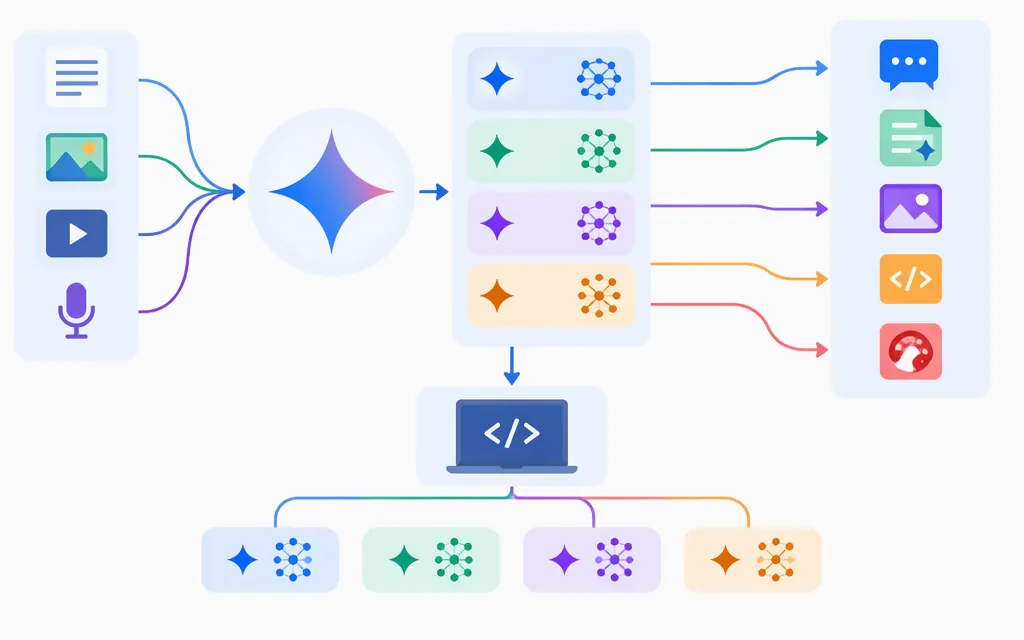
Google Gemini is a family of generative AI models. At a practical level, you provide an input to a particular model and receive generated output. The input might include text, an image, video, audio, or a PDF—but supported inputs and outputs vary by model. For example, Google lists text output and text, image, video, audio, and PDF inputs for the stable Gemini 4 Argon model (gemini-4-argon). That describes the documented API behavior, not the model’s full internal architecture. (Gemini 4 Argon model page)
Google distinguishes between built-in tools managed by Google and custom function calling managed by the developer. The details of how a tool is invoked and handled depend on the selected tool, model, and API; check the relevant documentation rather than assuming a particular execution sequence. Tool access does not guarantee that the final answer is correct. (Google’s tool documentation)
Gemini models, apps, and APIs are different layers
- Gemini models generate responses. Their supported inputs, outputs, tools, and limits vary by model.
- Gemini Apps are Google’s user-facing assistant experiences. A feature available in an app is not automatically available through a developer API. (Gemini Apps Help)
- The Gemini API lets developers use models in their own applications. Google AI Studio lets you experiment with models and prompts, then get code to use the API. (Google AI Studio quickstart)
For a production integration, check the documentation for the specific model, API, and tools you intend to use—not just the consumer app. Google recommends the Interactions API for new development and, as of June 2026, describes it as generally available. The older generateContent API remains supported. Confirm that the interface you choose supports every capability your application requires. (Interactions API overview; migration guide)
To access the Gemini API, authenticate requests with an API key. Google AI Studio is where developers can create or manage keys; Google’s current guidance says new keys created there are authorization keys by default. (Gemini API key documentation)
Choose a model for the task, then verify it
Do not select a model by name alone or assume the largest model will be best for your workload. Start with these checks:
- Inputs and outputs: Confirm that the exact model accepts the input types you need and returns the output type your application requires. For instance, Argon’s listed inputs include PDFs, but its listed output is text; the model page says audio and image generation are not supported. Argon is marked Stable on the model page. Treat it as an example candidate to evaluate, not a recommendation for every task. (Gemini 4 Argon model page)
- Tools and
data:If the task needs current web information, internal documents, or an action in your system, confirm that the selected model and API support the relevant tool. Test the tool behavior separately from the model’s response. (Gemini API tools documentation) - Limits and lifecycle: Check the current model page for limits, availability, and lifecycle status before building around a model.
- Your workload: Compare candidate models using the same representative inputs and acceptance criteria. Documentation describes supported features; it cannot tell you which model will meet your quality or latency targets.
- Cost: Before estimating spend, check current pricing for the specific model and API channel. Verify whether the listed rates apply to your usage tier and input modality, whether prompt-size conditions affect them, and whether tools have separate charges. Keep API billing separate from consumer-plan pricing. (Gemini API pricing)
For example, if you are extracting fields from invoices, test representative invoices—including low-quality scans, unusual layouts, and missing fields. Compare extracted values with trusted labels, record errors, and measure response time and cost. If your test uses PDFs, first verify that your chosen model supports PDF input. Input support alone does not establish that the model will meet your accuracy requirements.
Test accuracy and production fit
Treat model output as something to evaluate, not as ground truth. Google cautions that Gemini Apps can make mistakes and advises users to double-check responses. (Gemini Apps Help) For a production decision, turn that caution into a repeatable evaluation:
- Set acceptance criteria. Define what counts as correct and useful, and which errors are unacceptable.
- Build a representative test set. Include routine inputs, edge cases, ambiguous requests, and likely failure cases. For factual tasks, use trusted expected answers or sources.
- Evaluate tools separately. If your system uses Search, file retrieval, or custom functions, check whether the right tool was selected and whether its results were used correctly. Tool support does not guarantee a correct final answer. (Google’s tool documentation)
- Measure operational fit. Record quality alongside latency, failure rate, and cost for the expected workload. Set pass/fail thresholds before testing.
- Recheck after changes. Repeat the evaluation when you change the model, API, prompt, tools, or relevant limits.
In short: Gemini generates a response through a specific model and product or API path. Verify that path’s current capabilities, then test it against your own accuracy, operational, and cost requirements.
Sources
Gemini 4 Argon | Gemini API | Google AI for Developers
Using tools with Gemini API | Google AI for Developers
Use Gemini Apps - Computer | Gemini Apps Help
Google AI Studio quickstart | Gemini API | Google AI for Developers
Interactions API | Gemini API | Google AI Studio
Migrating to the Interactions API | Gemini API | Google AI for Developers
Using Gemini API keys | Gemini API | Google AI Studio
What's new in Gemini 4 Argon | Gemini API | Google AI for Developers