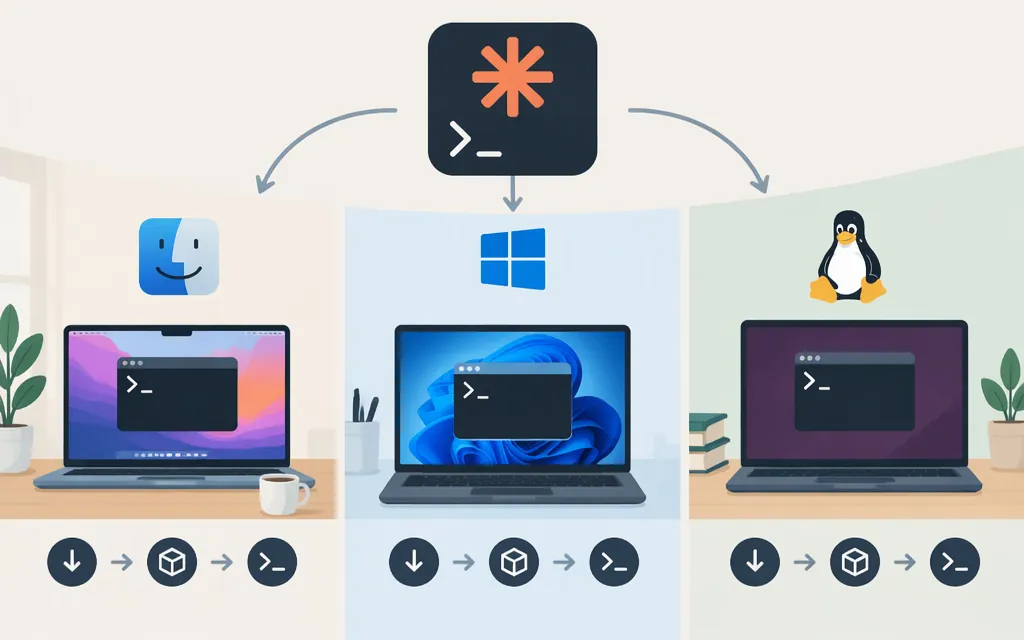
For the terminal version of Claude Code, Anthropic recommends its native installer. Choose the command for your operating system and shell below. You don’t need to install Node.js first when using the native installer. After installation, open a new terminal and run claude --version. (Claude Code quickstart)
Before you install
Anthropic lists support for macOS 13 or later; Windows 10 version 1809 or later and Windows Server 2019 or later; Ubuntu 20.04 or later; Debian 10 or later; and Alpine Linux 3.19 or later. The stated minimum is 4 GB of RAM and an x64 or ARM64 processor. (Claude Code setup)
The commands below are Anthropic’s native-install commands. For Alpine Linux, check the official setup instructions for any distribution-specific dependencies before running the general Linux command; this guide does not specify Alpine’s package prerequisites. On native Windows, Git for Windows is recommended so Claude Code can use its Bash tool. Without it, Claude Code uses PowerShell for that tool. (Claude Code quickstart)
Install Claude Code
macOS, Linux, or WSL
Open a terminal with a bash-compatible shell and run:
curl -fsSL https://claude.ai/install.sh | bash
Windows PowerShell
Run this in PowerShell:
irm https://claude.ai/install.ps1 | iex
Windows Command Prompt (CMD)
Run this in Command Prompt, not PowerShell:
curl -fsSL https://claude.ai/install.cmd -o install.cmd && install.cmd && del install.cmd
The CMD command uses &&. If PowerShell reports that && isn’t a valid statement separator, switch to Command Prompt or run the PowerShell command instead. (Claude Code quickstart)
The installer may not show progress while it downloads. When it finishes, open a new terminal window and check the installation:
claude --version
A version number means the claude command is available. Anthropic also documents Homebrew, WinGet, and npm installation options. The npm option requires Node.js; Anthropic’s quickstart specifies Node.js 18 or later for that route. (Claude Code setup)
Sign in and launch Claude Code
Anthropic lists these sign-in routes for Claude Code:
- Individual account: Claude Pro, Max, or Ultra.
- Team or Enterprise: use the Claude account associated with your organization’s access.
- Claude Console: select Console sign-in if it is available for your account. Console access and billing requirements can depend on your account or organization; check your Console settings or ask your administrator if access is unclear.
- Supported cloud provider: organizations can configure a supported provider, such as Amazon Bedrock, Google Cloud’s Agent Platform, or Microsoft Foundry.
A Free-only account is not among the account types listed for Claude Code terminal sign-in in Anthropic’s authentication instructions. Those instructions do not establish that every individual Console user needs an administrator invitation, so don’t treat an invitation as a universal Console requirement.
Run Claude Code:
claude
On first launch, it normally opens a browser so you can sign in. If the browser flow doesn’t complete, follow the login instructions shown in the terminal. When sign-in succeeds, the terminal shows Login successful and prompts you to continue. (Claude Code authentication)
To start in a project, change into its directory first:
cd /path/to/your/project
claude
Claude Code can read and change project files and run commands. Work in a project you’re authorized to access, and review proposed changes and commands before approving them.
If something goes wrong
claudeisn’t found: Open a new terminal window first. If it’s still not recognized, follow Anthropic’s PATH troubleshooting instructions. A command-not-found issue can occur when the current shell hasn’t picked up the updated PATH yet. (Claude Code setup)- Windows rejects
&&: You’re likely in PowerShell. Use the PowerShell installer command or run the CMD command in Command Prompt. (Claude Code quickstart) - Browser sign-in doesn’t complete: Follow the login or recovery instructions displayed in the terminal. (Claude Code authentication)
Does installing Claude Code configure a production model API?
No. Installing Claude Code installs the coding tool; it does not provision a production API account or configure a particular provider for you.
Claude Code can be configured separately to use an organizational gateway. Anthropic says a gateway must expose a supported API format, and states that it does not support routing Claude Code to non-Claude models through a gateway. (Other LLM gateways)
Token Forge Cloud’s public homepage lists production APIs for Qwen, DeepSeek, GLM, Kimi, MiniMax, and Seedance. That page does not establish that Token Forge Cloud offers a Claude Code-compatible gateway, so this tutorial can’t responsibly provide a Token Forge endpoint, model name, or configuration command. Confirm compatibility and setup details with the provider before using it in a production workflow. (Token Forge Cloud)
If your goal is to build an application that calls Anthropic’s Claude API, that is a separate integration from installing Claude Code.
Sources
Advanced setup — Claude Code Docs
Authentication — Claude Code Docs