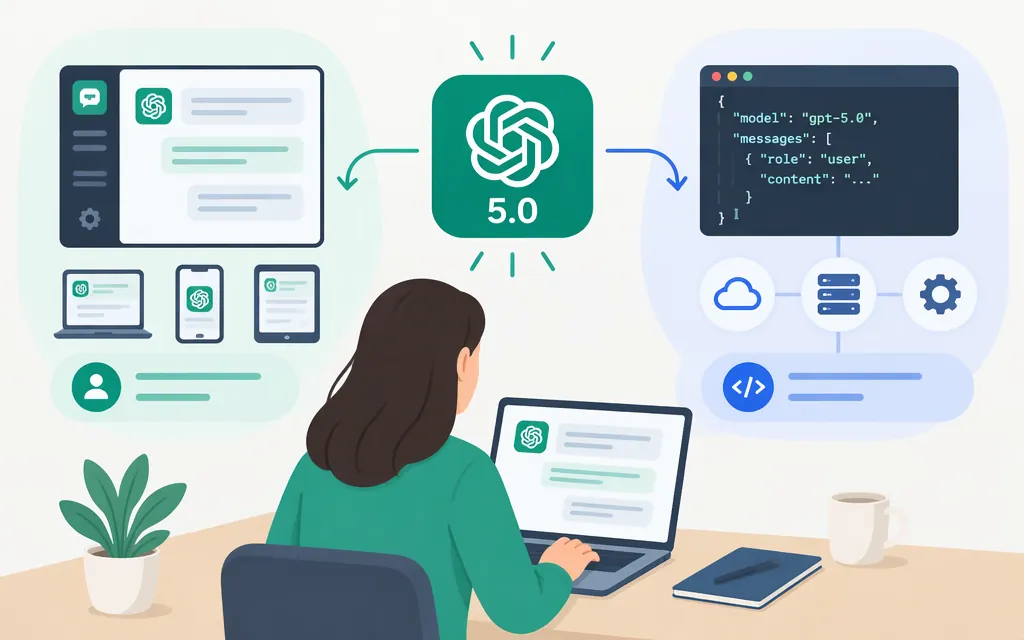
Short answer (November 12, 2026): You can’t select GPT-5 Instant or Thinking in ChatGPT; OpenAI says it retired those models from ChatGPT on February 13, 2026. If you want a chat interface, sign in to ChatGPT and choose a model available in your account. If you want GPT-5 for an application, check your API project: OpenAI’s deprecation documentation describes a December 11, 2026 shutdown for older GPT-5 snapshots, but that notice alone does not establish the lifecycle or availability of the gpt-5 alias in your project. (developers.openai.com)
“ChatGPT 5.0” is often used as a search phrase; the retirement notice calls the ChatGPT models GPT-5 Instant and Thinking. ChatGPT and API access are separate routes. (developers.openai.com)
If you want to use ChatGPT
- Sign in to ChatGPT.
- Open the model menu and choose an option shown for your account.
- If you don’t see an expected option, check that you’re using the right account or workspace. Available models can depend on your plan and workspace settings. (
developers.openai.com)
GPT-5 Instant and Thinking are retired in ChatGPT, so looking for them in the model menu won’t restore access. OpenAI’s ChatGPT documentation describes newer model options; check what is available to your account. If an older guide says GPT-5 was the default or tells you to choose “GPT-5 Thinking,” those are historical launch instructions, not current steps. (developers.openai.com)
If you mean the OpenAI API
API availability has a separate lifecycle. OpenAI’s deprecation guidance says to check the model list’s optional shutdown_date field for a particular model. The supplied notice about older GPT-5 snapshots does not, by itself, tell you whether the gpt-5 alias is available to your project or whether it shares those snapshots’ shutdown date. A null shutdown date means no shutdown date has been announced for that listed model; it is not a promise of indefinite access. (developers.openai.com)
1. Set up API access
- Sign in to the OpenAI API Platform and use a project where you have permission to make API requests.
- Create a project API key and store it securely. For a deployed application, use a project service account and its key rather than sharing a developer’s personal key. (
developers.openai.com) - Set up API billing if needed for paid usage. API billing and charges are separate from a ChatGPT subscription; API organization owners can manage billing for their organization. (
help.openai.com) - Set the key in your terminal as
OPENAI_API_KEY. OpenAI’s SDKs read the key from the environment. (developers.openai.com)
For macOS or Linux:
export OPENAI_API_KEY="your_api_key_here"
2. Check your project’s model list
Run this in a terminal with curl and jq installed:
curl -sS https://api.openai.com/v1/models \
  -H "Authorization: Bearer $OPENAI_API_KEY" \
  | jq '.data[] | select(.id == "gpt-5") | {id, shutdown_date}'
OpenAI documents GET /v1/models as the model-list endpoint and says to inspect each model’s optional shutdown_date. If this command prints no result for gpt-5, the model is not in the list returned to that project. If it prints an entry, check its shutdown_date and confirm the model works with a request before relying on it. The public notice retrieved for this guide does not settle whether the alias shares the older snapshots’ December 11, 2026 shutdown. (developers.openai.com)
3. Make a first request
Install the official Python SDK:
pip install openai
Save this as example.py and run python example.py. The example uses gpt-6-astra, the model identifier in OpenAI’s quickstart; it is a current-model example, not GPT-5. If your model-list check confirms gpt-5 is available to your project, you can substitute gpt-5 as the model value to test it. (developers.openai.com)
from openai import OpenAI

client = OpenAI()
response = client.responses.create(
    model="gpt-6-astra",
    input="Write a one-sentence bedtime story about a unicorn.",
)
print(response.output_text)
OpenAI recommends setting up API access and making a first request through its developer quickstart. A successful request confirms that the chosen model works for that project at that time; check its lifecycle before depending on it in production. (developers.openai.com)
Which route should you use?
- You want to chat: Use ChatGPT and select a model shown for your account. GPT-5 Instant and Thinking are retired there.
- You’re building an application: Use an API project and a project key. Check the project’s model list and lifecycle details, then test the selected model before deployment.
- You need GPT-5 specifically: ChatGPT is not the route. The API model-list check can show whether
gpt-5is listed for your project, but the public notice available here does not establish the alias’s exact shutdown condition. Do not treat a missingshutdown_dateas guaranteed ongoing access. (developers.openai.com)
Sources
Retiring GPT-4o and other ChatGPT models — OpenAI Help Center
GPT-6 and other models in ChatGPT — OpenAI Help Center
Developer quickstart — OpenAI API
API keys and service accounts — OpenAI API
List models — OpenAI API Reference
API Overview — OpenAI API Reference
Managing billing for ChatGPT and the API platform — OpenAI Help Center