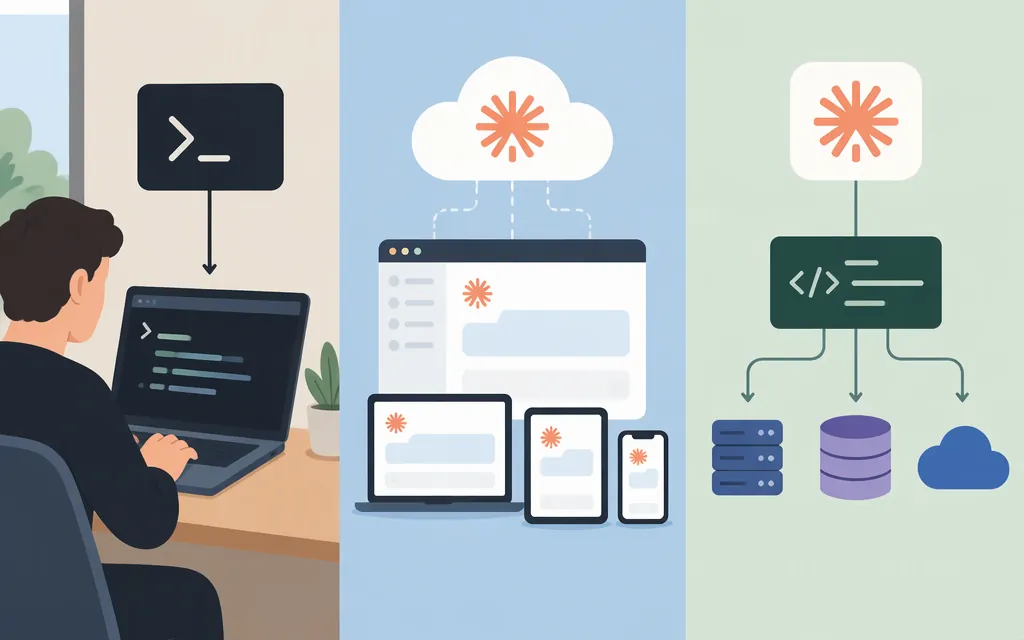
Claude Code’s two main access routes are the local CLI and cloud sessions. For local use, install the CLI, open a terminal in your project, run claude, and complete the sign-in prompt. For cloud use, start at claude.ai/code or use the Claude app, Desktop app, or CLI. The two routes have different sign-in requirements. An API key accepted by the local CLI does not by itself provide cloud-session access or a complete production API integration.
Choose an access route
- Local CLI: Run Claude Code in a project on your computer. Choose this when your work needs your local files, tools, configuration, or environment.
- Cloud session: Run a task on cloud infrastructure through
claude.ai/code, the Claude mobile app’s Code tab, the Desktop app with a Cloud environment selected, or the CLI. Cloud sessions have separate account and organization requirements, and GitHub access is needed for the documented repository workflow. - Production API for your own application: This is a separate integration question from opening Claude Code. The Claude Code quickstart documents limited API-key behavior for the CLI, but it does not provide production API setup steps such as key creation, endpoint or model configuration, or a working request example. Don’t treat the CLI login note as a production API recipe. Anthropic’s API overview is a starting point for the separate API path. (
docs.anthropic.com)
Install and start the local CLI
The Claude Code terminal quickstart lists a terminal or command prompt, a code project, and an eligible account or provider as prerequisites. It labels the native installer as recommended and gives these commands:
macOS, Linux, or WSL — run in a terminal:
curl -fsSL https://claude.ai/install.sh | bash
Windows PowerShell — use this if your prompt starts with PS:
irm https://claude.ai/install.ps1 | iex
Windows CMD — use this if your prompt does not start with PS:
curl -fsSL https://claude.ai/install.cmd -o install.cmd && install.cmd && del install.cmd
Use the command for your operating system and active shell. When installation finishes, open a new terminal and check it:
claude --version
A working installation prints a version number followed by (Claude Code). Then move into the project you want to work on and start a session:
cd /path/to/your/project
claude
Replace /path/to/your/project with your project’s actual directory. On first use, Claude Code prompts you to sign in. For a subscription or Console account, follow the browser prompt. Once the session starts, try asking:
what does this project do?
A response confirms that you reached a working session in that project. The version command checks the installation; it does not, by itself, confirm that you have signed in successfully.
Windows note: The quickstart recommends Git for Windows if you want Claude Code to use its Bash tool. Without it, Claude Code uses PowerShell as its shell tool. WSL does not require Git for Windows.
Installation alternatives
The quickstart also lists Homebrew and WinGet:
brew install --cask claude-code
winget install Anthropic.ClaudeCode
Unlike native installations, Homebrew and WinGet installations do not automatically update. The documentation lists brew upgrade claude-code or winget upgrade Anthropic.ClaudeCode for manual upgrades. Homebrew also has a claude-code@latest cask; choose between it and claude-code according to the release channel you want, and use the matching upgrade command.
Sign-in options and the API-key distinction
The terminal quickstart lists Claude Pro, Max, Ultra, Team, or Enterprise subscriptions; Claude Console; Amazon Bedrock; Google Cloud’s Agent Platform; and Microsoft Foundry as account or provider options. It also describes a self-hosted Claude apps gateway for organizations whose administrators have configured one. Which route applies depends on your account and organization.
The quickstart says that if ANTHROPIC_API_KEY is set, Claude Code can skip the login prompt when you approve using the key. That is the limit of what this setup guide establishes: it does not explain how to create the key, configure a production API client, or identify an endpoint, model, request, or response format. Claude Console is described as API access with prepaid credits, but the quickstart gives no prices or billing rates.
Cloud sessions are different: Anthropic’s cloud documentation says CLI cloud workflows require a claude.ai sign-in; API-key or Console sign-in alone is not sufficient. The documentation lists cloud sessions for Pro, Max, Ultra, and Team plans, and for Enterprise users with premium seats or Chat + Claude Code seats. Organization settings and provider restrictions may also apply. It says there is no separate charge for the cloud VM, but sessions count toward plan usage limits; it does not give exact prices or quotas.
Access Claude Code in the cloud
For a browser-based session, go to claude.ai/code, sign in with a claude.ai account, connect GitHub, select a repository and branch, choose a permission mode, describe the task, and submit it. The cloud quickstart explains the GitHub connection and task-review steps.
For a GitHub repository, browser setup can access public repositories; access to private repositories depends on installing the Claude GitHub App and granting it access to the repository. Team or Enterprise organizations may require an owner to enable the GitHub connector or grant the necessary permissions. Cloud access is a better fit for work that can run in the cloud; use local Claude Code when the task depends on your machine’s configuration, tools, or environment.
If setup doesn’t work
- If your terminal says
claudeis not found or recognized, the quickstart points to its PATH troubleshooting guidance. Open a new terminal after installation and tryclaude --versionagain. - If installation returns an error, use the quickstart’s installation troubleshooting guidance and match the fix to the error and operating system.
- If the CLI opens but asks you to log in, complete the sign-in flow for your account. Inside a running session,
/logincan be used to switch accounts or re-authenticate. - If you can use the local CLI but not cloud sessions, check that you signed in with the required
claude.aiaccount and that your organization permits cloud sessions. An API key or Console login alone does not meet the cloud CLI sign-in requirement.
In short: install the CLI and run claude from your project for local access; use claude.ai/code or another documented cloud entry point for a cloud session. Treat API-key login for the CLI, cloud-session access, and a production API integration as separate workflows.
Sources
Use Claude Code in the cloud — Claude Code Docs
Get started with Claude Code in the cloud — Claude Code Docs