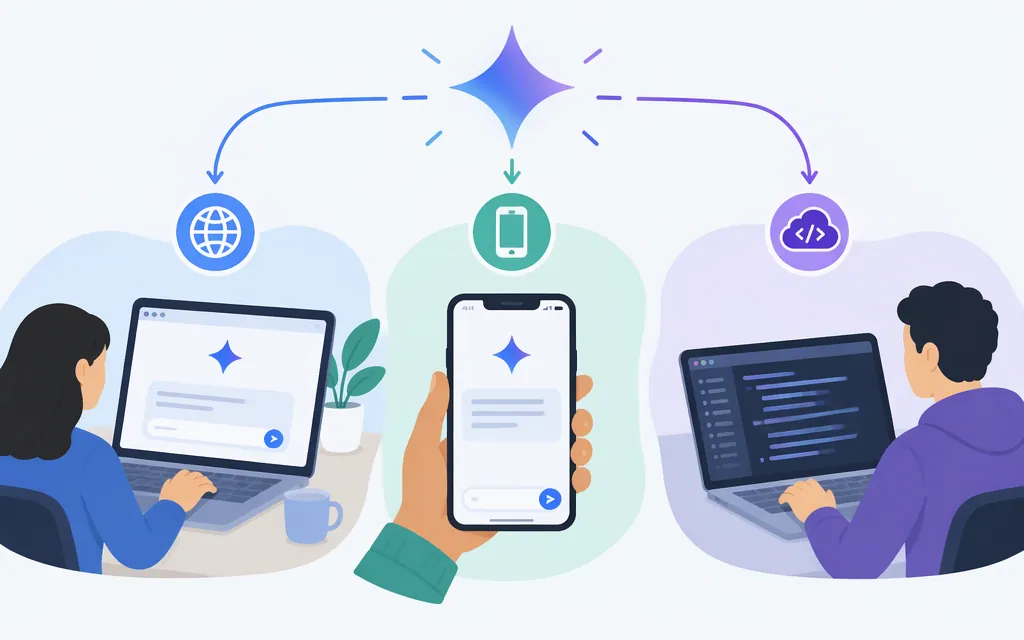
You can access Gemini in three ways: use Gemini in a browser for a chat, open the Gemini app on your phone, or connect to the Gemini API from your application. The API is a separate developer route: signing in to the chat app does not authenticate API requests.
Choose your access route
- Want to chat? Open
gemini.google.comin a supported browser. - Want to use Gemini on your phone? Install or open the Gemini app, then send a prompt. App availability and sign-in requirements depend on platform and account.
- Building an application? Use the Gemini API and an official SDK to send requests programmatically. Google currently marks the Interactions API as beta and recommends
generateContentfor stable production deployments. The Python example below usesgenerateContent. (API status and migration guidance, text-generation guide)
Access Gemini in a browser
- Go to
gemini.google.com. - Enter a question or prompt in the box.
- Select Submit. To attach an image or file, select Add files and follow the instructions.
Some features may work without signing in, depending on your location and device. Sign in with a Google Account for additional features and to save Gemini Apps activity. Signed-out access has limitations; for example, chat history, Connected Apps, image generation, Gems, and file uploads require sign-in. (Google Gemini Apps Help)
Access Gemini on a phone
Android
- Sign in to a Google Account that has access to Gemini Apps.
- Open the Gemini app. If it isn’t installed, download it from Google Play.
- Type a prompt and tap Send, or tap the microphone, speak, and send. You can also add a photo from your camera, gallery, or files.
You can use the app without making Gemini your phone’s primary assistant. If you want Gemini to respond to assistant shortcuts such as “Hey Google,” setup depends on your device, and the Google app must be the default assist app. Availability can depend on your account, device, language, and location; work or school users should check whether their plan or license includes access. (Google Android app Help)
iPhone and iPad
- Install the Gemini app from the App Store.
- Open it and follow the app’s sign-in or onboarding prompts; the available official instructions here do not establish whether the iOS app supports signed-out use.
- To send a prompt, tap Keyboard, type, and send it. To speak, tap Microphone; tap Live for a real-time voice conversation.
Google’s availability guidance lists iOS 16 or later and notes that rollout can vary by language and country. (Gemini app availability for iPhone and iPad, iPhone and iPad app instructions)
Make a first production Gemini API request with Python
Use this route when your application needs to send prompts to Gemini and handle responses programmatically—not just chat in the consumer app. Google identifies generateContent as fully supported and recommends it for stable production deployments; the Interactions API is currently in beta. (API status and migration guidance)
Before starting, you need Python 3.11 or later for the current Google GenAI Python SDK, a Google Account that meets Google AI Studio’s age requirements (18 or older), and access from a supported country or territory. Google AI Studio can create a default project and API key after you accept its Terms of Service. (SDK Python requirement, AI Studio access requirements, supported regions, API key setup)
1. Get an API key
Open Google AI Studio and create or copy an API key. Set it as an environment variable so the SDK can authenticate requests; keep it out of browser code, mobile apps, public repositories, and source files. (Google API key guidance)
In a macOS or Linux shell, set the variable for the current session:
export GEMINI_API_KEY="YOUR_API_KEY"
2. Install the official Python SDK
python -m pip install -U google-genai
Google recommends its GenAI SDK for Gemini API development. (SDK documentation)
3. Save and run a production-supported request
Save this as gemini_test.py:
from google import genai

client = genai.Client()
response = client.models.generate_content(
    model="gemini-3.8-flash",
    contents="Reply with the word READY.",
)
print(response.text)
Run it in the same shell where you set GEMINI_API_KEY:
python gemini_test.py
If the request succeeds, the script prints the model’s returned text (which may not be exactly READY). Google’s current generateContent example documents this SDK method, the gemini-3.8-flash model ID, and the response text field. (Google text-generation guide)
4. Check deployment details
- Limits: Rate limits depend on the model and project tier. Google says limits apply per project, not per API key; check the current limits for your project in AI Studio. (Rate limits)
- Billing: API billing is separate from consumer Gemini subscriptions. Check the current pricing page for the selected model’s charges and billing units before estimating costs. (Gemini API pricing, billing guidance)
- Data terms: Review the current pricing, privacy, and applicable data-use terms for your API route and tier before sending application data.
- Credentials: Keep API keys in server-side environment variables or a secret manager, and restrict access according to your deployment’s security needs. (API key security guidance)
In short
For a quick chat, go to gemini.google.com. For phone use, install or open the Gemini app and follow the platform-specific steps above. For an application integration, create an API key, keep it out of client-side code, and make a production-supported generateContent request with the official SDK. Before deployment, check your project’s rate limits, the selected model’s current billing units, and the applicable data terms.
Sources
Get started with the Gemini mobile app - Android phone and tablet
Get started with the Gemini mobile app - iPhone and iPad
Gemini mobile app availability - iPhone and iPad
Text generation - generateContent API
Google Gen AI Python SDK pyproject.toml