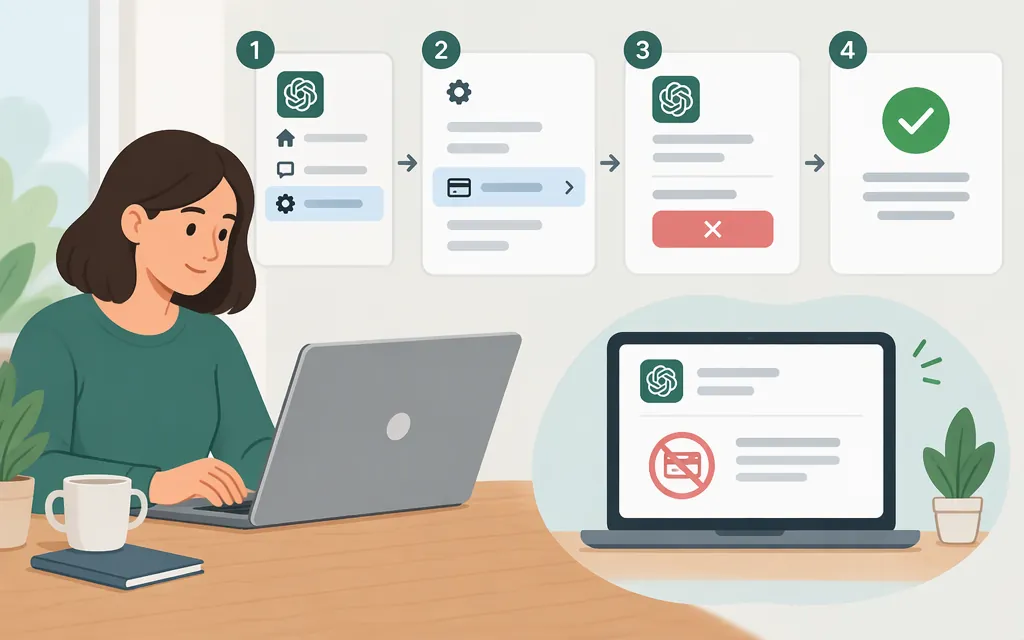
Cancel through the service where you bought the subscription: ChatGPT on the web, Apple Subscriptions, or Google Play. For subscriptions billed directly by ChatGPT, OpenAI says to cancel at least 24 hours before your next billing date to avoid a charge for the next period. Apple- and Google Play-billed subscriptions are canceled through those stores; check the renewal information shown there and cancel before renewal. Canceling stops future renewals, but does not automatically refund a past payment. Uninstalling the ChatGPT app does not cancel a subscription. OpenAI’s cancellation guide (help.openai.com)
Find the billing channel first
Check your receipt and the subscription settings for the account or store that billed you. A subscription bought on chatgpt.com is managed through your ChatGPT account; Apple- and Google Play-billed subscriptions are managed through those stores. If you find more than one active ChatGPT subscription, review each one: subscriptions on different platforms can create separate charges. OpenAI billing guidance (help.openai.com)
Cancel on chatgpt.com
- Sign in to ChatGPT.
- Open your account menu and select Settings.
- Select Billing.
- Under Cancel plan, select Cancel and complete the confirmation prompts.
For subscriptions billed directly by ChatGPT, cancel at least 24 hours before the next billing date to avoid being charged for the next period. Paid features remain available until the end of the current billing period. If you cannot access the email address for an account billed directly by ChatGPT, contact OpenAI Support. (help.openai.com)
Cancel an Apple-billed subscription
On an iPhone or iPad:
- Open Settings and tap your name.
- Tap Subscriptions.
- Select ChatGPT.
- Tap Cancel Subscription and confirm.
Use the Apple Account that made the purchase. To avoid renewal, cancel before the renewal date shown in Apple Subscriptions; Apple’s guidance explains how to cancel and check the subscription’s status. If ChatGPT does not appear, check the Apple Account and receipt used for the purchase, or contact Apple. (support.apple.com)
Cancel a Google Play subscription
Use the Google Account that paid for ChatGPT:
- Open Google Play and go to Subscriptions.
- Select ChatGPT.
- Choose Cancel subscription.
- Follow the prompts and finish the cancellation.
Cancel before the next billing cycle to stop renewal; check Google Play’s subscription page for its billing and cancellation information. Google says you can continue using a subscription for the time you have already paid for after canceling. Google Play cancellation guidance (support.google.com)
When does cancellation take effect?
For a subscription billed directly by ChatGPT, cancel at least 24 hours before the next billing date to avoid being charged for the next period; paid features remain available through the end of the current billing period. For Google Play, access continues for the time already paid for. For Apple-billed subscriptions, check the expiration date shown in Apple Subscriptions and contact Apple if the end date or status is unclear. After canceling, confirm that the billing platform shows the subscription as canceled or set to expire. OpenAI’s cancellation guide · Apple Support (help.openai.com)
Cancellation is not a refund
Canceling stops future renewals; it does not by itself refund a past payment. Refund eligibility and the request route depend on where you subscribed. OpenAI says payments are generally non-refundable, though applicable legal rights and certain exceptions may apply. Its guidance describes a possible discretionary refund for an unused individual subscription if you contact OpenAI within seven days of the charge and meet the stated requirements; eligibility is not automatic. Read OpenAI’s refund rules and request steps.
- Bought on the web: Sign in to the OpenAI account tied to the charge, open the Help Center, and request a refund through its chat widget.
- Bought through Apple: Request cancellation or a refund directly from Apple, using Apple’s subscription support or Report a Problem.
- Bought through Google Play: Sign in to the ChatGPT account tied to the purchase, open the OpenAI Help Center, and submit the refund request through its chat widget.
Will canceling ChatGPT stop production API charges?
No. ChatGPT and the OpenAI API have separate billing systems. Canceling a ChatGPT subscription does not cancel API billing. To cancel API pay-as-you-go billing, open the organization’s Billing overview, select Cancel plan or Cancel billing plan, review the details, and confirm using OpenAI’s API cancellation instructions.
Canceling an API billing plan does not clear unpaid usage charges. If you are trying to prevent further usage charges, stop sending API requests as well as completing the billing-plan cancellation.
If you can’t find the subscription
Check your receipt and the Apple, Google, or ChatGPT billing account that may have handled the purchase. If the subscription was billed directly by ChatGPT and you cannot access the account, contact OpenAI Support. For an Apple- or Google-billed subscription, check the store account used for the purchase.
Sources
Canceling your ChatGPT subscription
Cancel a subscription from Apple
Cancel, pause, or change a subscription on Google Play
How do I request a refund for my ChatGPT subscription?