First, check whether you can create one
As of November 9, 2026, personal ChatGPT accounts—including Free, Go, Plus, and Pro—cannot create or publish new GPTs. In managed workspaces, creation depends on product availability, workspace settings, and your permissions. For affected Enterprise workspaces, new GPT creation ended on October 26, 2026. FedRAMP workspaces are excluded from that cutoff; creation still depends on availability and permissions. Check your workspace notice before following the steps below. Existing GPTs may remain usable or editable subject to the applicable plan, permissions, and retirement date. (help.openai.com)
OpenAI schedules standard GPT retirement for December 11, 2026. FedRAMP workspaces and affected Enterprise workspaces with a qualifying, approved deferral have a February 11, 2027 retirement date. A later retirement date alone does not establish permission to create new GPTs. Follow the notice for your account or workspace. (help.openai.com)
Create a GPT if your workspace still allows it
GPT creation and editing are available on the web, not in the mobile apps. If your workspace allows creation and you have permission: (help.openai.com)
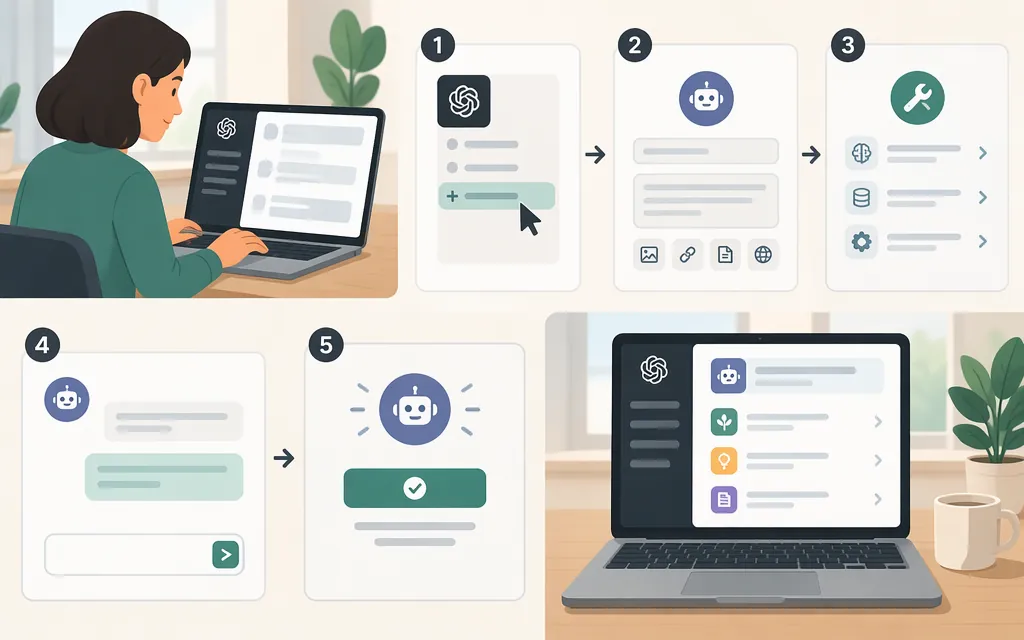
- Open the GPTs area. In ChatGPT, select Explore GPTs in the sidebar, or go to the GPTs area at
chatgpt.com/gpts. - Select Create. Use the conversational builder to describe what you want, or configure the GPT by editing its fields directly. (
help.openai.com) - Define its job. Specify who it helps, what task it performs, and what a good answer should look like. For example: “Help new customers troubleshoot our shipping process. Ask for the order status if it’s missing. Give numbered steps and direct customers to support if the answer isn’t in the reference material.” This is sample instruction text, not a tested GPT.
- Add user-facing details. Set a name and description, and add conversation starters—example prompts that show people how to begin. (
help.openai.com) - Write instructions and add knowledge if needed. Instructions define behavior, tone, goals, and boundaries. Knowledge consists of uploaded files the GPT can use as references when answering. The available file options and limits may depend on your workspace, so check the builder before adding material. (
help.openai.com) - Choose optional capabilities if available. GPTs may include selected capabilities such as web search or image generation, or apps that connect to outside services through user-connected tools. Enable only what the task requires, then include those features in your tests. (
help.openai.com) - Test before saving. Use the builder’s preview to try realistic requests, including one with missing information and one the GPT should decline or hand off. Check whether it follows the requested format, uses reference material appropriately, and avoids unsupported answers. Revise an instruction or source file, then test again. (
help.openai.com) - Create or update the GPT. When you are ready to finish a new GPT in an eligible workspace, select Create. To apply draft changes to an existing GPT, select Update. Then return to the GPTs area and check that you can open it. (
help.openai.com)
A small test set you can reuse
For a customer-support GPT, try these prompts:
- “How long does delivery take?” Does it answer from the policy instead of inventing a timeframe?
- “My order is late, but I don’t know the order number.” Does it ask for the missing detail or give the right next step?
- “Can you guarantee a refund?” Does it avoid promising something the policy does not support?
These are example tests, not measured performance results. Revise the instructions or reference material when an answer is unsupported, incomplete, or inconsistent.
Share only with the audience you intend
If sharing is available, open the GPT in its editor and select Share. Choose a sharing level, choose a permission level, and select Save. Available audiences can include specific users or groups, your workspace, anyone with a link, or the GPT Store; the options depend on your account and workspace settings. (help.openai.com)
The permission label matters:
- Can chat lets recipients use and chat with the GPT.
- Can view settings lets recipients use it, duplicate it, and view its configuration settings.
- Can edit lets recipients make direct changes to the GPT.
Not every audience supports every permission. Public link sharing and GPT Store publishing support Can chat, but not Can view settings. In managed workspaces, specific-user or workspace sharing may offer additional permission choices, subject to administrator settings. Check the choices actually shown for your GPT. (help.openai.com)
A link is not necessarily private: anyone with the link can access a GPT when that audience option is enabled. Sharing with selected people or a workspace limits the intended audience to those users or members, but administrators can restrict options. OpenAI’s sharing guidance says that Can view settings exposes configuration settings; it does not specify here whether recipients can inspect or retrieve the contents of uploaded knowledge files. If those materials are sensitive, do not assume a permission setting protects them—check the applicable workspace and product controls before sharing. (help.openai.com)
When to use a production model API instead
Use a GPT configured in ChatGPT when people will use the assistant within ChatGPT and your workspace permits it. If you are building an assistant into your own application or backend, use the OpenAI API as a separate development route. A GPT in ChatGPT is a configured ChatGPT experience; do not assume that creating one trains or fine-tunes a model, or provides an API endpoint to call that saved GPT. OpenAI's API quickstart describes making a separate API request. (help.openai.com)
For an API project, start with the official OpenAI API quickstart. It guides you through creating an API key and making a first API call. Keep credentials out of browser code and other places where users could see them. (help.openai.com)
Bottom line: Personal ChatGPT accounts cannot create new GPTs as of November 9, 2026. If your managed workspace still permits creation, use its web builder, select Create when finished, and confirm you can reopen the GPT. Before sharing, choose an audience and permission deliberately; for an assistant in your own software, follow the separate API quickstart.