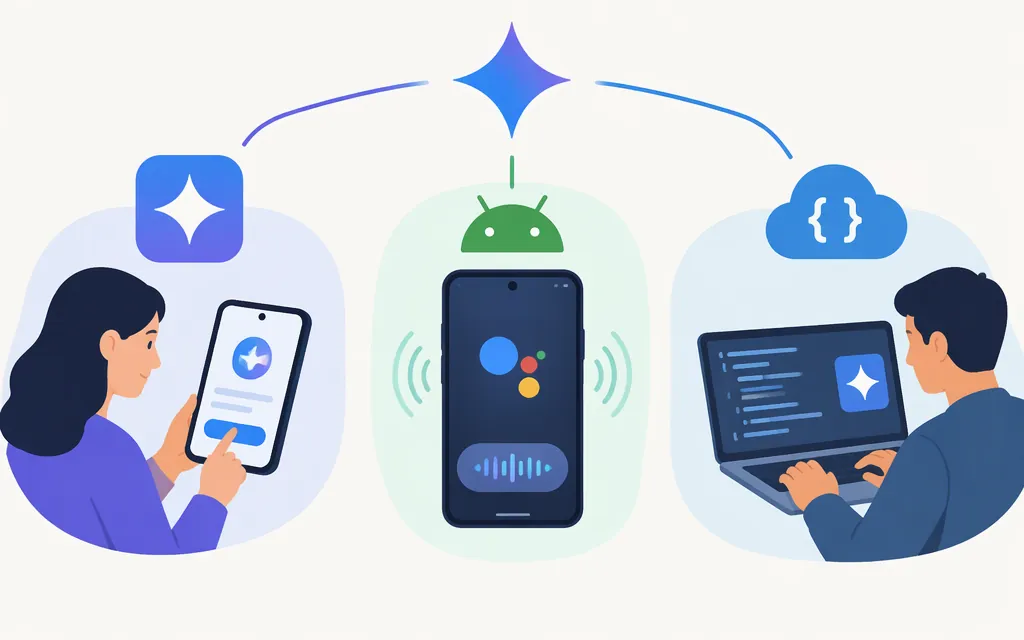
First, choose what you mean by “enable Gemini”
These are separate setup paths:
- Use Gemini for personal chats: Open the Gemini web app or mobile app.
- Make Gemini your Android phone’s assistant: Set the Google app as your device’s default assist app, then select Gemini as your mobile assistant where supported.
- Use Gemini in your own application: Create an API key for a Google project and make an authenticated request. Installing the app or changing your phone’s assistant setting does not enable API access.
Choose the route that matches your goal, then use its success check below.
Use Gemini in a browser
- Go to
gemini.google.com. - Enter a prompt and submit it. Google says some web-app features are available without signing in; sign in with a Google Account for additional features or to save Gemini Apps activity.
- If Gemini returns a response, web access is working.
Google’s sign-in requirements vary by account type. Its help page says users must be at least 13 (or the applicable age in their country) to use Gemini with a personal or school Google Account, and 18 to use it with a work account. Google also says a Family Link-managed account cannot access the Gemini web app. Availability can depend on location, account type, and other requirements, so check Google’s current sign-in requirements if access is blocked. If you use a school account, check its current Gemini access requirements with your institution.
Use Gemini on Android—or make it the default assistant
You can open the Gemini app and chat without changing your phone’s default assistant. To use Gemini as the primary mobile assistant, Google says the Google app must be set as the device’s default assist app. The device, account, language, and location must also be eligible. See Google’s Android setup instructions.
Open the app and send a first prompt
- Install or open the Gemini app from Google Play.
- Open the app and enter a question in the prompt box.
- Submit it. A reply confirms that app access is working.
Google notes that the mobile app may not be available for every device, account, language, or location. For work or school accounts, check whether the account’s plan or license includes Gemini Apps access.
Set Gemini as your Android assistant
- On your Android device, open Settings > Apps > Default apps and check Digital assistant app. If Google app is not selected, choose it. Google notes that the setting name may vary by device.
- For Android 16, an AbilityNet guide gives this additional selection flow: open Settings > Apps > Assistant > Digital assistants from Google, select Gemini, then tap Switch to confirm. This is third-party, Android 16-specific guidance; the guide says manufacturer-customized themes may look slightly different. Do not assume the same menu path applies to every Android version or device.
- On Android 16, test the change by pressing and holding the device’s side button, the launch method documented in that guide.
Success check: Gemini opens from the assistant shortcut. If you only want to chat, open the Gemini app directly; you do not need to change the default assistant.
Enable Gemini for an application with the API
This is the developer path. The example uses the Gemini Developer API’s generateContent interface and the documented gemini-3.8-flash text-generation example. It uses the SDK’s default API-version configuration rather than forcing a version override; check Google’s current documentation if you need to pin a specific version.
1. Check location access and create or select a project key
Before setting up credentials, check Google’s available regions for Google AI Studio and the Gemini API. The list can change; if Gemini API access is unavailable where you are, Google points readers to Gemini API in Gemini Enterprise Agent Platform as an alternative.
Open Google AI Studio’s API-key page. Google’s key documentation says a new user gets a default Google Cloud project and API key after accepting the Terms of Service. Select or import the project you intend to use, then create or view its key. Follow any project-specific prompts shown in AI Studio rather than assuming an additional API-enable step.
2. Install the SDK and keep the key out of your code
For a local test in a macOS or Linux shell:
python -m pip install -U google-genai
export GEMINI_API_KEY="YOUR_API_KEY"
Replace the placeholder with your key. Keep credentials in an environment variable or server-side secrets manager; do not put them in browser or mobile-app code or commit them to a public repository. Google recommends environment variables and documents key security guidance in its API-key documentation.
3. Make a first request
Save this as gemini_test.py and run python gemini_test.py:
from google import genai

client = genai.Client()
response = client.models.generate_content(
    model="gemini-3.8-flash",
    contents="Reply with a short greeting."
)

print(response.text)
Google’s text-generation example uses the gemini-3.8-flash model identifier and reads generated text from response.text. A successful run prints generated text in the terminal; the exact wording is model-generated, not a guaranteed fixed response. Confirm that the model remains available to your project before deploying.
4. Check production prerequisites
Before sending production traffic:
- Keep the API key server-side, restrict access, and have a process to rotate it if exposed. Follow Google’s current key-type and security guidance.
- Check the project’s model access, billing tier, and rate limits. Google says the Free Tier covers certain models up to their stated limits; Paid Tier access requires linking billing and prepaying. Check the current billing documentation for the project’s applicable terms. Direct API charges are managed separately from consumer Google AI plans; see Google’s API plans documentation.
- Add appropriate error handling and usage monitoring. Test the integration against the limits and billing conditions that apply to your project before relying on it in production.
API success check: Your server authenticates with the project key, receives a response, and reads its text output—without exposing the key in client-side code or public source control.
If an option is missing
- Web app: Check Google’s current sign-in requirements, including location and account type. If you use a school account, check its Gemini access requirements with your institution. Google says Family Link-managed accounts cannot access the web app.
- Android assistant: Confirm that the Google app is set as the device’s default assist app. If you are on Android 16, compare the version-specific Gemini-selection steps above; settings names can vary by device.
- API: Confirm that the key belongs to the intended project, that Gemini API access is available in your location, and that your chosen model, billing tier, and quota allow the request. Check Google’s current API-key documentation if a key fails.
Sources
What you need to sign in to Gemini Apps
Get started with the Gemini mobile app — Android phone & tablet
How to set up Gemini as your voice assistant in Android 16
Available regions for Google AI Studio and Gemini API
Using Gemini API keys — generateContent API