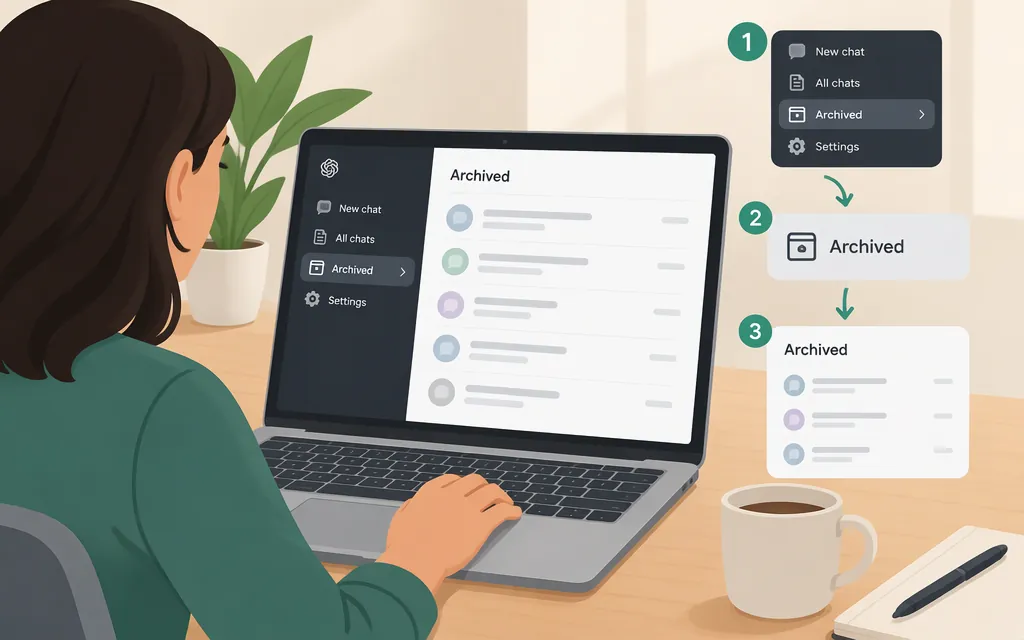
The quickest way to find an archived chat is to search for a word or phrase from the conversation. Open Search from the ChatGPT sidebar, enter a term, and select the matching result to reopen it. Archived chats can appear in search results even though they’re not in regular chat history. You can also manage them in Settings → Data controls → Archived chats (the label may instead be View archived chats). (OpenAI Help Center: Finding your chats; Deleting and archiving chats)
Find and open an archived chat
Option 1: Search your chats
- Open Search from the ChatGPT sidebar.
- Enter a distinctive word or phrase related to the conversation.
- If a content filter is available, select it.
- Select a result to open the conversation.
Sidebar search is available on web, iOS, and Android for signed-in users. Available results and filters can vary by account, workspace, and device. (OpenAI Help Center: Finding your chats)
Option 2: Find it in archived-chat settings
- Open Settings.
- Select Data controls.
- Select Archived chats or View archived chats. If Manage appears, select it.
- To return a conversation to regular history, select Unarchive. Then open it from your regular chat history.
OpenAI’s guidance describes the archived-chat controls for managing or unarchiving conversations; use Search if you want to open a conversation directly from a result. (OpenAI Help Center: Deleting and archiving chats; Finding your chats)
If the chat is not there
Try these checks:
- Search for another phrase. Enter a different word or phrase related to the conversation. If a content filter is available, you can select it.
- Check the account and workspace. Confirm you’re signed in to the account and, if applicable, the workspace where you had the conversation. Available search results and filters can vary by account, workspace, and device.
- Check Archived chats in Settings → Data controls. The conversation may be archived rather than deleted.
- Refresh ChatGPT or sign out and back in, then check OpenAI Status for an active incident affecting chat history.
These checks do not establish why a conversation is missing. If it’s still absent, contact OpenAI Support and explain what you checked. Include the email address and sign-in method for the account, the workspace name or ID if applicable, and relevant dates or times. A missing search result alone does not prove the chat was deleted. (OpenAI Help Center: Deleting and archiving chats; Contacting OpenAI Support)
Archived vs. deleted: what’s the difference?
- Archived: Removed from regular chat history, but saved to your account and searchable. You can use Unarchive to return it to regular history. Regular and archived chats remain saved until you delete them or an applicable workspace retention policy removes them. (OpenAI Help Center: Chat and file retention; Deleting and archiving chats)
- Deleted: Not recoverable through ChatGPT or OpenAI Support. (OpenAI Help Center: Chat and file retention)
For example, if you remember an archived conversation about “Q3 hiring,” search ChatGPT for Q3 hiring and open the matching result. If it doesn’t appear, check the account and workspace before drawing conclusions about what happened to it.
Sources
- Finding your chats, projects, and files in ChatGPT — OpenAI Help Center
- Deleting and archiving chats in ChatGPT — OpenAI Help Center
- Chat and file retention in ChatGPT — OpenAI Help Center
- How can I contact support? — OpenAI Help Center
Sources
Finding your chats, projects, and files in ChatGPT
Deleting and archiving chats in ChatGPT