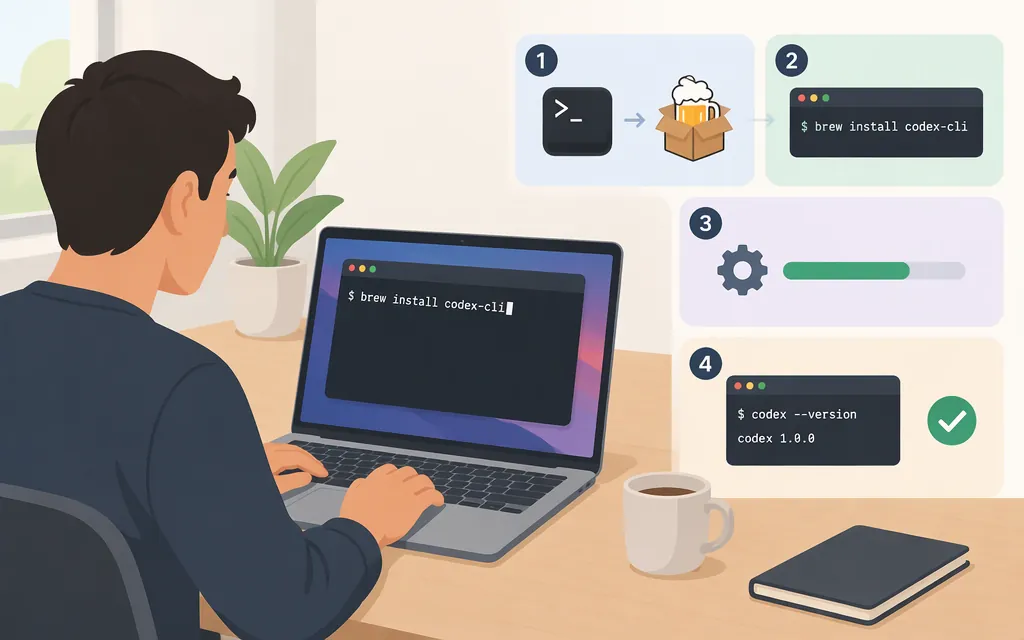
The official Codex repository documents this installer command for Mac and Linux. Open Terminal and run it; Node.js is not required for this standalone installation. (OpenAI Codex repository)
curl -fsSL https://chatgpt.com/codex/install.sh | sh
1. Check that it installed
Run:
codex --version
If the command prints a version, Codex is available in your terminal. You do not need to match a particular version number from a tutorial.
2. Open a project and start Codex
In Terminal, move into the folder you want Codex to work in, then launch it:
cd /path/to/your/project
codex
Replace /path/to/your/project with your project’s actual folder path. If you’re not sure how to enter the path, type cd (including the space), drag the project folder from Finder into Terminal, and press Enter. Then run codex.
OpenAI’s installation guide lists macOS 12 or later as a system requirement. Its repository also lists CLI release binaries for Apple Silicon (arm64) and Intel Macs (x86_64). The repository documents the standalone installer for Mac, but does not explicitly say in that section how it selects between those architectures. (OpenAI installation guide; OpenAI Codex repository)
3. Sign in
When prompted, follow the CLI’s steps to sign in with your ChatGPT account. OpenAI currently says Codex is included across ChatGPT plans, including Free and Go; usage limits vary by plan. (OpenAI Help Center)
Once signed in, Codex starts in the project directory you opened. For a first prompt, try a small request such as: “Summarize the main folders and explain how to run this project. Don’t change any files.” Review permission prompts before allowing Codex to edit files or run commands. (OpenAI Help Center)
Do you need an API key?
You do not need to set up an API key just to install Codex CLI or use the ChatGPT sign-in path above. OpenAI also documents API-key authentication for Codex CLI; see its authentication guide for that option. (OpenAI Codex authentication guide)
If you use an OpenAI API key, API usage is billed separately from a ChatGPT subscription. Installing the CLI also does not configure an API integration in your own application. (OpenAI Help Center: billing for ChatGPT and the API platform)
Other installation options
The OpenAI repository also documents npm and Homebrew. These are alternatives to the standalone installer: (OpenAI Codex repository)
- npm:
npm install -g @openai/codex. This method requiresNode.js. - Homebrew:
brew install --cask codex.
To update a standalone installation, rerun the installer command. The installer defaults to the latest release. If you installed with npm or Homebrew, update with the matching package manager. (OpenAI Codex repository; OpenAI standalone installer)
If Terminal says codex: command not found
The standalone installer’s default executable directory is ~/.local/bin. First, open a new Terminal window and try codex --version again. If the command is still not found, check whether the executable exists and whether its directory is on your PATH:
echo "$PATH"
ls "$HOME/.local/bin/codex"
If ls finds the executable, test adding its directory to the current Terminal session:
export PATH="$HOME/.local/bin:$PATH"
codex --version
If that works and your shell is zsh, add the directory to your PATH for future Terminal windows:
echo 'export PATH="$HOME/.local/bin:$PATH"' >> ~/.zshrc
source ~/.zshrc
If you customized the installer’s destination, check that directory instead. (OpenAI standalone installer)
Quick completion check
codex --versionprints a version.- You have signed in using your chosen method.
- Running
codexfrom your project folder starts a session.
Codex CLI is the terminal tool, not the separate Codex desktop app.
Sources
OpenAI Codex repository README
OpenAI Codex installation guide
OpenAI Codex standalone installer