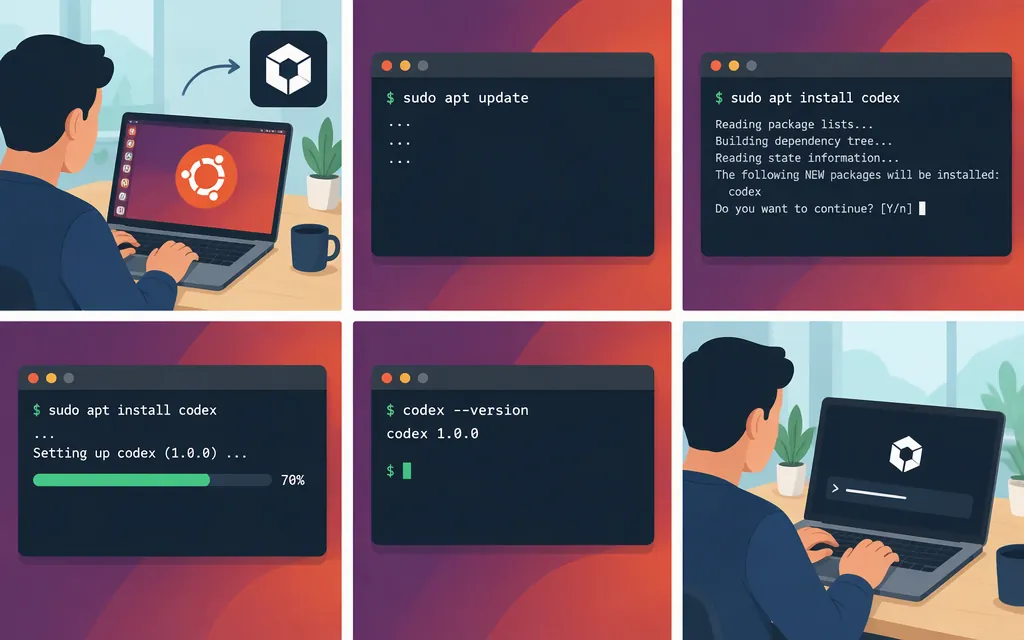
Quick answer: For a terminal-based workflow, install Codex CLI with OpenAI’s installer and run codex. For a graphical workspace, install the ChatGPT Linux app, sign in, and select Codex. They are separate ways to use Codex, so choose the one that fits how you work. (Codex CLI quickstart)
Choose CLI or desktop
| Option | What you install | Best fit |
|---|---|---|
| Codex CLI | A command-line coding agent | You want to work from a terminal or shell. |
| ChatGPT desktop app | The ChatGPT app, with Codex available inside it | You want a graphical app for opening local projects. |
The desktop app is listed as available in public preview for Ubuntu 24.04 LTS and 26.04 LTS. The CLI installer is documented for Linux generally; the documentation cited here does not specify a minimum Ubuntu release for it. (ChatGPT release notes)
Option 1: Install Codex CLI
-
Open a terminal and run the installer documented by OpenAI:
curl -fsSL https://chatgpt.com/codex/install.sh | shOpenAI also lists
npm install -g @openai/codexas an alternative. (OpenAI Codex CLI repository) -
Change to the project directory where you want to work, then start Codex:
cd ~/path/to/your/project codex -
On first run, follow the sign-in prompt. The quickstart says to choose Sign in with ChatGPT or another sign-in method offered in the CLI. Reaching the interactive Codex prompt confirms the CLI has launched; you can then give it a small task, such as asking it to explain the project. (Codex CLI quickstart)
Option 2: Install the ChatGPT desktop app and use Codex
This installs ChatGPT for Linux, not a separate package named Codex. Codex is a workspace inside the app.
-
Check your processor architecture:
uname -mIf the output is
x86_64, choose the x64/amd64 package. If it isaarch64orarm64, choose ARM64. (Linux package architecture guidance) -
Go to the official ChatGPT download page and select Download for Linux. The official page confirms that Linux download entry, and the Linux guide gives separate x64 and ARM64
.debfilenames. However, the available page text does not establish the exact architecture-selection flow or direct package destinations. If you cannot identify the matching package in the official download flow, use the CLI steps above, which provide a complete installation route in this guide. (ChatGPT download page; ChatGPT desktop app for Linux guide) -
Once you have the matching
.debin~/Downloads, install it. For x64:cd ~/Downloads sudo apt install ./chatgpt_amd64.debFor ARM64:
cd ~/Downloads
sudo apt install ./chatgpt_arm64.deb
These local-package commands are in the official Linux guide.
-
Open ChatGPT from your applications menu, or run
chatgptin a terminal. Sign in, select Codex, and open a project or local folder. (Official Linux guide)
Can Codex use a production model API?
OpenAI documents an Amazon Bedrock setup for local Codex workflows, including Codex CLI and the desktop app. Its guide says the setup does not apply to Codex configured with ChatGPT sign-in or an OpenAI API key. This establishes a Bedrock-specific route, not compatibility with every production API provider. (Configure Codex with Amazon Bedrock)
For TokenForgeCloud, the available material does not establish compatibility with Codex or confirm the provider configuration Codex would require. I can’t responsibly supply a TokenForgeCloud base URL, model identifier, credential setting, or test command. Check the provider’s current technical documentation against Codex’s requirements before using it; do not assume that an API described as “OpenAI-compatible” is sufficient.
Which route should you take?
- Use the CLI for terminal-based work.
- Use the desktop app for the graphical experience; Codex is accessed inside ChatGPT for Linux.
- Use Amazon Bedrock only if that is your intended provider and you follow OpenAI’s Bedrock guide. TokenForgeCloud compatibility remains unconfirmed here.