The quick answer
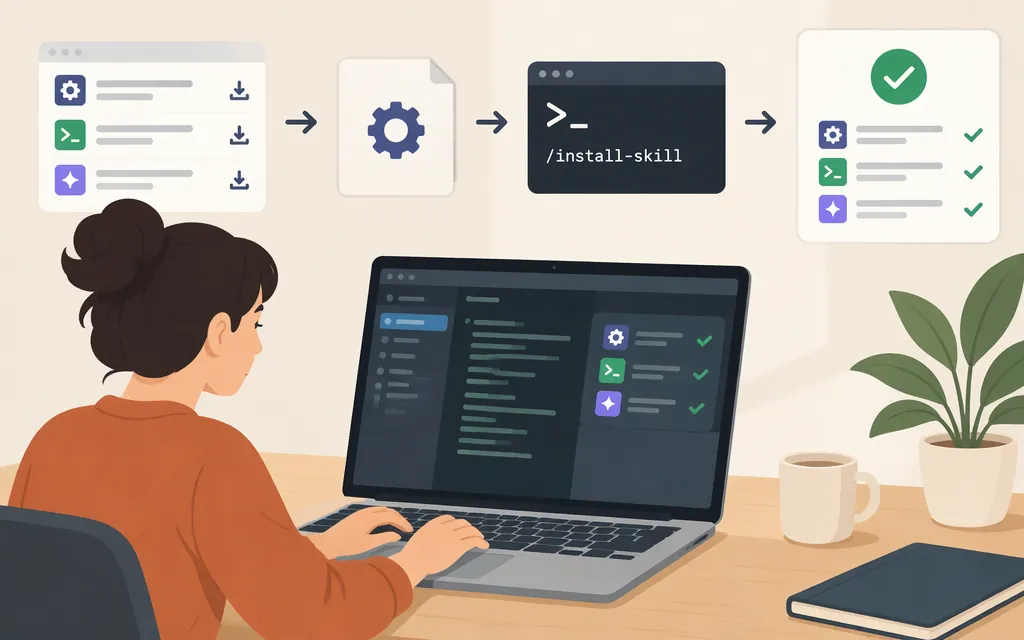
For a published skill distributed through a marketplace, install the plugin that contains it. In a Claude Code terminal session, run /plugin install <plugin-name>@<marketplace-name>. If the marketplace is not configured yet, add it first. Claude Code opens the plugin details so you can review what it adds and choose an install scope. Confirm that the details list the skill you want. [1][8]
For a standalone skill, follow its publisher’s instructions. Claude Code documents ~/.claude/skills/ as a personal location; a third-party Claude Code guide describes .claude/skills/ inside a repository for project skills. Check the skill’s README for its exact folder layout and any supporting files. [2][3][7]
Install a published skill from a plugin marketplace
-
Find the plugin and marketplace names. Run
/pluginin a Claude Code terminal session to browse the Discover tab, or get the exact names from the publisher. Anthropic’s official marketplace is namedclaude-plugins-official. [1] -
Add the marketplace if it is not configured. Use the marketplace repository identifier supplied by its publisher:
/plugin marketplace add <owner>/<repo>Replace
<owner>/<repo>with the publisher’s marketplace repository identifier. This is distinct from the marketplace name you use after@in the install command. For Anthropic’s official marketplace, the add command is/plugin marketplace add anthropics/claude-plugins-official. [8] -
Open the plugin details. For a plugin in Anthropic’s official marketplace, run:
/plugin install <plugin-name>@claude-plugins-officialReplace
<plugin-name>with the name shown in the marketplace. This opens the review panel; it does not install the plugin immediately. Check the panel’s component list to confirm it includes the skill you want. [1] -
Review the scope choices and confirm. The panel asks you to choose an install scope. The source material cited here confirms that choice is made in the panel, but does not establish the exact availability or sharing effect of each scope label. Read the descriptions shown in your panel and choose based on those; don’t assume a particular choice shares configuration with a team unless the panel or current documentation says so. Follow the panel’s confirmation prompt to finish installing. [1]
-
Get the skill’s command. Don’t assume the plugin name is also the skill’s command. Use the command shown in the plugin details or the publisher’s instructions. [1][3]
If an installed plugin’s skills do not appear in the session, run /reload-plugins and check again. For other plugin errors, consult the official troubleshooting guide. [5]
Add a standalone skill folder
If the publisher’s instructions call for manual placement, use the location that fits your needs:
- Personal:
~/.claude/skills/<skill-name>/for your own projects. [2] - Project:
.claude/skills/<skill-name>/inside the repository. A third-party Claude Code guide describes this as the project-specific location and recommends committing project skills for team sharing; check the skill’s own README for its requirements. [7]
The folder contains a SKILL.md file. Copy the complete folder—not just SKILL.md—if the skill includes supporting files or scripts. For a personal skill on macOS, Linux, or WSL, create its directory with:
mkdir -p ~/.claude/skills/my-skill
Then copy the publisher-provided files into ~/.claude/skills/my-skill/. For a project skill, create the corresponding directory under .claude/skills/ from the repository root. Follow the skill’s README if it specifies a different layout or additional setup. [3][7]
Check that it works
For a skill that is available for user invocation, type / to see available commands, or type / followed by letters to filter the list. Find the skill’s command and invoke it, then check whether Claude performs the behavior the skill is meant to provide. If the skill has user-invocable: false, it is intentionally hidden from the user command menu, so its absence there does not by itself mean installation failed. [3][4][7]
Test automatic triggering only if the skill allows model invocation. A skill with disable-model-invocation: true is intended for direct user invocation, so don’t expect it to trigger automatically. If a plugin skill is missing, confirm the installation completed and that the plugin includes the skill, then run /reload-plugins. If a standalone skill is missing, recheck its location and files against its README. The sources cited here do not establish a general standalone-skill reload or restart requirement; consult the current skills troubleshooting documentation if it still does not appear. [5][7]
Does a local Claude Code skill also enable it in a production API app?
No—don’t assume that placing a skill in a Claude Code folder makes it available to an API application. Anthropic documents an API-side Skills workflow: use a pre-built skill or upload and manage a custom skill through the Skills API, then reference it in a Messages API request. API use also requires the code execution tool and a model supported for that capability. A local Claude Code installation does not perform that API-side setup. [6]
Sources
Install and manage plugins — Claude Code Docs
Plugins overview — Claude Code Docs
Extend Claude with skills — Claude Code Docs
Troubleshoot plugins — Claude Code Docs
Using Agent Skills with the API — Claude Platform Docs