The short answer
Midjourney turns a single starting image into a video. On the website, open an image from your gallery or upload one, choose an animation option, optionally describe the movement, submit the prompt, then download the result from your Create or Organize page. Midjourney describes the initial video as 5 seconds. (Midjourney Video guide)
How to make a video on the Midjourney website
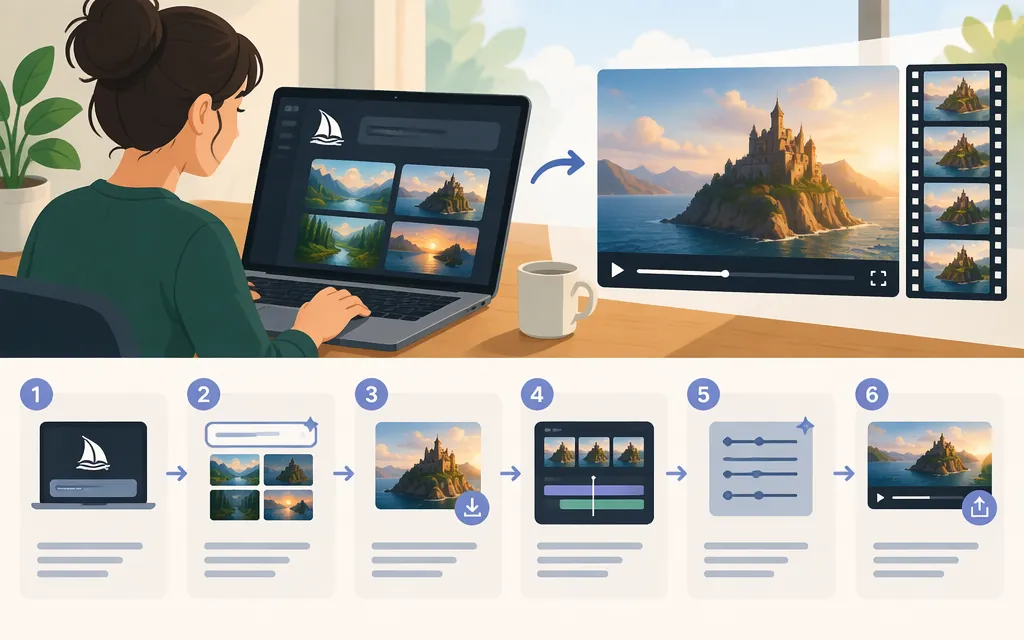
- Open the Create page. Sign in to Midjourney at
midjourney.com. The Create page is where you make and view creations. (Getting Started Guide) - Choose your starting image. To use an image already in your gallery, open it and find the Animate Image actions. To use your own image, click the image icon in the Imagine bar, select or upload the image, then drag it into the Animate section. (Midjourney Video guide)
- Choose how to animate. For an image in your gallery, an Auto option starts video generation automatically. Choose Animate Manually if you want to adjust the text prompt before generating. For an uploaded image, enter an optional motion prompt in the Imagine bar. (Midjourney Video guide)
- Submit and review. Submit the prompt from the Imagine bar—press Enter or use the send button. When generation finishes, review the video on the Create or Organize page. (Getting Started Guide)
- Download the result. Right-click the video on the Create or Organize page and select a download option. Midjourney describes Download for Social as the option for sharing videos on social media. (Midjourney Video guide)
For example, an optional motion prompt could be: “slow camera push toward the lantern as the leaves stir.” Treat this as a starting point, not a guarantee of the exact result.
Pick a starting image and motion setting
The video starts from the image you provide. A text prompt is optional; adding one lets you describe movement rather than relying on automatic animation. Midjourney offers Low Motion and High Motion settings. Its launch announcement describes Low Motion as better suited to mostly still-camera scenes and slower subject movement; High Motion allows more movement in the subject and camera, with a greater chance of visual errors. These are tendencies, not guarantees. (Midjourney Video guide; V1 video announcement)
For a still portrait with a little atmosphere, try Low Motion and a prompt such as “gentle breeze moves the hair; camera remains steady.” For an action scene, try High Motion with “the cyclist speeds past the camera.” Review the result before extending it, since more movement may introduce unwanted changes.
Extend a clip and manage generation cost
Midjourney says extension options appear after a video is created. Open the generated video and select an available Extend option to add another segment. The Video guide describes each extension as adding 4 seconds, allows up to four extensions, and gives 21 seconds as the maximum length. Each extension costs the same GPU time as an initial video. (Midjourney Video guide)
Video mode availability depends on your plan: all plan tiers can generate videos in Fast Mode; Relax Mode for SD video is limited to Pro and Mega; and HD video is available on Standard, Pro, and Mega plans in Fast Mode. (Midjourney Video guide)
By default, Midjourney generates four videos per prompt. To use a smaller batch, choose 1 or 2 videos in the Imagine bar settings under More Options → Video Batch Size. The setting applies to future video prompts and works in both Fast and Relax modes. (Midjourney Video guide)
Midjourney’s GPU guidance estimates about 8 GPU minutes for a batch of four SD videos and 26 GPU minutes for a batch of four HD videos. These are estimates; actual use can vary. A smaller batch generates fewer results per prompt, while HD costs more GPU time than SD in the published estimates. (GPU Speed guidance)
Can you make Midjourney videos through a production API?
Do not assume there is an official Midjourney video API you can call. Midjourney’s Video documentation describes website and Discord workflows but does not provide a supported video-generation API endpoint, authentication instructions, or request format. Its July 16, 2025 announcement said it was beginning to investigate an Enterprise API; that announcement is not documentation of a launched video API. (Midjourney Video guide; Enterprise API announcement)
For a production integration, use only an API route Midjourney explicitly documents and supports. A third-party service advertising Midjourney access is not, by that fact alone, an official Midjourney API. Midjourney’s Community Guidelines prohibit unauthorized automation and third-party apps, so do not treat an unofficial wrapper as a supported substitute. (Community Guidelines)
What to expect from the output
Midjourney describes its basic video workflow as image-to-video, starting with a 5-second clip. The documentation cited here does not establish a built-in audio-generation workflow, so if your project needs sound, plan to handle audio separately rather than assuming it will be included. (Midjourney Video guide)
In summary: choose or upload a starting image, animate it on Midjourney’s website, submit an optional motion prompt, review and download the result, and use the available Extend option if you want a longer clip. For production integration, do not build around an undocumented API or unauthorized automation.
Sources
Video — Midjourney Documentation
Getting Started Guide — Midjourney Documentation
Introducing Our V1 Video Model — Midjourney
GPU Speed (Fast, Relax, Turbo) — Midjourney Documentation