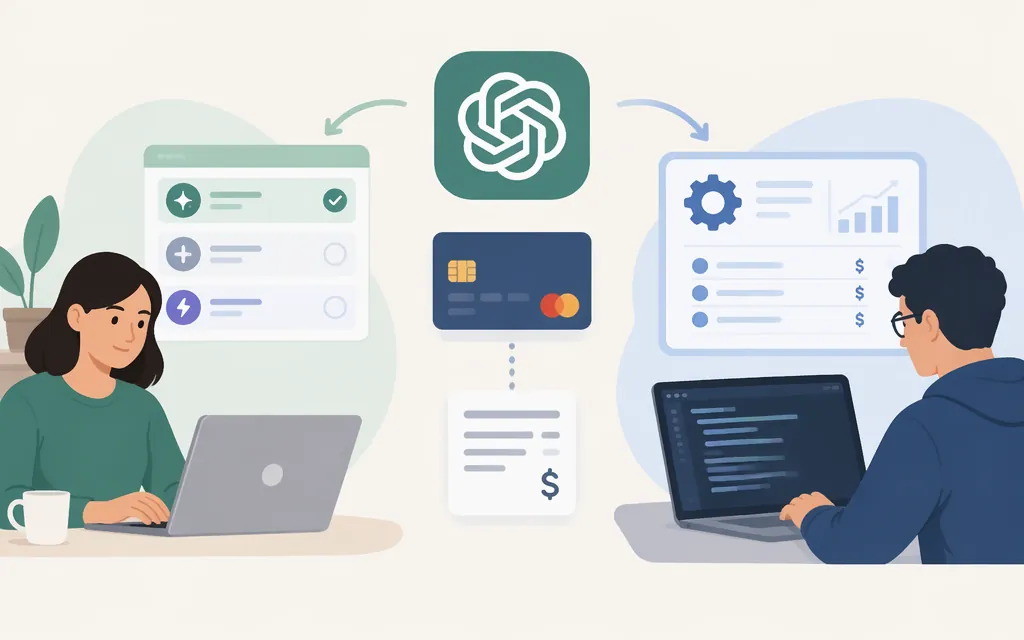
To pay for a ChatGPT subscription on the web, sign in, open your profile menu, choose Upgrade Plan, select a plan, and review the checkout price and currency before confirming. OpenAI lists ChatGPT Plus at $20 USD per month, billed monthly. Your checkout amount may differ by currency or account. For a production model API, set up API billing separately: ChatGPT subscriptions and API usage use separate billing systems. (OpenAI Help Center: ChatGPT Plus · Managing billing)
Pay for a ChatGPT subscription
On the web
- Sign in to ChatGPT at
chatgpt.com. - Open your profile menu and select Upgrade Plan.
- Choose the plan you want. For Plus, select Get Plus if that option is shown.
- Review the plan, price, billing currency, and payment details on the checkout screen.
- Pay using a credit or debit card. Eligible U.S. accounts may also be able to apply a ChatGPT wallet balance to a web purchase in USD. Check the amount applied and any remaining amount due before confirming. (OpenAI Help Center: ChatGPT Plus · Multi-currency billing)
OpenAI lists Plus at $20 per month, billed monthly. Localized prices may differ from a direct conversion of the U.S. price, so use the price and currency shown at checkout as the amount to review before you commit. (OpenAI Help Center: ChatGPT Plus · Multi-currency billing)
To check a web subscription afterward, sign in to the account that made the purchase, open Settings → Billing, and review whether an active plan managed on chatgpt.com is shown. If you paid but do not see the plan, first confirm you are signed in to the account associated with the purchase. (Managing billing · Avoiding duplicate charges)
In the ChatGPT app
App purchases are handled by the relevant store: Apple manages subscriptions purchased through the iOS App Store, and Google Play manages subscriptions purchased through Google Play. Follow the upgrade and checkout options shown in the app and store, and review the amount before confirming. Check for an existing subscription first: subscribing on more than one platform may result in separate charges. (Managing billing · Avoiding duplicate charges)
For iOS, OpenAI’s instructions say to select an upgrade button in the conversation, or open the chat menu, tap your name, go to Settings, and select Upgrade or the available plan upgrade option. Follow the checkout instructions; Apple manages purchases completed through the App Store. (ChatGPT iOS upgrade instructions)
Set up billing for a production API
API billing is separate from a ChatGPT subscription. To begin paid API use, someone with billing permission for the API organization must add a payment method in that organization’s API billing settings. API charges depend on the models and features used, including token usage and applicable tool or storage charges. Check current pricing for your chosen model and features. (Managing billing · API pricing)
For a new API account using prepaid billing:
- Open the API billing overview for the organization you intend to fund. You need permission to manage that organization’s billing.
- Select Add payment details and complete the payment-information step.
- Choose an initial credit purchase. The minimum is $5; the default purchase amount is $10.
- Review Use auto-reload before confirming. It is on by default during setup. Turn it off if you do not want automatic credit purchases. If you leave it on, set the balance threshold that triggers a reload and the balance you want restored to. You can also set an optional monthly reload limit.
- Confirm the purchase, then check the organization’s billing overview for the updated balance. It may take a few minutes to appear. (Setting up prepaid API billing)
Purchased API credits expire after one year. Automatic recharges have a $5 minimum. The optional monthly reload limit applies to automatic recharges only; manual credit purchases do not count toward it. Review these settings before using prepaid billing for a production workload. (Setting up prepaid API billing)
Monitor production API costs
Use the API Usage Dashboard to review activity across billing periods. Select the organization and reporting period; use the dashboard’s project selector to review specific projects or all project data. Dashboard data is shown in UTC. Use Cost data for billed amounts. Access requires organization-owner status or Usage Dashboard permission. (Reviewing API usage and costs)
For a token-priced workload, estimate the cost by multiplying each token category by its current rate:
Estimated cost = (input tokens ÷ 1,000,000 × input rate) + (output tokens ÷ 1,000,000 × output rate)
As one example, the current standard pricing listed for GPT-5.4 is $2.50 per million input tokens and $15 per million output tokens. A workload with 2 million input tokens and 500,000 output tokens would cost about $12.50 at those rates, before any applicable tool, storage, or other charges. Cached input has a different rate; check the model page for the token categories that apply to your workload. Rates can change, so recheck pricing before estimating production spend. (GPT-5.4 model pricing · API pricing)
Before sending production traffic, review both your approved usage limit and any configured organization or project spend controls. In the API Platform, check the organization’s Limits page for its approved usage limit and organization-level spend controls. For a project-level spend limit, open Projects, select the relevant project, and review its spend settings; you need permission to manage the applicable settings. An organization limit covers its projects, while a project limit applies to traffic billed to that project. Spend alerts notify you but do not stop API traffic. A hard spend limit can stop affected requests when tracked spend reaches the configured amount, but enforcement is not instantaneous and recorded spend can slightly exceed it. These spend controls are separate from the OpenAI-approved usage limit. (Troubleshooting API usage and spend limits · Managing API projects)
If payment or access looks wrong
For a ChatGPT subscription, confirm you are signed in to the account associated with the purchase and identify whether the web, Apple, or Google Play handled billing. If you paid through an app store, check the subscription using the store account used for the purchase. Avoid buying again until you have checked the original account and channel, since subscriptions on more than one platform can result in separate charges. For account-specific billing help, use the chat widget in the OpenAI Help Center. (Avoiding duplicate charges · Managing billing)
For an API billing or quota error, check the error code, the organization’s prepaid balance, its approved usage limit, and any applicable organization or project spend limit. Retrying alone will not resolve an exhausted balance or a reached limit. (Troubleshooting API usage and spend limits)
Sources
What is ChatGPT Plus? — OpenAI Help Center
Multi-currency billing — OpenAI Help Center
Managing billing for ChatGPT and the API platform — OpenAI Help Center
ChatGPT iOS app: Upgrading to a paid subscription — OpenAI Help Center
Setting up and managing prepaid API billing — OpenAI Help Center
Reviewing API usage and costs — OpenAI Help Center
Troubleshooting API usage and spend limits — OpenAI Help Center