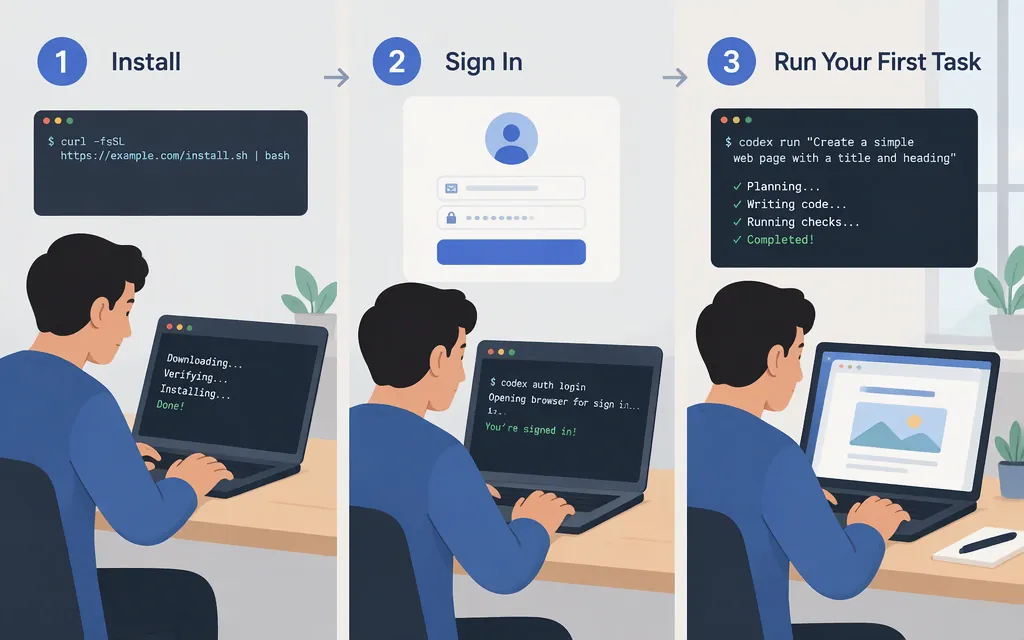
Start Codex CLI in three steps
- Install it using the official installer for your operating system, or choose npm or Homebrew.
- Open your project folder in a terminal and run
codex. - Sign in when prompted, then give Codex a small task. For your first try, ask it to explain the project before asking it to edit files.
You do not need to set OPENAI_API_KEY just to use the recommended ChatGPT sign-in route. If you want OpenAI Platform API-key billing or a supported provider such as Amazon Bedrock, see the API options below. ChatGPT-plan usage and API-key usage are separate billing paths. (learn.chatgpt.com)
Install Codex CLI
Use the installer for your system. These commands come from the OpenAI Codex repository’s quickstart instructions.
macOS or Linux:
curl -fsSL https://chatgpt.com/codex/install.sh | sh
Windows PowerShell:
powershell -ExecutionPolicy ByPass -c "irm https://chatgpt.com/codex/install.ps1 | iex"
Alternatively, use a package manager:
npm install -g @openai/codex
On macOS with Homebrew:
brew install --cask codex
The official repository lists these as installation options. You do not need to install Node.js to use the standalone installer or Homebrew; npm installation requires npm.
Open Codex in a project
In your terminal, change to the project you want Codex to work with, then start the CLI:
cd path/to/your-project
codex
On first launch, choose Sign in with ChatGPT and complete the sign-in steps shown in the terminal or browser. Then try a read-only first request, such as:
Explain this project’s structure and identify how to run its tests. Don’t change any files.
In the CLI, /status shows session configuration; the startup screen also lists commands such as /permissions for reviewing what Codex may do.
Check your first run
You’ve started successfully when Codex displays its session and responds to your task. Before moving on to edits:
- Read the response and confirm it refers to your project.
- Review any commands Codex proposes to run and any approval requests before accepting them.
- For a change-making task, use a Git checkpoint or commit you can restore, and inspect the resulting diff before keeping the changes.
Codex uses sandboxing and approval controls to set boundaries on actions; higher-risk actions may require review. Treat approval prompts as decisions to inspect, not clicks to accept automatically. (help.openai.com)
If the terminal says codex is not found, close and reopen the terminal so it reloads its environment, then try again.
Use a production API or another supported provider
Codex CLI supports different authentication and provider setups. Choose the route that matches your intended use:
| Your goal | Suitable route | Billing and setup implications |
|---|---|---|
| Start quickly with an existing ChatGPT account | Sign in with ChatGPT | Codex access and usage limits depend on your ChatGPT plan and workspace. Follow the login prompt in the CLI. |
| Use OpenAI Platform API access | Sign in with an API key | Requires an OpenAI Platform API key. API-key usage is billed separately from ChatGPT-plan usage; review API usage and limits in your Platform account. |
| Route supported OpenAI models through Amazon Bedrock | Configure the documented Bedrock provider | Requires Codex CLI 0.128.0 or later, access to a supported model in Bedrock, a Region where that model is available, and Bedrock-supported authentication. AWS account and Bedrock usage controls apply; model requests go through Bedrock rather than the OpenAI-hosted API. (help.openai.com) |
Sign in with an OpenAI API key
Create an API key in your OpenAI Platform account and make it available as OPENAI_API_KEY in the shell where you will run Codex. Pipe the key to the CLI’s stdin-based login command; do not put the key directly in the command text:
macOS or Linux:
printenv OPENAI_API_KEY | codex login --with-api-key
Windows PowerShell (after setting the key securely in that session):
$env:OPENAI_API_KEY | codex login --with-api-key
The CLI’s documented --with-api-key flow reads the key from standard input. After login, start codex and confirm it responds to a small task. API-key sessions use API billing, separate from ChatGPT-plan usage. For current authentication details, see the Codex authentication guide; for billing and usage, check OpenAI API usage and costs. (github.com)
A plain OpenAI API key is not interchangeable with ChatGPT sign-in, and an API key alone does not establish that a third-party model gateway is compatible. Use a provider only when Codex documentation establishes that setup.
Example: configure the documented Amazon Bedrock route
For Bedrock, OpenAI’s guide requires Codex CLI 0.128.0 or later, access to a supported model in an AWS Region where it is available, and Bedrock-supported authentication. The guide lists these model IDs: openai.gpt-5.6-sol, openai.gpt-5.6-terra, openai.gpt-5.6-luna, openai.gpt-5.5, and openai.gpt-5.4. Its recommended default is openai.gpt-5.6-sol. (help.openai.com)
Add this to ~/.codex/config.toml, replacing the Region with one where your selected model is available:
model = "openai.gpt-5.6-sol"
model_provider = "amazon-bedrock"

[model_providers.amazon-bedrock.aws]
region = "us-west-2"
wire_api = "responses"
For Bedrock API-key authentication, set AWS_BEARER_TOKEN_BEDROCK and specify a Region in the config. Alternatively, Codex can use the AWS SDK credential chain, including shared AWS config, environment credentials, AWS SSO, or named profiles. Do not use OPENAI_API_KEY for this Bedrock configuration. (help.openai.com)
To check the loaded configuration, run codex doctor and inspect its configuration details for the selected model and provider. The exact output can vary by CLI version and setup. (github.com)
A note about local files and model requests
Codex CLI runs as a local coding agent, but that does not mean model inference happens offline or that project content never leaves your machine. With Bedrock, for example, model requests go through Bedrock’s Responses API implementation; with other sign-in choices, the applicable service and account policies differ. Check the documentation for your chosen authentication route and your organization’s requirements before using sensitive code. (help.openai.com)
Sources
OpenAI Codex CLI repository and quickstart
Configure Codex with Amazon Bedrock