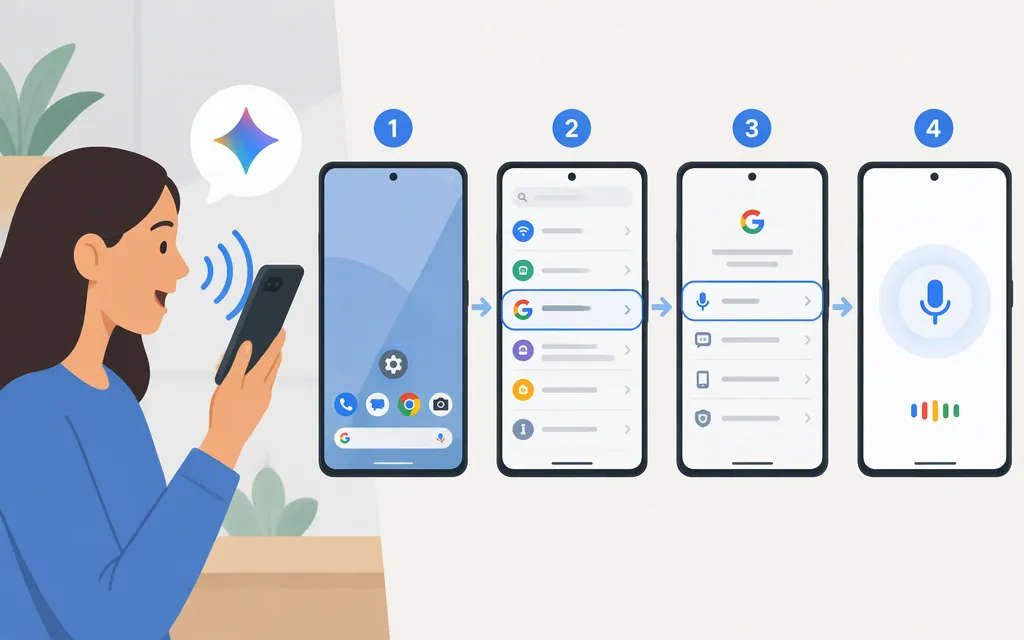
For the Android setup described in the available instructions, the wake phrases are “Hey Google” or “OK Google,” not “Hey Gemini.” Google’s help says to set up Voice Match to use “Hey Google” with Gemini. The detailed menu path below comes from a tutorial demonstrated on a Samsung phone, so menus may differ on your device. (Google Gemini Help; Be Connected’s Android tutorial)
Turn on Gemini voice activation
In the Samsung-phone demonstration, the steps are:
- Open Settings and tap Google.
- Tap All services, then Search, Assistant and Voice.
- Tap Gemini. If prompted to switch from Google Assistant, tap Switch, review the information, then tap Use Gemini.
- In Gemini settings, tap Google Assistant features in Gemini > “Hey Google” and Voice Match. Make sure This device is selected, then turn on Hey Google.
- Review and accept the prompts, complete the spoken Voice Match training, and tap Next.
These steps reflect the cited Samsung demonstration; its author says the steps are similar on other Android phones, not that every device has identical menus. The available sources don’t establish a universal current menu path or confirm a separate “Hey Gemini” setting.
Test the voice trigger
From the Home screen, say “Hey Google” followed by a simple request. In the tutorial’s demonstration, a microphone pop-up at the bottom of the screen indicates Gemini is listening. (Be Connected)
Does the Gemini API turn on the phone wake phrase?
The consumer-phone instructions above use Gemini and assistant settings. Google’s Gemini API documentation describes developer tools for building apps and agents; it does not document a phone setting for enabling a wake phrase. (Gemini API documentation)
Sources
Get started with the Gemini mobile app — Google Gemini Apps Help