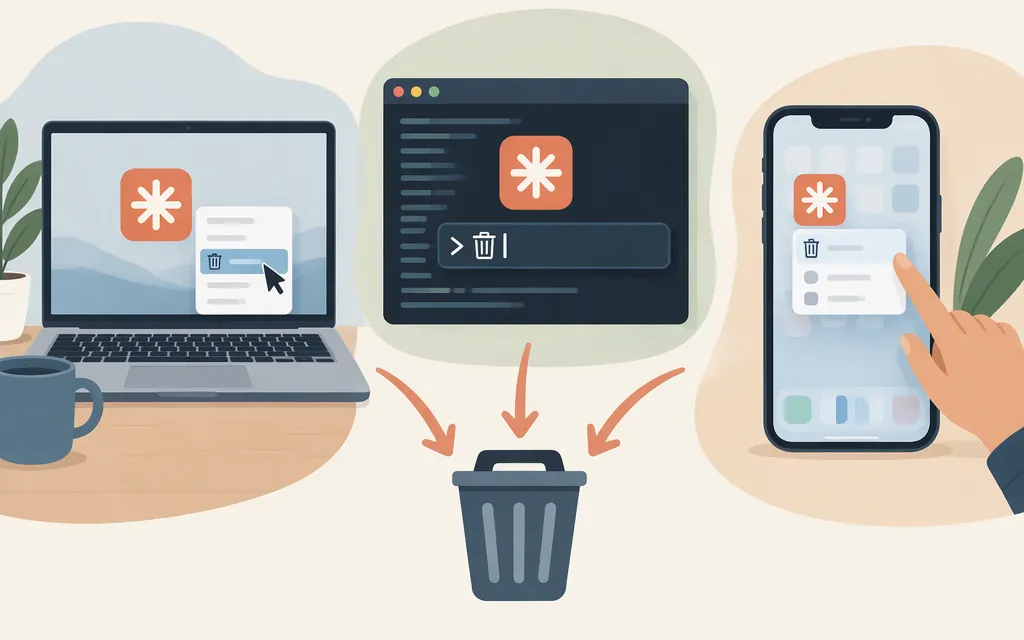
The right steps depend on which Claude you mean. For Claude Desktop, use your operating system’s app-removal option. For Claude Code, use the uninstall procedure for the method used to install it. For Claude in a browser, there is no desktop app to uninstall; remove a saved shortcut or bookmark if you want. Uninstalling an app does not cancel a paid subscription, and it is not the same as disabling or deleting a Console API key.
First, identify which Claude you want to remove
- Claude Desktop: The app on your computer. Anthropic lists it for macOS, Windows, and Linux beta. (Claude Help Center)
- Claude Code: The coding tool, which can be installed using different methods, including a native installer or package manager. Its removal procedure depends on the installation method. (Claude Code setup guide)
- Claude in a browser: Claude at
claude.ai. Close the tab or remove its bookmark. If you installed the site as a web app or shortcut, remove it through the browser that created it. - Claude for iPhone or Android: Remove the mobile app using the steps below. This is separate from removing Claude Desktop or Claude Code.
Uninstall Claude Desktop
macOS
- Quit Claude.
- In Finder, open Applications and find Claude. If Claude has its own uninstaller, use that; otherwise, move Claude to the Trash.
- Empty the Trash only when you are sure you do not want to restore the app. Apple notes that removing an app does not necessarily remove documents or other files created with it, and does not cancel an app subscription. (Apple Support)
Windows 11
- Open Start → Settings → Apps → Installed apps.
- Find Claude, select More (the three-dot menu), then choose Uninstall and follow the prompts. (Microsoft Support)
Windows 10
- Open Start → Settings → Apps → Apps & features.
- Select Claude, then choose Uninstall and follow the prompts. If it is not listed there, search for Control Panel from the taskbar, open Programs → Programs and Features, select Claude, and choose Uninstall or Uninstall/Change. (Microsoft Support)
Linux
Claude Desktop is listed as available for Linux beta. For a package-manager installation, follow that package manager’s removal instructions. This guide does not give a package-specific command. (Claude Help Center)
Uninstall Claude Code
Claude Code’s official setup guide has separate uninstall sections for native installations, Homebrew, WinGet, apt/dnf/apk, and npm. Choose the section for the method you used; these methods are not interchangeable. The guide’s uninstall instructions are the place to get the applicable removal steps. (code.claude.com)
If you are not sure how Claude Code was installed, Anthropic’s troubleshooting guide includes a section for checking conflicting installations. It describes locations associated with the native installer and older local npm installs, and checking the global npm list. (code.claude.com) This article does not provide the method-specific removal commands or a complete method-identification procedure; use those official guides before removing anything rather than guessing.
If you also used Claude Code through an IDE, check that IDE’s extension or plugin manager separately. Removing Claude Code does not necessarily remove a separately installed IDE extension.
Should you delete Claude Code configuration files too?
Not just to uninstall the program. Removing the application and deleting its settings or project files are separate choices. Anthropic’s setup guide has a separate Remove configuration files section; read it before deleting anything, and back up files you may need. Avoid indiscriminately deleting project-level configuration, which may belong to a project rather than to the application itself. (Claude Code setup guide)
Check whether Claude Code is still installed
Open a new terminal window and run:
claude --version
Anthropic documents this as a way to verify a working Claude Code installation. If it still prints a version after you intended to remove Claude Code, another installation may remain. Recheck the official uninstall instructions for any installation methods you may have used before manually deleting files. (Claude Code setup guide)
Uninstall Claude on iPhone or Android
- iPhone or iPad: Press and hold the Claude app, choose Remove App, then Delete App.
- Android: Press and hold Claude, open App Info, then select Uninstall. (Claude Help Center: iOS, Claude Help Center: Android)
Uninstalling does not cancel a subscription or manage API keys
Paid Claude subscription: Uninstalling the app does not automatically cancel a paid subscription. For a subscription purchased on the web or through Desktop, sign in to Claude, open Settings → Billing, and select Cancel. If you subscribed through Apple or Google, cancel through that store. (Claude Help Center)
Production API access: Claude API keys are managed separately in the Claude Console. Do not rely on uninstalling a local app to stop a deployed service or invalidate its credentials. If you intend to stop API calls, stop the workload making them. If you need to invalidate a key, manage it in the Console; Anthropic distinguishes reversible disabling from permanent deletion. (Claude Platform Docs, Claude Help Center)
Account deletion is different, too. Removing an app does not delete your Claude account. Account deletion is a separate action. (Claude Help Center)
Sources
Advanced setup — Claude Code Docs
Troubleshoot installation and login — Claude Code Docs
Install Claude Desktop — Claude Help Center
Delete or uninstall apps on Mac — Apple Support
Uninstall or remove apps and programs in Windows — Microsoft Support
Uninstall or remove apps and programs in Windows — Microsoft Support
Install Claude for iOS — Claude Help Center
Install Claude for Android — Claude Help Center
Cancel your Pro or Max subscription — Claude Help Center
Authentication — Claude Platform Docs
What should I do if I suspect my API key has been compromised? — Claude Help Center