Quick answer
If the openclaw command is available, preview a full removal first:
openclaw uninstall --dry-run --all
If the preview matches what you intend, run the interactive uninstaller and review its selections:
openclaw uninstall
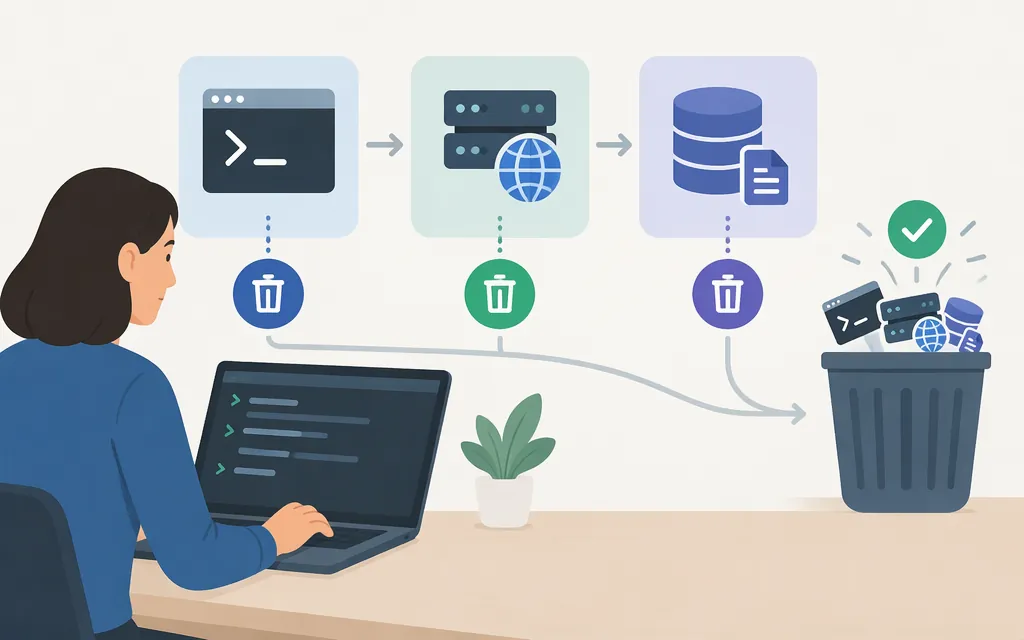
The prompt selects the Gateway service by default. Choose additional scopes if you also want to remove state, workspace files, or the macOS app. --all selects every scope. The CLI itself is separate and is not removed by this command. State removal preserves configured workspaces unless you also select workspace removal.
Back up or move anything you want to keep before deleting state or workspace files. The OpenClaw CLI reference documents openclaw backup create for making an archive.
Before you uninstall
- Choose the right terminal. On macOS, use Terminal; on Linux, use your shell. On Windows, use PowerShell for a native Windows installation, or the shell inside your WSL2 distribution if that is where OpenClaw runs. Do not mix the Windows and WSL service-removal steps: native Windows uses a Scheduled Task, while WSL2 uses a Linux systemd user unit.
- Decide what data to keep. Workspace files and configuration may be useful later. Make a backup or move files you want to preserve before selecting state or workspace removal.
- Target the Gateway host and profile. For a remote setup, run removal where the Gateway is installed. If you used a named profile, use that same profile when running OpenClaw commands; profiles have separate state and managed services.
Uninstall with the OpenClaw CLI
Run the command in the environment where OpenClaw is installed:
openclaw uninstall
Review the interactive choices. The scopes are:
--service: remove the managed Gateway service.--state: remove state and configuration.--workspace: remove workspace directories and their contents.--app: remove the macOS app, if applicable.--all: select all four scopes.
To preview all scopes without removing files:
openclaw uninstall --dry-run --all
For automation, OpenClaw documents:
openclaw uninstall --all --yes --non-interactive
This skips confirmation. Use it only after confirming the selected scopes. The CLI reports requested cleanup scopes and exits with a nonzero status if a requested cleanup fails or is blocked. If Gateway service inspection, stopping, or removal fails, state and workspace deletion are blocked; check the report rather than assuming cleanup succeeded.
If the openclaw command is already gone
If the CLI is missing but a Gateway service remains, use the native service manager for the environment where that Gateway runs. Confirm the service or task belongs to your OpenClaw installation before removing it; names can differ for named profiles or older installs.
- macOS: The Gateway is managed by
launchd. Check for the OpenClaw Gateway LaunchAgent, commonly labeledai.openclaw.gateway; a named profile uses a profile-specific label. Remove only the matching OpenClaw agent. - Linux or WSL2: The Gateway is normally a
systemduser unit. The default unit isopenclaw-gateway.service; named profiles use a profile-specific unit. Check the user-level unit and remove only the one belonging to the profile you intend to uninstall. - Native Windows: The Gateway is normally a Scheduled Task named
OpenClaw Gateway; a named profile has a profile-specific task name. Check Task Scheduler and confirm the task’s action points to the OpenClaw Gateway before deleting it. If task creation was denied during setup, OpenClaw may instead use a per-user Startup-folder launcher.
These are Gateway-service routes, not instructions to erase user data or remove the CLI package. If you cannot confirm which service or task belongs to OpenClaw, stop and consult the official uninstall guide rather than deleting a similarly named item. For a foreground Gateway rather than a managed service, close the terminal running it or stop that process through the environment where it was started.
Remove the CLI separately
openclaw uninstall removes the Gateway and the selected local-data scopes; there is no separate CLI-removal scope. Remove the global openclaw package using the package manager that installed it:
npm uninstall -g openclaw
pnpm remove -g openclaw
bun remove -g openclaw
If you installed from a source checkout or another installation route, remove it using that route’s instructions instead of assuming a global package command applies.
Check the result
Read the uninstaller’s report and resolve any scope it says failed or was blocked. If you removed the CLI, open a new terminal and check whether openclaw is still on that environment’s command path. If it remains, identify which package manager or installation route supplied it before removing anything else.
A missing command only indicates that the CLI is no longer available on that shell’s command path. It does not prove that every file, service, or unrelated program has been removed.
Credentials and plugins
Removing local software does not revoke API keys or OAuth access held by an online provider. If you configured credentials for OpenClaw and no longer need them—or have a specific reason to suspect exposure—revoke or rotate them in the relevant provider account. Uninstalling OpenClaw alone is not evidence that credentials were compromised.
To remove a plugin, use the separate command openclaw plugins uninstall <id>. That command removes a plugin; it does not uninstall the OpenClaw CLI, Gateway, or app.