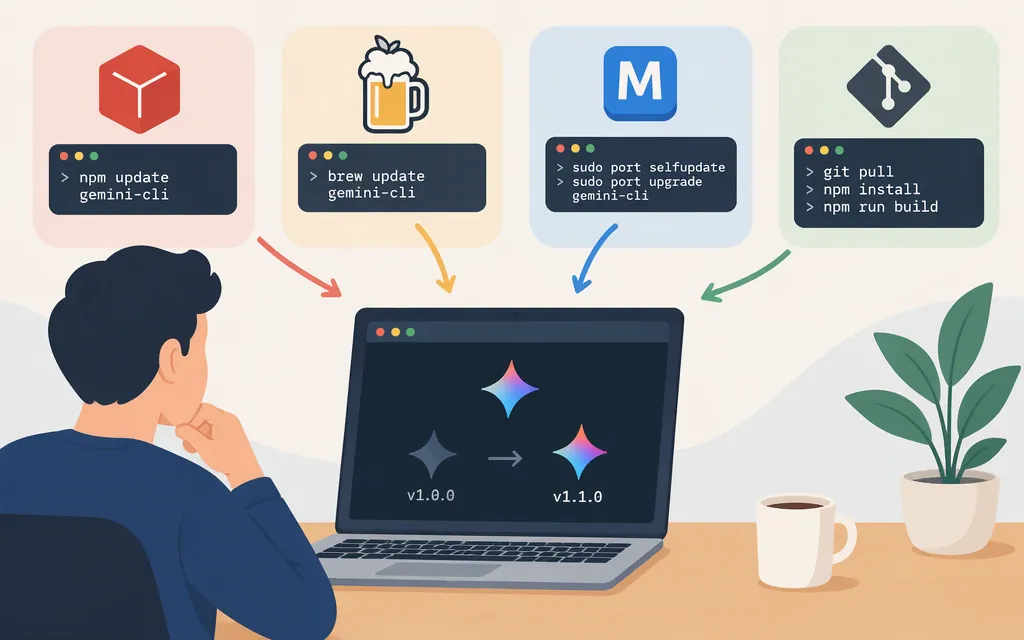
Quick answer
First, record your current version and check how your terminal finds gemini. In Bash, Zsh, or another POSIX-style shell, run command -v gemini; in PowerShell, run Get-Command gemini. These identify the command your shell resolves, but do not prove which package manager installed it. If you know the installer, use the matching steps below. [1][2]
gemini --version
The Gemini CLI cheatsheet lists gemini update as an update command. If you use a release channel other than stable, prefer the matching package-manager command below: the documentation cited here does not specify which channel gemini update selects. [3][4]
Update Gemini CLI with the method you used to install it
Global npm installation
For an installation made globally with npm, run:
npm install -g @google/gemini-cli@latest
Google’s FAQ documents this command for global npm installations. The latest tag selects stable, which Google recommends for most users. [5][4]
If you deliberately use preview or nightly, keep that channel when updating:
npm install -g @google/gemini-cli@preview
# or
npm install -g @google/gemini-cli@nightly
Those tags select preview and nightly, respectively. Switching to @latest selects stable. [4]
Homebrew installation
Update Homebrew’s package information, then upgrade the Gemini CLI formula:
brew update
brew upgrade gemini-cli
Homebrew documents brew upgrade <formula> for upgrading a named formula; Gemini CLI’s installation guide lists gemini-cli as its Homebrew formula. [6][7]
MacPorts installation
Refresh the MacPorts ports tree, then upgrade outdated ports:
sudo port selfupdate
sudo port upgrade outdated
The Gemini CLI installation guide names the MacPorts package gemini-cli. MacPorts documents selfupdate for refreshing the ports tree and recommends port upgrade outdated to upgrade installed outdated ports. This command can upgrade other outdated ports as well as Gemini CLI. [7][8]
Anaconda/Conda installation
The Gemini CLI installation guide lists a Conda installation option. Do not assume that activating a Conda environment alone makes npm update the Gemini CLI installation associated with that environment. Use the command below only if you installed Gemini CLI globally with the npm installation target used by that environment:
conda activate gemini_env
npm install -g @google/gemini-cli@latest
Replace gemini_env with your environment’s name and preserve your release channel if you use preview or nightly. If your Conda setup uses a different installation method or npm global target, follow the matching Conda instructions in the official installation guide instead. [5][7][4]
Source checkout
From your Gemini CLI repository checkout, pull the latest changes and rebuild:
git pull
npm run build
Google’s FAQ gives these steps for a source-compiled installation. They update and rebuild that checkout, not a separate npm, Homebrew, or MacPorts installation. [5]
Running with npx
The installation guide documents npx @google/gemini-cli as a way to run Gemini CLI without a permanent installation. That is a launch method rather than a global package to upgrade; the documentation cited here does not specify a freshness guarantee for repeated runs. [7]
Verify the update
After updating, check the version again:
gemini --version
The official FAQ lists gemini --version and gemini -v for checking the CLI version. Compare the result with the version you recorded before updating. If it is unchanged, the installation may already have been current—or your update command may have targeted a different installation. [5]
If an update fails
- Check the version and the command your shell resolves (
command -v geminiin a POSIX-style shell orGet-Command geminiin PowerShell). A resolved path can help you investigate, but it does not by itself identify which package manager owns the installation. [1][2] - Retry with the package manager that installed Gemini CLI. For npm, preserve your intended channel: use
@latest,@preview, or@nightlyas appropriate. [4][5] - Review the official release notes for the channel and version, and consult the Gemini CLI repository for maintainer guidance if the matching update still fails. [4][9]
Community reports describe inconsistent automatic-update failures, including an npm ENOTEMPTY error, but do not establish a reliable general fix. Avoid starting with rm -rf, deleting ~/.gemini, copying someone else’s package path, or using sudo for an npm reinstall: these are user-specific, potentially destructive workarounds, not general instructions. [10]
Does a CLI update change a production Gemini API integration?
Updating Gemini CLI is not itself a deployment command for a separate application or service. The available update guidance does not establish whether a particular release affects credentials, model settings, or compatibility. If a production workflow depends on the CLI, review the release notes and test the update through your normal release process. [9]
Sources
The Open Group Base Specifications: command
Frequently asked questions (FAQ)