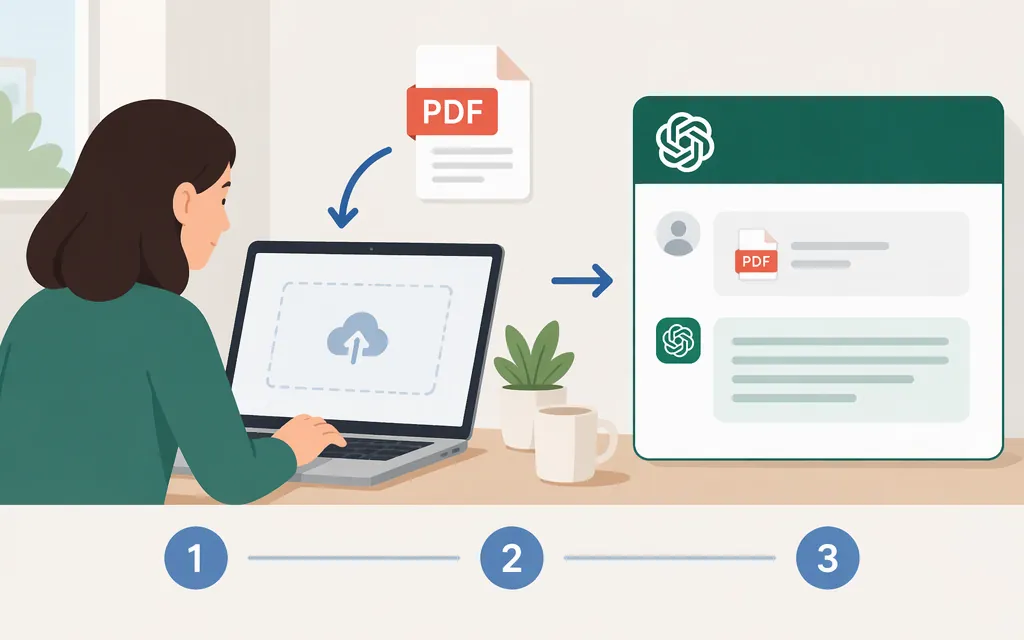
To use a PDF in ChatGPT, open a conversation and attach the file in the message composer. Choose the PDF from your device, then send it with a question or instruction. OpenAI lists PDF as a supported document format and says document uploads are available on the web and in supported mobile apps, subject to plan-specific limits and account settings. The exact controls can vary by workspace, region, client version, and selected model. (help.openai.com)
Upload a PDF in ChatGPT
- Open a chat on the ChatGPT web app or a supported mobile app.
- Use the attachment/add control in the message composer, if it appears in your interface, and select the option to upload a file from your device.
- Choose your PDF in the file picker. In ChatGPT Enterprise, OpenAI also documents uploading files directly from your computer. (
help.openai.com) - Check the selected filename before sending so you know you chose the intended document. The displayed control and attachment preview may differ across interfaces.
- Write a request and send it with the file. For example: “Summarize this PDF in five bullet points. Then list its two main conclusions and the evidence it gives for each.”
OpenAI’s guidance is to attach a supported file, describe what you want ChatGPT to do, review the response, and ask follow-up questions as needed. If the PDF is already saved in Library and that option is available, you can reuse it through the composer menu: choose Add from library, then select the file. That is a route for reusing a saved file, not the same as selecting a new local file. (help.openai.com)
What to ask about the PDF—and how to check the answer
Be specific about the task. You can ask ChatGPT to summarize the document, find information about a topic, compare sections, or identify relevant passages. What it can do depends on the file’s contents, the selected model, and the tools available in your chat. (help.openai.com)
Example prompt:
Summarize this report in five bullet points. Then find the section about [topic] and give me the relevant wording and page number if you can identify it. If the report does not address the topic, say so.
Treat the response as a starting point, not proof that every detail is correct. For important claims, check the wording, figures, and context in the PDF itself. Confirm any page number or quotation in the original document before relying on it.
If you can’t attach or use the PDF
- No attachment control? Check that you’re signed in and using a supported ChatGPT experience. Upload availability depends on plan-specific limits and account settings, and may also vary by workspace, region, client version, and selected model. (
help.openai.com) - The upload is rejected? Confirm that you selected a PDF and check its size. OpenAI’s Library guidance states a 512 MB per-file ceiling and a 2-million-token cap for text and document files. These are ceilings, not a guarantee that every file below them will upload; other usage limits or account settings may apply. (
help.openai.com) - The answer misses content? Ask about a specific section or topic, then compare the result with the document. If the PDF contains important charts or other visuals, don’t assume every account or workflow will interpret them the same way: OpenAI specifically documents interpretation of embedded PDF visuals for Enterprise. (
help.openai.com) - Want to remove the file later? Check Library or Space as well as the chat. OpenAI says files may be saved separately from the conversation, so deleting a chat does not delete a separately saved copy. (
help.openai.com)
ChatGPT upload vs. a production API
Attaching a PDF in ChatGPT is a user-interface workflow; it does not configure or submit the file through your application’s production API. API file-input requirements depend on the endpoint. If you’re building software to send PDFs to a model, follow the documentation for the specific API rather than these ChatGPT interface steps. (help.openai.com)
Sources
Uploading files and audio to ChatGPT — OpenAI Help Center
Using Library to manage files in ChatGPT — OpenAI Help Center
Optimizing file uploads in ChatGPT Enterprise — OpenAI Help Center