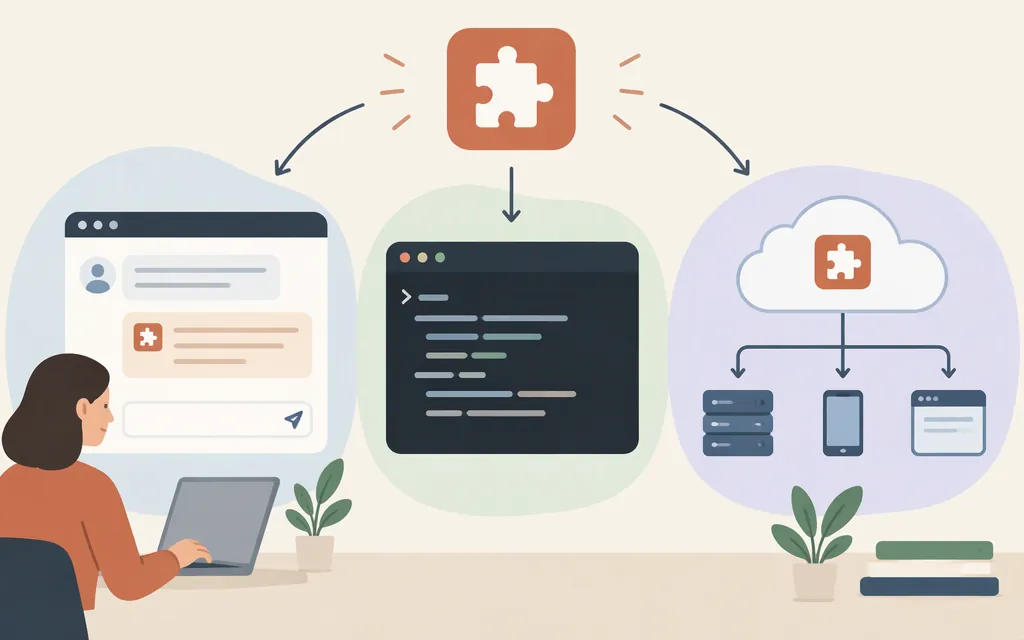
The steps depend on where you use Claude. In Claude’s app, enable Skills under Customize → Skills, then ask for a task the Skill covers or type / to select one. In Claude Code, ask for a relevant task or invoke a Skill with /skill-name. Skills are also available through the Claude API, currently in beta. (Claude Skills overview; Claude Code Skills; Claude Help Center)
A Skill packages instructions in a SKILL.md file and can include supporting resources or scripts. Claude can use it when a request fits its description. A Skill provides instructions; it does not itself connect Claude to an external service. (Create custom Skills)
Use or add a Skill in Claude’s app
- Enable the required capability. For individual accounts, go to Settings → Capabilities and enable Code execution and file creation (called Create and edit files in the updated settings layout). For Team or Enterprise workspaces, an owner may need to enable Skills and code execution in organization settings. (Claude Help Center)
- Find or upload a Skill. Open Customize → Skills. Turn on a Skill that is already available, or create and upload a custom Skill there. For a custom one, prepare a folder with
SKILL.mdand any needed resources, then follow Anthropic’s custom-Skill guide for its packaging and upload instructions. The Help Center confirms that users can upload personal Skills through Customize → Skills; check the current guide for the exact packaging steps. - Select or try it. Ask Claude to perform the task the Skill describes. To select one yourself, type
/in the message box and choose the Skill. (Skills overview) - Check the result. Compare the response with the Skill’s intended workflow and output. For example, if a weekly-report Skill requires sections for wins, challenges, priorities, and requests, check that the response includes each section and uses only the notes you supplied. Revise the instructions and test again if needed.
Before enabling a Skill shared by someone else, review its instructions and any included scripts. A Skill’s contents matter, particularly when they can use tools or code.
Use a Skill in Claude Code
Claude Code can use relevant Skills automatically, or you can invoke an available Skill with /skill-name. A personal Skill can be stored under ~/.claude/skills/; a project Skill can be stored under .claude/skills/. (Claude Code Skills documentation)
For example, if your Skill is named team-report, enter /team-report, or ask: “Turn these notes into a weekly team update with wins, blockers, next steps, and requests.” The Skill’s description helps Claude determine whether it fits a task; automatic selection is not guaranteed.
A minimal SKILL.md could look like this:
---
name: team-report
description: Creates a weekly team update. Use when the user asks for a team status report or weekly update.
---

# Weekly team update

Use these sections:
1. Wins: 3–5 concise bullets.
2. Challenges: current blockers or concerns.
3. Next week: three priorities.
4. Requests: decisions or help needed.

Use a professional, conversational tone. Use only facts in the supplied notes.
Test it with both a direct command and a natural-language request. Check that the output follows the requested sections and stays within the information provided. If you edit the Skill, repeat the tests.
If Claude does not use the Skill you expected
- Confirm it is available. In Claude’s app, check Customize → Skills and make sure it is turned on. In Claude Code, check that it is in a recognized Skill location.
- Check the description. Make sure it plainly says what the Skill does and what kinds of requests it covers. Then try a small request that matches that description.
- Use direct selection where supported. In Claude’s app, type
/and select the Skill. In Claude Code, try/skill-name. (Skills overview; Claude Code Skills documentation) - In Claude Code, distinguish invocation controls.
disable-model-invocation: trueprevents Claude from choosing the Skill automatically. By contrast,user-invocable: falsecontrols whether it appears in the/menu; that setting alone does not stop automatic use. Check the current Claude Code invocation documentation before changing frontmatter. (Anthropic Claude Code documentation issue clarifying these controls) - Retest and inspect the output. If it still misses the expected format, update the Skill instructions and try again. A successful-looking answer alone does not prove the Skill was invoked.
Use Skills through the Claude API
The Messages API supports Agent Skills, but API use is in beta. Skills run through the code execution tool. Anthropic’s documentation describes attaching a Skill in the request’s container parameter with a skill_id, type, and optional version; an API key and a model that supports the code execution tool are also required. (Claude Help Center; Agent Skills API guide)
That establishes the API capability, but this article does not provide a complete, implementation-ready production request and response example. In particular, use Anthropic’s current API quickstart and Skills API guide for the exact request schema, headers, Skill management, and generated-file handling. Do not copy API code from unofficial tutorials without checking it against the current reference. The Help Center identifies API Skills as beta; check the current documentation for applicable data-handling and deployment constraints before choosing them for a production application.
When a Skill is useful
Use a Skill for a repeatable workflow you want Claude to follow consistently, such as a reporting format or review checklist. For a one-off task, explain what you need in the conversation. For access to live information or an external service, use an appropriate connector; a Skill can describe how to use a connector, but does not provide that connection itself. (Create custom Skills)
In short: select an available Skill in Claude’s app, use /skill-name or a matching request in Claude Code, and configure API-based use through the Messages API’s documented container workflow. Confirm the Skill is available and check the result on the surface you are using.
Sources
Skills overview — Claude.ai Documentation
Create custom skills — Claude.ai Documentation
Use skills in Claude — Claude Help Center
Extend Claude with skills — Claude Code Docs
Clarify distinction between user-invocable and disable-model-invocation — Anthropic Claude Code
Using Agent Skills with the API — Claude Platform Docs
Get started with Agent Skills in the API — Claude Platform Docs