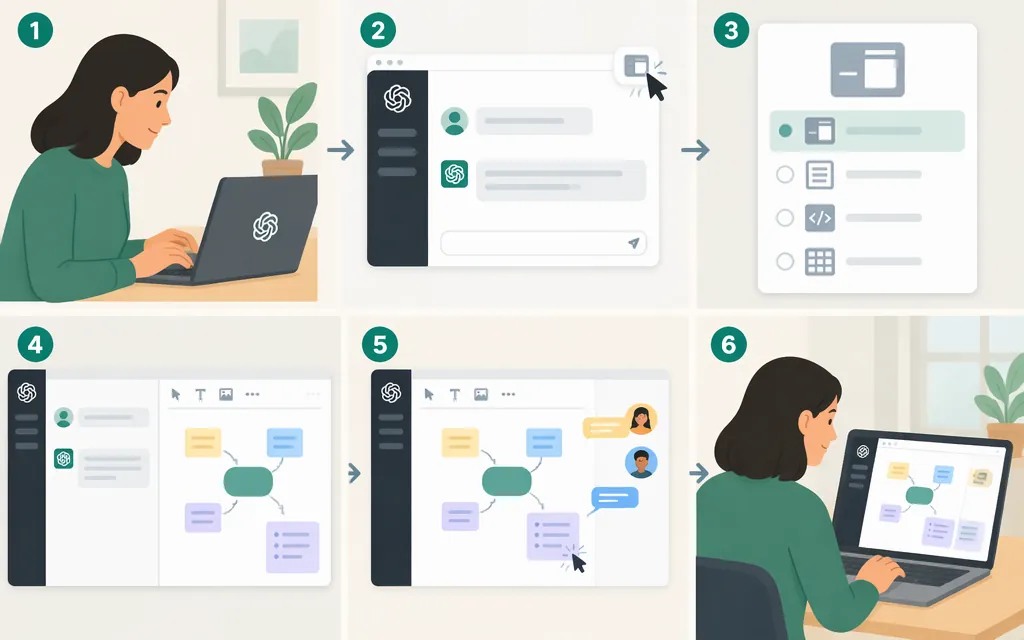
This guide covers Canvas in ChatGPT, a workspace for writing and coding—not Canvas Learning Management System (LMS). The platform scope here is ChatGPT on the web, Windows, or macOS, as listed in the OpenAI Help Center material available for this guide. Mobile access is not covered; check current OpenAI guidance if you’re using a mobile device. (OpenAI Help Center: What is the canvas feature in ChatGPT and how do I use it?)
Start a Canvas task
- Describe the task. For example: “Use Canvas to draft a three-paragraph welcome email for new customers. Keep it warm, concise, and clear about the next step.”
- Include “use canvas” in your prompt. OpenAI’s Canvas guidance describes this as a way to open Canvas. Canvas may also open automatically when ChatGPT detects it could help. (OpenAI: Introducing canvas)
- Review the work in the Canvas window. OpenAI describes Canvas as opening in a separate window where you and ChatGPT can work on a project. You can type directly into the text or code, or ask ChatGPT to help revise it. (OpenAI: Introducing canvas)
For a coding task, try a specific request such as: “Use Canvas to draft a Python function that converts Fahrenheit to Celsius, with two example calls.” Review the result before using it.
Make and review a focused edit
To have ChatGPT focus on a particular passage, highlight that section and ask for a specific change—for example: “Make this paragraph more personal, but keep the email under 150 words.” OpenAI says highlighting can direct ChatGPT’s attention and that it can give inline feedback and suggestions. (OpenAI: Introducing canvas)
When you get a revision:
- Read the changed passage in context and check that its meaning and details remain correct.
- If it needs another pass, narrow the request: “Keep the first sentence; revise only the call to action.”
- To return to an earlier version, use Canvas’s back button—not your browser’s back button. OpenAI’s Canvas guidance describes using the in-Canvas back button to restore previous versions. (OpenAI: Introducing canvas)
For code, inspect and test the revision in your own context before relying on it.
Can you use ChatGPT Canvas through a production API?
Do not assume that the ChatGPT Canvas workspace itself is available through a production model API. OpenAI’s API documentation describes separate capabilities, including text generation and a Code Interpreter tool for running Python in a sandbox. Those capabilities do not establish that an API can open or control the ChatGPT Canvas interface. (OpenAI API: Text generation; OpenAI API: Code Interpreter)
For an API-based product, you could build your own editor or document workflow around model calls. That would be your implementation—not an official API version of ChatGPT Canvas.
If you meant Canvas LMS, that is a separate product. The OpenAI Cookbook’s Canvas example covers ChatGPT Custom Actions connected to the learning-management system, not the ChatGPT writing and coding workspace.
Sources
What is the canvas feature in ChatGPT and how do I use it? — OpenAI Help Center
GPT Actions library - Canvas Learning Management System — OpenAI Cookbook