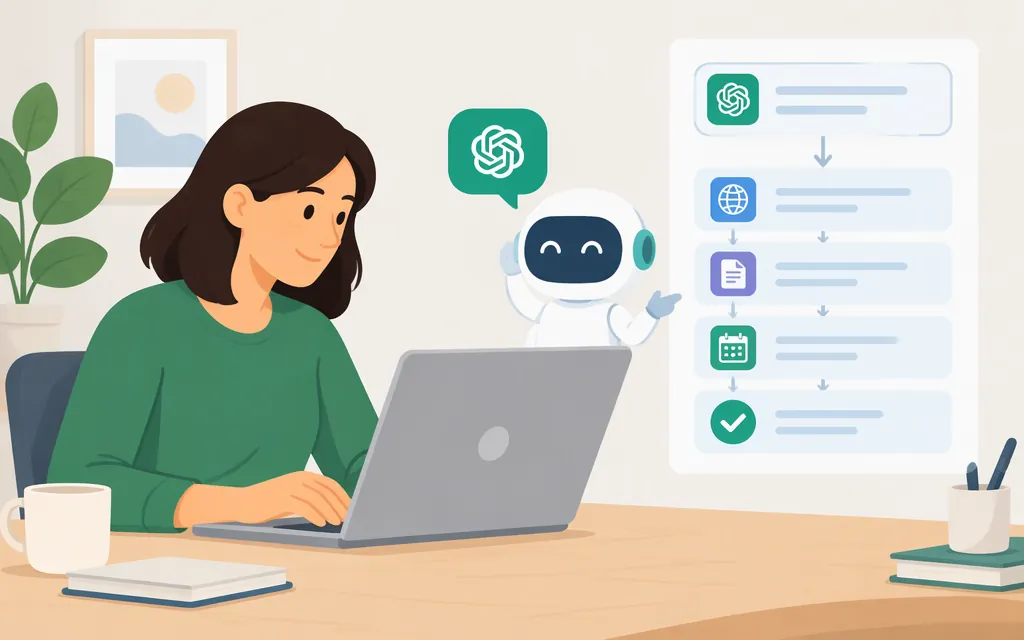
Short answer: OpenAI says ChatGPT agent is no longer available and points users to ChatGPT Work for longer, multi-step tasks and finished deliverables. On ChatGPT web, select Work to start a Work task. Describe the outcome you want, the relevant website or source, and your constraints. Follow the task, respond if ChatGPT asks for input or confirmation, and check the result before relying on it. For cloud-browser tasks, you don’t need to select the browser separately; ChatGPT chooses when to use it.
How to start a multi-step task in ChatGPT Work
- On ChatGPT web, select Work. OpenAI’s web instructions for creating Sites in Work say to select Work on the web. The available guidance does not specify a general account or workspace condition for whether the Work entry appears. If you don’t see it, the walkthrough below is conditional on having Work access; check your current ChatGPT interface and workspace settings. Cloud-browser eligibility is separate from access to Work itself.
- Describe the outcome you want. Include the relevant website or source, needed details, and constraints—such as a date range, location, or actions you do not want taken.
- Approve website access if asked. If a supported site requires sign-in, ChatGPT pauses and asks you to use its secure sign-in form; complete any required two-factor authentication there. As general safety advice, don’t paste passwords or security codes into the chat.
- Follow the task and review requests. ChatGPT may pause when it needs your input, sign-in, or confirmation. Read confirmation requests before responding; some tasks require your review or a final step that you complete yourself.
- Check the result and its sources. Compare the response with your original request and the cited sources or source website before relying on it.
Example: find a DMV appointment without booking it
Ask Work:
Find DMV appointment options near [ZIP code] for [service] during [date range]. Use the official DMV site if available. Do not book anything. Return the location, time, source link, and details I should confirm.
OpenAI lists finding a DMV appointment and preparing a booking for your approval as an example of a cloud-browser task. Whether it can complete a particular task depends on the website, your access, and the steps involved. Check the source yourself, and don’t approve a booking if you only want to research options.
What happened to ChatGPT Agent mode?
OpenAI’s Help Center says ChatGPT agent is no longer available and directs users to ChatGPT Work for longer, multi-step tasks. The agent help page still contains older instructions for starting Agent mode; because the page says the feature is no longer available, don’t treat those instructions as current steps for using it.
Cloud-browser availability is a separate question from whether Work appears in your interface. OpenAI says cloud browser is available in Work on paid ChatGPT plans in supported regions, excluding Free and Go; availability can vary during rollout and depend on workspace permissions. Those are cloud-browser conditions—not stated eligibility rules for Work itself. The cited Work guidance does not explain a specific access condition or exact navigation route if Work is missing. Check the current Help Center guidance or your workspace settings rather than assuming cloud-browser eligibility explains Work access.
ChatGPT Work or the production Agents API?
| Choose | When it fits | Key distinction |
|---|---|---|
| ChatGPT Work | You want to delegate a task in ChatGPT and review its progress and result. | You describe the task and constraints, respond to requests, and check the outcome. Cloud-browser access has its own plan, region, rollout, and workspace conditions. |
| Agents API (beta) | You’re developing an application that needs a managed, multi-step agent session. | Your application supplies the task, tools, and configuration; the API provides a developer integration route, not the ChatGPT Work interface. It is currently in beta and supports data residency in the United States only. |
For an API starting point, use the official Agents API beta FAQ and its linked quickstart. OpenAI’s FAQ says to create an application API key in a Platform project, grant the documented session and response permissions, configure an agent, create a session, submit a task, and follow session events to review progress and results. Keep the API key outside the agent’s sandbox. The FAQ cautions that a completed turn does not mean every tool succeeded, so inspect the reported result. Because the API is in beta and currently supports U.S.-only data residency, check whether those conditions fit your application before choosing this route.
Rule of thumb: Use Work to complete a task in ChatGPT. Consider the Agents API when you’re building an application and need to supply its task, tools, and configuration. Don’t assume the two experiences have identical tools, access, or behavior.
Review and safety checklist
- Confirm the website, account, and task details before allowing access.
- Share only the information needed. For sign-in, use the secure form when ChatGPT presents it; as general safety advice, don’t put credentials or security codes in chat.
- Read requests for input or confirmation carefully, especially before a booking, payment, account change, or other consequential action.
- Check important facts against the source page or original document.
- If the task pauses or requires a step you don’t want to approve, take over or leave that step for yourself.
OpenAI warns that signed-in websites and connected apps may expose sensitive information or allow actions on your behalf. Its safeguards do not eliminate all risks, so review sensitive steps and important results.
Sources
ChatGPT agent — OpenAI Help Center
ChatGPT Work and Codex — OpenAI Help Center
Using cloud browser in ChatGPT — OpenAI Help Center