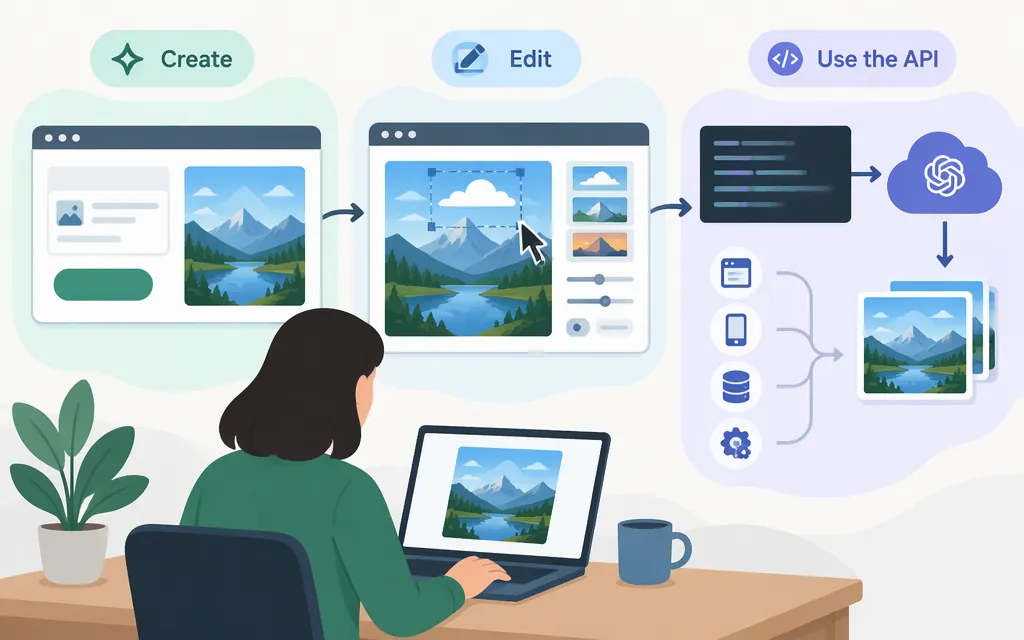
If you mean creating images in ChatGPT, use ChatGPT Images. OpenAI’s current help page calls the experience ChatGPT Images 2.6. For developer workflows, the Image API lists model IDs including gpt-image-2 and gpt-image-2.6-flare. ChatGPT is the manual route; use the API when your software needs to make image requests. ChatGPT Images help · Image API reference
Create, revise, and find an image in ChatGPT
- Start image creation. Ask for an image in a conversation, or select More → Images and enter your prompt.
- Describe what you want. State the subject and the image’s purpose. If the aspect ratio matters, choose it with the aspect-ratio picker or specify it in your prompt.
- Request a revision. Select the generated image and describe the change. For a localized edit, select the area to change and describe the edit in chat; you can also describe the edit without using the selection tool.
- Find the result later. Open the Images tab. OpenAI says created files are saved automatically and generated images appear there. The cited help instructions establish in-account retrieval; the exact control for downloading a copy to your device may vary by client, so use the download or save control shown when you open the image.
OpenAI says ChatGPT Images is available on all tiers and on web, iOS, and Android. The separate “Images with thinking” feature is listed for Plus, Pro, and Business. Images in ChatGPT · Using Library to manage files
Write a prompt you can improve
A useful prompt gives the image’s purpose, subject, composition, visual direction, and constraints. Add exact wording if text matters. For example:
Create a 16:9 ecommerce hero image for a matte-black wireless speaker on a concrete plinth. Place the speaker on the right third, with crisp edges and a realistic contact shadow. Use dramatic rim lighting. Leave clear negative space on the left for a headline. No logo, extra objects, or watermark.
If the first result is close but the speaker is too centered, make the next request about placement only: “Move the speaker farther right. Keep its size, shape, lighting, and background unchanged.” Changing one important thing at a time makes it easier to judge whether the revision helped. OpenAI’s prompting guide likewise recommends describing the subject, composition, style, and constraints, then refining one thing at a time. Image prompting guide
For text in an image, specify the exact wording and where it belongs, then check the result character by character. Keep copy short when possible. Check labels, prices, legal text, and brand marks against approved source material before production use.
Check the image before using it
Before publishing or handing off an image, check:
- Content: Are the intended subject and details present?
- Layout: Is the subject positioned correctly, and is required text readable?
- Edits: Did the requested change happen in the intended area? Did important details remain intact?
- Production details: Check product shape, brand marks, labels, figures, and claims against approved material.
- File: Does the saved image have the format, dimensions, and background your next step needs?
Treat the result as a draft to inspect against your brief—not as confirmation that every word or product detail is correct.
Use the OpenAI image API
For a single image generated from a prompt, use the Image API endpoint POST /v1/images/generations. For a conversational workflow with multi-turn image edits, OpenAI documents the Responses API as another route; check the current model documentation before choosing it. The Image API lists gpt-image-2, gpt-image-2.6-flare, and gpt-image-2.6-sunburst as distinct model IDs. Image API reference · Image generation guide
OpenAI’s prompting guide describes Flare as the faster-iteration option and Sunburst as the choice to consider when detail or precise edits matter more. Compare both on your own prompts if that trade-off matters to your application. GPT Image model access may require organization verification; rate limits depend on your usage tier and account. Image prompting guide · Image generation guide
Set up and run a Python example
Create an API key in the OpenAI developer dashboard, install the official Python SDK, and set the key in your environment. Save the following as generate_image.py.
pip install openai
On macOS or Linux:
export OPENAI_API_KEY="your_api_key_here"
In Windows PowerShell, set the variable in the current session before running the script:
$env:OPENAI_API_KEY = "your_api_key_here"
import base64
from openai import OpenAI

client = OpenAI()

try:
    result = client.images.generate(
        model="gpt-image-2.6-flare",
        prompt=(
            "Create a square editorial illustration of a small green plant "
            "on a sunny desk. Clean shapes, soft natural light, no text."
        ),
        size="1024x1024",
        quality="medium",
        output_format="png",
    )

    if not result.data or not result.data[0].b64_json:
        raise RuntimeError("The API response did not contain image data.")

    image_bytes = base64.b64decode(result.data[0].b64_json)
    with open("plant.png", "wb") as image_file:
        image_file.write(image_bytes)
except Exception as exc:
    raise SystemExit(f"Image generation failed: {exc}") from exc
Run it in the same terminal session where you set the API key:
python generate_image.py
The model’s documentation lists 1024x1024 as a supported size, medium as a quality setting, and png as a supported output format. The Image API reference says GPT Image models return the generated image as Base64 by default; the Python SDK exposes that data as b64_json, which the example decodes before writing the PNG file. Keep API keys out of browser or mobile-app code. For production, handle request errors, monitor your account’s usage and limits, and review image files before passing them to users or downstream systems. Image prompting guide · Create image API reference · Developer quickstart
Pricing: The GPT Image 2.6 Flare model page lists token rates of $5 per 1 million text input tokens, $1.25 per 1 million cached text input tokens, $8 per 1 million image input tokens, $2 per 1 million cached image input tokens, and $30 per 1 million image output tokens. These are the listed rates checked on November 9, 2026. Actual charges depend on the tokens used by your requests and outputs. API usage is separate from ChatGPT plan access. GPT Image 2.6 Flare pricing
Sources
Images in ChatGPT — OpenAI Help Center
Using Library to manage files in ChatGPT — OpenAI Help Center
Create image — OpenAI API Reference