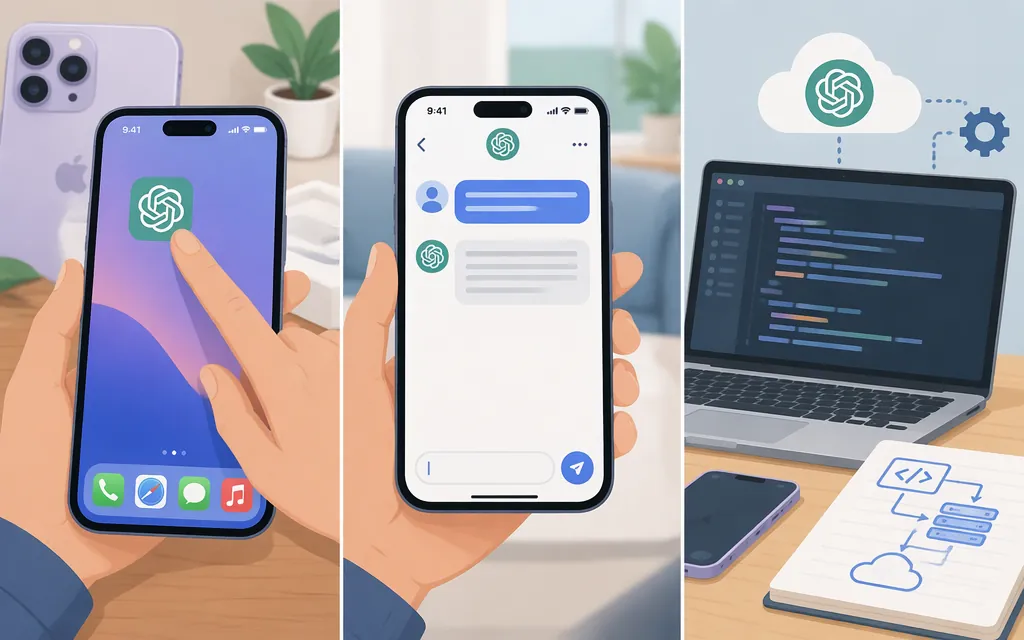
ChatGPT on an iPhone 17 works much like it does on other supported iPhones: install the official ChatGPT app from the App Store, open it, and start a conversation. The app is for using ChatGPT directly; a production model API is for building or powering software and requires a separate, securely managed setup. OpenAI’s current guidance points readers to the App Store listing for the latest device and software requirements, rather than specifying a separate iPhone 17 setup. (OpenAI’s iOS app FAQ)
Set up ChatGPT on your iPhone 17
- Check compatibility. Open the App Store listing for ChatGPT and confirm it is compatible with your iPhone and installed iOS version. OpenAI directs users to that listing for current device and operating-system requirements. App availability also varies by country or region. (OpenAI’s iOS app FAQ)
- Install the official app. In the App Store, search for OpenAI ChatGPT. OpenAI identifies the iPhone and iPad app’s developer as OpenAI OpCo, LLC; check the developer before downloading. (OpenAI’s iOS app FAQ)
- Follow the app’s access prompt. If it asks you to sign in, use your existing account or create one. OpenAI documents trying ChatGPT without an account on the web in supported locations and using Apple’s integration without an account, but its iOS app FAQ does not confirm account-free use in the native app. Sign in to save and sync chat history across devices. (ChatGPT home page FAQ; iOS app FAQ)
- Confirm it works. Start a chat, send a short test prompt, and wait for a response. You can reopen recent conversations from the app’s sidebar; chats sync across devices where you’re signed in to the same account. (OpenAI’s iOS app FAQ)
If the App Store says the app is incompatible or unavailable, use the listing’s current requirements and OpenAI’s supported-countries guidance rather than relying on a generic iPhone 17 compatibility claim. (OpenAI’s iOS app FAQ)
Send your first prompt
- Open ChatGPT and start a new chat if one is not already open.
- Tap the message field, type a request, and tap the send arrow.
- Read the reply, then send a follow-up in the same chat to clarify, shorten, or revise it.
Example: Draft a polite, concise email asking my landlord to repair a dripping kitchen faucet. Leave placeholders for my name and the date.
Then you might follow up: Make it warmer, but keep it under 100 words. The example shows a way to shape a request; review the response before sending or relying on it.
To continue an earlier conversation, open the sidebar using the menu icon and choose a chat from Recents. (OpenAI’s iOS app FAQ)
Optional: talk instead of typing
ChatGPT Voice lets you speak with ChatGPT and hear a spoken response within a conversation. Open Voice in the app and follow the on-screen controls to begin. Which voice options appear can depend on your plan, workspace settings, region, app version, and parental controls, so the available controls may differ. (ChatGPT Voice)
Optional: use ChatGPT through Siri or Writing Tools
Apple Intelligence offers a separate route for invoking ChatGPT through features such as Siri and Writing Tools. OpenAI says the extension can be used without a ChatGPT account or connected to a free or paid account. To save requests to your ChatGPT history, sign in; the account’s available plan capabilities then apply. Requests and attachments you choose to share are sent to ChatGPT. (OpenAI’s Apple Intelligence setup guide)
To set it up on iPhone, open Settings and select Siri. On iOS 26, select Apple Intelligence & Siri instead. Select ChatGPT, then Set Up, and follow the on-screen instructions. If you use Siri AI (Beta), OpenAI’s guide says to select Set Up Extensions, select ChatGPT, and turn on Use Extension. The guide covers iOS 26 and 27; controls can vary by version. If ChatGPT is missing, check Apple’s device, software, language, and region requirements. The extension is available where both Apple Intelligence and ChatGPT are supported. (OpenAI’s Apple Intelligence setup guide)
ChatGPT app, Apple integration, or production API?
- Use the ChatGPT app to chat with ChatGPT yourself on your phone. This is the simplest choice for drafting, questions, brainstorming, or voice conversations.
- Use the Apple Intelligence integration if you want to invoke ChatGPT through supported Apple features such as Siri or Writing Tools. Setup and availability depend on Apple’s requirements as well as the ChatGPT integration settings. (OpenAI’s Apple Intelligence setup guide)
- Use a production model API when you are building an app or service that sends model requests programmatically. The consumer ChatGPT app is not an API client, and ChatGPT and API billing are separate. API charges depend on the models and features used; check the provider’s current API pricing before launching. (OpenAI on ChatGPT and API billing)
Important API security rule: Never put an OpenAI API key in an iPhone app or other client-side code. OpenAI says mobile-app keys can be extracted and misused, potentially causing charges or compromising account data. Route API requests through your own backend, where the key can be kept secret. This means API setup is a software-development task—not a way to add an API key to the ChatGPT app. (OpenAI’s API key safety guidance)
If the app will not open or sign in
Try these checks in order:
- Close and reopen ChatGPT, then try again.
- Check OpenAI’s status page for a service incident.
- Install any available ChatGPT app update and check for an iOS update.
- Switch between Wi-Fi and cellular data.
- If sign-in fails, try the same account on the web. If that works, reinstall the app and use the sign-in method associated with your account.
- If the problem continues, reinstall ChatGPT from the official App Store listing and sign in to the same account. Reinstalling does not remove account restrictions or reset usage limits. (OpenAI’s mobile-app troubleshooting guide)
When contacting OpenAI Support, include your iPhone model, iOS and ChatGPT app versions, the error message, when it happened, and whether it occurs on Wi-Fi, cellular data, or both. (OpenAI’s mobile-app troubleshooting guide)
Sources
ChatGPT iOS and Android app FAQ
Where can I download the OpenAI ChatGPT iOS app on the Apple App Store?
Setting up ChatGPT with Apple Intelligence
Managing billing for ChatGPT and the API platform