The short answer
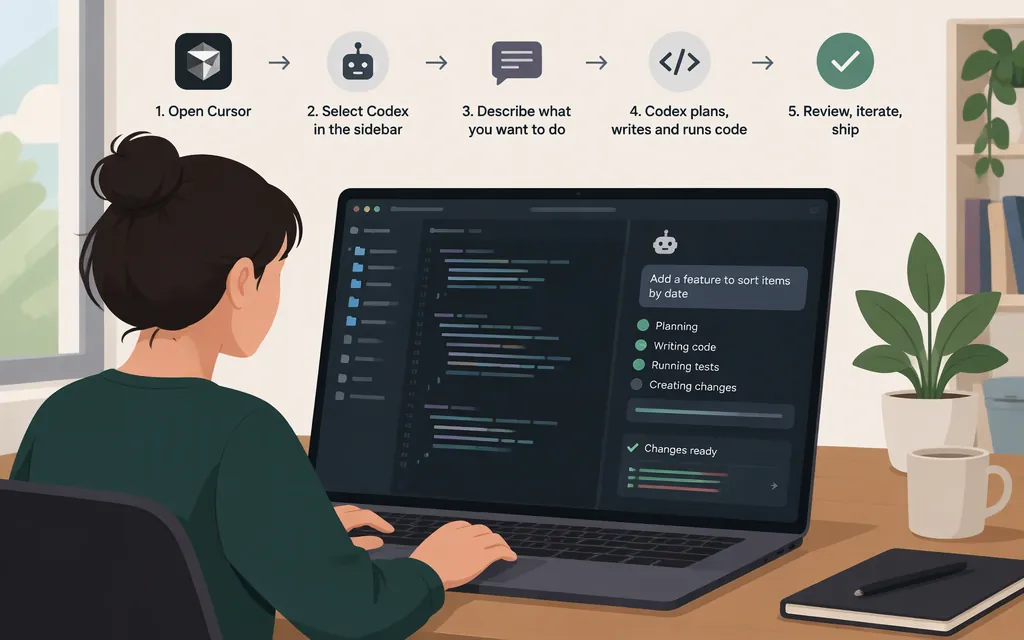
To use OpenAI Codex in Cursor, install the official Codex IDE extension, open it from Cursor’s Activity Bar, and sign in with either an eligible ChatGPT subscription or an OpenAI API account. With an API key, usage is billed to that API account. This is different from adding an OpenAI key to Cursor’s own model settings: Cursor documents that BYOK setting for standard, non-reasoning chat models, while OpenAI says GPT-5-Codex is available through the Responses API only. Don’t assume Cursor’s built-in Chat or Agent model picker can use GPT-5-Codex through its standard OpenAI-key setting. (OpenAI’s Cursor guidance; Cursor’s API-key documentation; OpenAI’s GPT-5-Codex model documentation)
Use Codex through its extension
-
Open OpenAI’s Codex IDE extension guide, choose Cursor, and install the extension.
-
Open Codex from Cursor’s Activity Bar.
-
Choose Sign in with ChatGPT if you have an eligible ChatGPT subscription. Or choose Use API Key to use an OpenAI API account. To get a key, use the OpenAI API keys page; then provide it when the extension prompts you. API-key usage is billed through the API account, separately from a ChatGPT subscription. The available instructions identify these sign-in options but do not specify any additional key-entry fields.
-
Open a project folder in Cursor and start with a read-only prompt:
Inspect this repository and find where password-reset emails are generated.
Do not edit files. Tell me which files and tests are relevant.
Check the response: Codex should identify relevant files and explain why they matter. Confirm the file paths before requesting edits.
-
For a small change, ask Codex to inspect the existing code and tests, make the narrowest suitable edit, and show the diff. Review the diff and run the relevant tests yourself before accepting the change.
If you meant Cursor’s own Chat or Agent
You can add an OpenAI API key in Cursor Settings → Models, enable an available OpenAI model, and select it in Chat or Agent. Cursor documents this BYOK route for standard, non-reasoning chat models; it is not the documented way to select GPT-5-Codex. OpenAI’s model documentation says GPT-5-Codex is available through the Responses API only, so don’t guess a model ID or try to force it through Cursor’s standard OpenAI chat-key setting.
For Cursor’s built-in Chat or Agent BYOK route, OpenAI’s guidance says to create an API key, enter it in Cursor’s Models settings, and enable an available OpenAI model. You need API billing configured; usage is billed separately from Cursor and ChatGPT subscriptions. This guidance covers local Chat and Agent; it does not establish support for other Cursor features. (OpenAI’s Cursor guidance)
Availability and scope
OpenAI describes November 12, 2026 as a proposed transition date for its contract supplying models to Cursor and says Cursor may end access sooner. Availability may change, so check the current OpenAI guidance before relying on this route.
If you’re building a deployed application, using Codex in the editor or configuring Cursor’s model picker is not the same as integrating a model into your application’s backend. Use the API route documented for your application and account.
Sources
Using OpenAI models in Cursor — OpenAI Help Center
Codex IDE extension — ChatGPT Learn