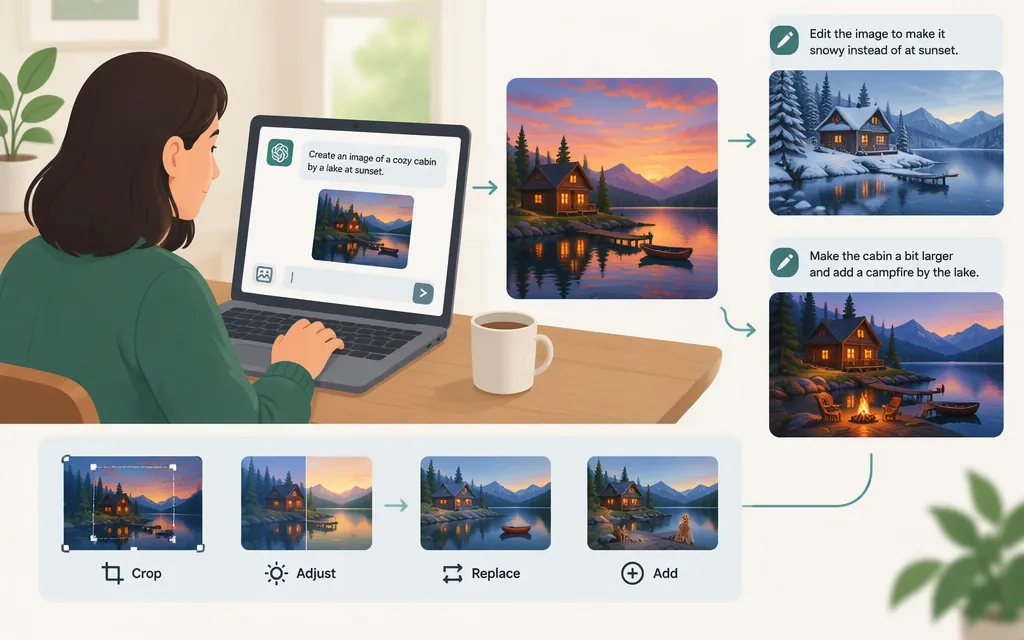
Short answer: To create an image in ChatGPT, ask for one in a conversation or select More → Images. OpenAI’s Help Center calls the feature ChatGPT Images; you don’t need to find a DALL·E switch. (OpenAI Help Center)
Create an image in ChatGPT
- Open ChatGPT and start a conversation, or select More → Images.
- Describe the image you want. For example: Create a photo of a timber house on a hillside at sunset, with warm window light and a wide landscape composition.
- Send your request and review the result.
- To revise it, describe the change you want in the conversation. You can also select an image or upload an existing one and describe an edit. For a localized edit, select the area you want to change and explain what should be different. (OpenAI Help Center)
The entry point and available controls may depend on what’s enabled for your account. If you don’t see Images or image generation in your interface, check the Help Center for current availability details.
Write a prompt you can refine
A useful starting structure is subject + setting or composition + style + lighting or color + important constraints. Begin with the most important details, inspect the result, then ask for a specific revision.
Example first prompt:
Create a watercolor illustration of a red bicycle leaning against a stone wall on a quiet country lane. Show the whole bicycle, with soft morning light and muted green and gold colors. Use a square composition.
Example follow-up:
Keep the bicycle and composition unchanged. Add a few small white flowers beside the wall, and make the light warmer.
Be clear about what you want changed and what you want preserved. An image may not match every detail exactly, so review the result before using it.
ChatGPT Images versus DALL·E
“DALL·E” is commonly used to refer to OpenAI’s earlier image-generation models. For image generation in ChatGPT, follow the ChatGPT Images workflow above rather than assuming you need to select a DALL·E model. OpenAI’s API documentation marks DALL·E 3 as deprecated and removed from the API. (DALL·E 3 model documentation)
ChatGPT versus the production image API
ChatGPT is a conversational way to request and revise images. For a single image generated from one prompt in an application, OpenAI’s documentation recommends the Image API; the Responses API is an option for conversational, multi-step workflows. (OpenAI image-generation guide)
For API setup, keep your key out of source code and use the official SDK’s environment-variable configuration described in the OpenAI quickstart. For a production image request, use the current request example in the image-generation guide. The exact compatible model and request configuration—and whether organization verification is required—need confirmation in the current documentation. This article does not provide a copy-and-paste image-generation request without those details.
Sources
Images in ChatGPT — OpenAI Help Center