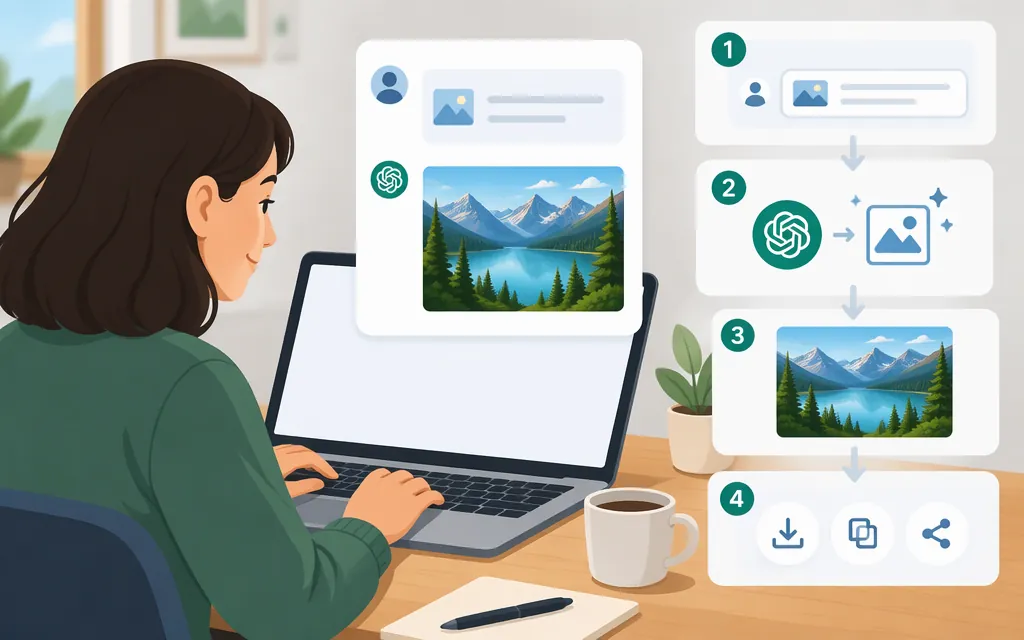
If you’re searching for how to use DALL·E 3 in ChatGPT, the current Help Center instructions describe ChatGPT Images. They explain how to create and edit images, but do not establish that DALL·E 3 is a separately selectable ChatGPT tool. [1]
Create an image in ChatGPT
- Open ChatGPT on the web, iOS, or Android. The Help Center says ChatGPT Images is available on all tiers. [1]
- Start a conversation and describe the image you want, or select More → Images and enter your prompt. [1]
- Find the generated image in the conversation.
- To refine it, ask for a specific change in the conversation.
Example prompt: “Create a square editorial illustration of a red bicycle leaning against a bookstore window on a rainy evening. Show warm light inside and reflections on the wet sidewalk. No readable signs or extra people.”
This is an example, not a promise of a particular result. A useful prompt describes the subject, composition, style, and constraints. When revising, say what to change and what should stay the same—for example: “Keep the bicycle, framing, and lighting the same; change the weather to a clear morning.” OpenAI’s image-prompting guidance recommends focused instructions and refining one thing at a time. [2]
Edit or refine a generated image
For an image created in ChatGPT, select part of the image with the selection tool and describe the change in chat. Or skip the selection tool and describe the edit in the conversation. [1]
For example: “Change only the book cover to deep green. Keep the hands, lighting, and background unchanged.” Review the result; if it misses something, clarify what should change and what should remain the same in another request.
Is this specifically DALL·E 3?
The cited ChatGPT instructions document ChatGPT Images; they do not say that DALL·E 3 can be selected separately in ChatGPT or identify the underlying ChatGPT image model as DALL·E 3. So these steps explain the documented image workflow, not a distinct DALL·E 3 selection procedure. [1]
For the API, OpenAI’s DALL·E 3 model documentation says that DALL·E 3 has been removed from the API. That is separate from creating images in ChatGPT. [3]
ChatGPT Images versus a production API
ChatGPT is the conversational product; using an API means integrating image generation into your own software. The supplied OpenAI image-generation guide excerpt lists gpt-image-2.5-sunburst and gpt-image-2.5-flare for API image generation and editing. This is a different model family from DALL·E 3. [4]
A minimal Python request pattern for the Flare model is:
from openai import OpenAI

client = OpenAI()  # Configure your API key for the SDK.

result = client.images.generate(
    model="gpt-image-2.5-flare",
    prompt="A red bicycle outside a small bookstore on a rainy evening",
)

# GPT image models return image data as Base64 in b64_json.
image_base64 = result.data[0].b64_json
The API reference describes the image-generation method and Base64 response field for GPT image models. Check the current API guide for the exact SDK installation and API-key setup before deploying this pattern; the available source excerpts do not provide those setup steps for this specific model. [4][5]
Use ChatGPT to create and revise images through conversation. Use the API when your software needs programmatic image generation. API usage is billed separately from a ChatGPT subscription. [6]
Sources
Images in ChatGPT — OpenAI Help Center
Create image — OpenAI API Reference
Managing billing for ChatGPT and the API platform — OpenAI Help Center