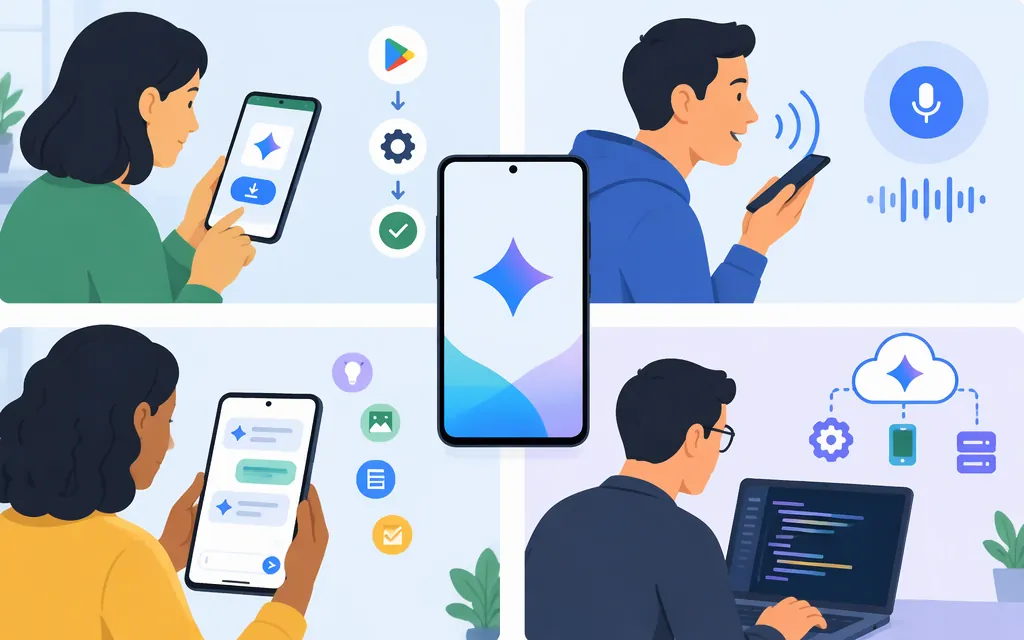
Gemini on Android is available through the Gemini mobile app on supported devices. Install it from Google Play, sign in with an eligible Google Account, then type a prompt or try a voice option. Android Go is different: it doesn’t support the regular Gemini mobile app; eligible Android Go devices use Gemini Go through the Google Search app instead. (Gemini app availability) (support.google.com)
Start using Gemini on a regular Android phone
- Check compatibility. Google lists Android phones and tablets running Android 9 or later; Android tablets need at least 2 GB of RAM. Android Go doesn’t support the regular Gemini mobile app. Availability also depends on language, location, and account. (Gemini app availability)
- Install the app. Open the Google Gemini listing on Google Play and install or update it. Confirm the listing is published by Google LLC.
- Open Gemini and sign in. You need a personal Google Account, or a work or school account with Gemini Apps access. Ordinarily, you must be 13 or the applicable age in your country. Google separately says an account for a user under 13 needs a parent’s approval; its availability page doesn’t say that approval overrides a higher local age threshold. The mobile app can’t be accessed from an Android Work Profile. (Gemini app availability) (
support.google.com) - Send a first prompt. Type a question in the box at the bottom and tap Submit. For example: “Explain compound interest in three short steps, with a simple example.” To include a photo or file, tap Add files and follow the on-screen instructions. (Use Gemini Apps)
Use text, voice, photos, and screen context
- Text: Enter a question or instruction, then refine the answer with a follow-up. For example: “Give me five vegetarian lunch ideas.” Then: “Make them suitable for meal prep and list the ingredients.” The app supports back-and-forth conversation, writing, brainstorming, and learning. (What you can do with Gemini)
- Voice: You can talk to Gemini. For a conversational, spoken back-and-forth, open the app, tap Live at the bottom (or swipe left), follow any first-time instructions, and start talking. Live availability and features can vary. (Talk naturally with Gemini Live)
- Photo or camera: Use the camera option to take a picture and ask a question about it—for instance, “What are the main parts shown in this diagram?” You can also attach a saved image or file to a prompt. (What you can do with Gemini)
- Use Gemini as your phone assistant: Some devices use Gemini as the primary assistant. On other eligible devices, Google says you can choose Gemini as your mobile assistant if the Google app is set as the default assist app. The selection screen and settings labels can vary by device, so follow Google’s Android getting-started instructions or your device’s settings guidance. This assistant setup is separate from opening the Gemini app to type a prompt.
“Hey Google” and some assistant features aren’t available in every language, country, or account type. Gemini can also make mistakes, so double-check important responses and don’t rely on them as medical, legal, financial, or other professional advice. (Get started with the Gemini mobile app)
If your device is Android Go: use Gemini Go
Gemini Go is a streamlined Gemini experience for Android Go, not the standard app path above. Google says it’s available on Android Go devices with at least 2 GB of RAM and requires a personal Google Account or a work or school account with Gemini Apps access. It’s rolling out gradually, so meeting the listed requirements doesn’t guarantee it has reached your device. (Get Started with Gemini Go)
To try it:
- Open Google Play and search for Google or Google Search.
- On the Google Search app page, tap Update if it appears. If the button says Open, Google says the app is already up to date.
- On your Android Go device, touch and hold Home to start a conversation. On supported devices, you can instead press and hold Power. (Get Started with Gemini Go)
Google lists Gemini Go examples such as finding local information, setting alarms or calendar events, uploading files for chat context, and asking it to call or text contacts or play music. These are examples, not a guarantee that every action works on every device or account; Google’s instructions don’t specify all required permissions or connected services. (Get Started with Gemini Go)
For developers: add Gemini to an Android product
The consumer Gemini app and the Gemini API are different: using the app doesn’t integrate a model into your own product. For Android, Google documents using the Gemini Developer API through Firebase AI Logic. Firebase AI Logic provides a proxy service, and its migration guidance says the Gemini API key stays on the server rather than in Android app source code. (Gemini Developer API for Android; Firebase AI Logic migration guide)
A minimal setup path is:
- Create and connect a Firebase project. Register your Android app in the Firebase project using its package name, download
google-services.json, and place it in the app module. Add the Google services Gradle plugin as described in the Firebase Android setup guide. - Provision the Gemini Developer API provider. In the Firebase console, open AI Logic and start its guided setup. Select Gemini Developer API and complete the setup flow to enable the required APIs and services for that provider. Then add the Firebase BoM and
com.google.firebase:firebase-aito your app’s Gradle dependencies. Follow the current Firebase AI Logic getting-started guide for the console and project steps; don’t put a Gemini API key in Android source code. (Firebase AI Logic getting started) (firebase.google.com) - Configure App Check before the first request. As of November 8, 2026, Firebase AI Logic requires App Check enforcement. Firebase’s guided setup may turn on enforcement automatically, but enforcement by itself does not configure the Android app to supply an App Check token. For local development, add
firebase-appcheck-debug, configure the debug provider in the debug build, and register its debug token in the Firebase console. Keep the debug token and build private; don’t ship them in production. Before release, configure a production attestation provider for the app. (Firebase AI Logic App Check guide; Android debug-provider guide) (firebase.google.com) - Initialize the service and choose a supported model. After connecting the Android app to Firebase, initialize Firebase AI Logic with the Gemini Developer API backend and create a model instance. The identifier below is an example; check current model availability for your use case. (Firebase AI Logic text generation; Android Gemini model documentation)
In Kotlin, generateContent is a suspend function, so call it from a coroutine scope. For example, place the request inside a lifecycleScope.launch { ... } block in an Android lifecycle component:
val model = Firebase.ai(backend = GenerativeBackend.googleAI())
    .generativeModel("gemini-3.5-flash")

val response = model.generateContent("Suggest three names for a hiking app.")
val answer = response.text
Firebase says App Check enforcement is required for Firebase AI Logic starting November 2, 2026. For billing, the Gemini Developer API has a no-cost tier, while pay-as-you-go use requires linking a Cloud Billing account and using the Blaze plan; model and feature availability can differ by tier. Check current availability, limits, and pricing before launch. (Firebase AI Logic App Check; Firebase AI Logic pricing) (firebase.google.com)
Gemini isn’t showing up? Check these first
- You have Android Go: The regular Gemini mobile app isn’t supported there. Try the Gemini Go steps above; rollout may still be pending. (Gemini app availability; Get Started with Gemini Go)
- Your device or software may not meet the listed requirements: Check the Android version and, for tablets, RAM. Also confirm that Gemini is available for your language and location. (Gemini app availability)
- You’re using a managed account or profile: Confirm that your work or school account has Gemini Apps access. The mobile app can’t be accessed from an Android Work Profile. (Gemini app availability)
- The app opens, but assistant shortcuts don’t work: Check that the Google app is set as the default assist app, then use Google’s device-specific instructions to choose Gemini as the mobile assistant. Some voice and assistant features vary by language, country, and account type. (Get started with the Gemini mobile app)
Sources
Get started with the Gemini mobile app - Android phone & tablet
Gemini mobile app availability - Android phone & tablet
Use Gemini Apps - Android phone & tablet
What you can do with your Gemini mobile app
Google Gemini - Apps on Google Play
Talk naturally with Gemini Live
Gemini Developer API - Android Developers
Gemini AI models - Android Developers
Migrate to Firebase AI Logic SDKs from Google AI client SDKs
Add Firebase to your Android project
Get started with the Gemini API using Firebase AI Logic SDKs
Generate text using the Gemini API - Firebase AI Logic
Prevent Gemini API abuse with Firebase App Check