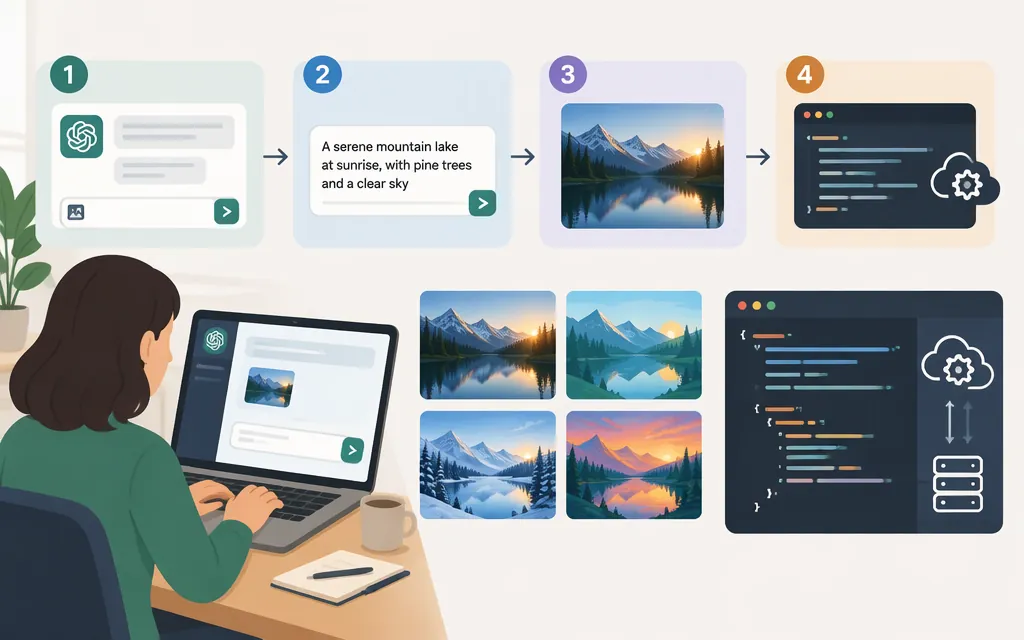
Quick answer: For a one-off image, use ChatGPT: describe what you want, inspect the result, then ask for a focused edit. For software that needs to generate images, use the Images API and specify the model you intend to call. As of November 9, 2026, ChatGPT’s image experience is called ChatGPT Images 2.6; gpt-image-2 remains a distinct API model identifier. The API model list includes newer GPT Image models too, so check the current list when choosing a model for a new project.
Choose ChatGPT or the API
| Your task | Start here | Why |
|---|---|---|
| Make one image, try ideas, or revise an image by chatting | ChatGPT | Describe an image, upload one to edit, and request changes in the conversation. |
| Add image generation to your own product or script | OpenAI Images API | The API has image-generation and image-editing endpoints. |
Need to select the exact gpt-image-2 model |
OpenAI Images API | Specify the model identifier in the request; don’t assume the ChatGPT interface’s product label selects that API model. |
ChatGPT Images is available on ChatGPT web, iOS, and Android. ChatGPT subscription billing and API billing are separate. Check current account access and feature availability in ChatGPT before relying on a particular control.
Generate and revise an image in ChatGPT
- Open ChatGPT and start a conversation, or select More → Images.
- Describe the image. Include its subject, composition, where important elements go, any exact words, and the intended format or aspect ratio.
- Inspect the result at the size and crop where you expect to use it.
- Ask for one specific change at a time. For example: “Move the headline to the upper right and leave the product and background unchanged.”
- Check the revision. If a detail is still wrong, describe that detail rather than rewriting the whole brief.
To edit an existing image, upload it and describe the change. You can also select part of an image before requesting a local edit, or describe the area directly in your prompt. ChatGPT Images supports choosing an aspect ratio with the picker or stating the desired ratio in your prompt. ()
A prompt structure you can adapt
Try this order:
Create [type of image and subject] for [intended use]. Use [orientation or aspect ratio]. Place [main subject] at [location] and [other element] at [location]. Include the exact text “[words]”. Use [specific colors, lighting, materials, or visual style]. Keep [must-preserve details] unchanged. Do not include [unwanted elements].
Example:
Create a horizontal 16:9 café banner. Place a ceramic espresso cup on the left half, with open dark-charcoal space on the right. Add the exact white headline “Start sharp.” Use soft morning light, subtle shadows, and a restrained, modern style. Do not add other words, logos, or decorative elements.
Then refine what you see: “Make the headline larger, but keep it on the right. Keep the cup, lighting, and background unchanged.” This is a prompting technique, not a guarantee that every instruction will be followed. OpenAI’s prompting guidance recommends describing the subject, composition, style, and constraints, then inspecting and refining the result. (developers.openai.com)
Generate an image with the GPT-Image-2 API
Use the API when your own software needs to make image-generation requests. This Python example requests a square café image, matching its 1024x1024 dimensions, and explicitly asks for PNG output. The API’s Python reference documents images.generate(...), lists gpt-image-2 as a supported model, and supports the requested PNG format. (developers.openai.com)
Prerequisites: an OpenAI API key, Python, and the OpenAI Python package. OpenAI says API organization verification may be required before using GPT Image models. Keep your API key in an environment variable or another server-side secret store—not in a public webpage or client-side app. (developers.openai.com)
Install the package and set your key:
pip install openai
export OPENAI_API_KEY="your-api-key"
On Windows PowerShell, set the key for the current session with:
$env:OPENAI_API_KEY="your-api-key"
Create generate_image.py:
import base64
from openai import OpenAI

client = OpenAI()

result = client.images.generate(
    model="gpt-image-2",
    prompt=(
        "A square café social image. A ceramic espresso cup centered on a "
        "dark-charcoal background, with the exact white text 'Start sharp.' "
        "Soft morning light, minimal design. No other words or logos."
    ),
    size="1024x1024",
    quality="medium",
    output_format="png",
)

image_data = base64.b64decode(result.data[0].b64_json)
with open("cafe-image.png", "wb") as image_file:
    image_file.write(image_data)

print("Saved cafe-image.png")
Run it:
python generate_image.py
The request format, model, size, quality, PNG format, and base64 response handling correspond to the documented Images API and Python SDK options. The API reference says GPT Image models return the base64 image in b64_json by default; this example explicitly requests PNG so the saved .png filename matches the output format. (developers.openai.com)
For API image editing, OpenAI documents a separate image-editing endpoint. Check its current reference for the exact source-image and edit parameters before adding it to an application. (developers.openai.com)
Understand API cost and limits before scaling
API usage is billed separately from ChatGPT subscriptions. OpenAI’s April 21, 2026 launch announcement listed rates per 1 million tokens: image input $8.00, cached image input $2.00, image output $30.00, text input $5.00, cached text input $1.25, and text output $10.00. Treat these as announcement-date rates, not a confirmed current price quote. The current GPT Image 2 model page links to the image-generation calculator for estimates; use that calculator with the exact model, image dimensions, and quality for your workload. If it does not offer the exact model and settings, don’t substitute another model’s estimate or present the launch rates as current pricing. (community.openai.com)
For a workload estimate, use the calculator for one image with the same settings as the example, then multiply that estimate by the number of images you expect to generate. Add any relevant image-input or editing costs if your workflow supplies source images. The calculator is the route identified by the GPT Image 2 model documentation; confirm it is estimating gpt-image-2 rather than a newer model before using the result as a budget. (developers.openai.com)
GPT-Image-2’s published rate-limit table says the Free tier is not supported. It lists these limits by usage tier:
| API tier | Tokens per minute (TPM) | Images per minute (IPM) |
|---|---|---|
| Build | 250,000 | 20 |
| Launch | 3,000,000 | 150 |
| Grow | 8,000,000 | 250 |
The model page says usage tier determines the limits. Check your organization’s current limits before estimating throughput; don’t assume the table’s tier figures are necessarily the limits assigned to your organization. (developers.openai.com)
For a small workload, make a few requests and review actual usage before estimating a monthly budget. For larger jobs, use a queue, handle rate-limit responses with retry and backoff, and record usage by model and job so you can compare estimates with actual charges.
Review the image before using it
Before publishing or using a generated image in a workflow:
- Check required wording: compare every visible word, number, label, and spelling with your source copy. Don’t rely on the image as the authoritative version of legal, product, or factual text.
- Inspect the layout at its destination size: check the crop, margins, contrast, and small details where the image will appear.
- Verify functional elements separately: if you asked for a QR code, test it with a phone before distribution. If the image contains data or a diagram, compare it with the underlying source.
- Review edits for collateral changes: check that the requested edit did not also alter a product label, logo, or other detail you wanted preserved.
Treat generated images as drafts to inspect, not proof that text, facts, or functional details are correct. In particular, don’t assume long copy will render perfectly.
Common questions
Is GPT Image 2 the same as ChatGPT Images?
They are related but not interchangeable names. gpt-image-2 is an API model identifier. ChatGPT’s current help documentation calls the in-product experience ChatGPT Images 2.6. If you need a particular model in an application, select and verify its API model identifier rather than assuming the ChatGPT interface label is the API name. ()
Should I use ChatGPT or the API?
Use ChatGPT for a one-off image or conversational revision. Use the API when your own software needs to make image-generation or editing requests. API use has separate setup, model selection, usage monitoring, and billing. (developers.openai.com)
Will the image contain the exact text I requested?
It may render the words, but inspect the output and correct errors before use. Check small text especially carefully, and don’t treat an image as a verified source for factual copy.
Sources
Create image — OpenAI API Python Reference
Create image — OpenAI API Reference