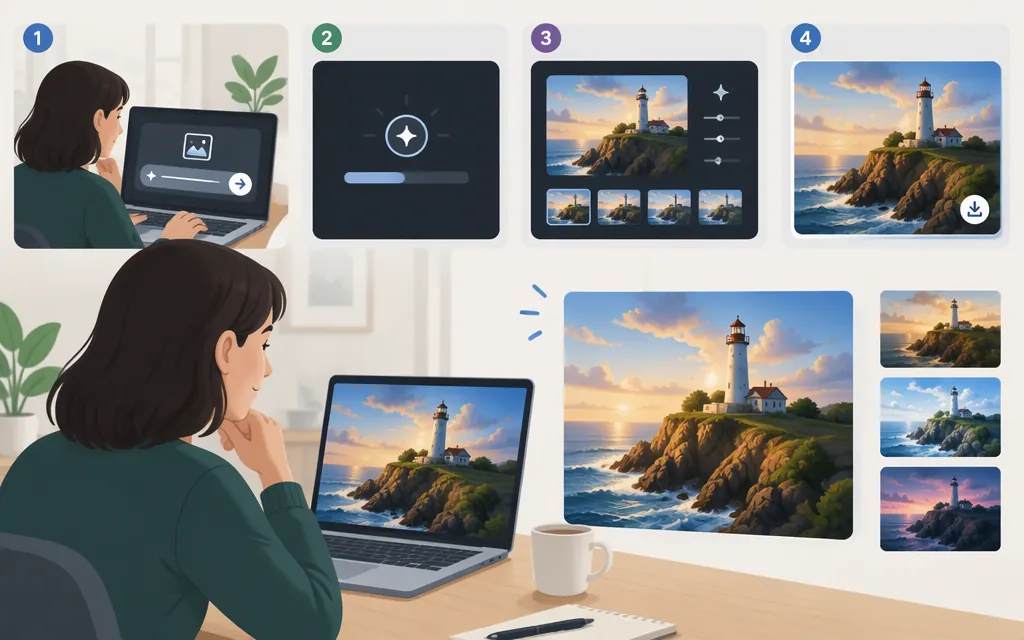
Grok Imagine can be used through its consumer web interface or xAI’s API. The web page shows a prompt field and Text, Edit, and Photo Edit modes, but the available page instructions do not establish the exact submission or image-saving steps. The API has documented workflows for generating and editing images and generating videos. Keep the two routes separate: API commands are not instructions for the Grok website. (grok.com)
Start in the Grok Imagine web interface
Open grok.com/imagine. The page displays a prompt field, Text, Edit, and Photo Edit modes, and sign-in and sign-up options. You can enter a descriptive image prompt in the field; xAI’s prompt guidance recommends being specific about the subject, style, lighting, composition, and mood. (grok.com)
What the available instructions don’t establish: they do not identify the exact control to submit an image prompt or explain how to save a completed image. The page shows sign-in and sign-up options, but does not state the account or plan requirements for generating images. So these details should not be guessed; the web steps above are not a complete click-by-click workflow.
Generate an image with the xAI API
Before running the shell examples, install curl and jq. xAI’s quickstart says to create an account in the xAI Console, load it with credits, and create an API key from the API Keys page. Store the key in an environment variable rather than putting it in your code. (docs.x.ai)
export XAI_API_KEY="your_api_key"

curl -s -X POST https://api.x.ai/v1/images/generations \
  -H "Authorization: Bearer $XAI_API_KEY" \
  -H "Content-Type: application/json" \
  -d '{
    "model": "grok-imagine-image-2.0",
    "prompt": "A red bicycle against a brick wall on a quiet city street, full bicycle visible, low three-quarter view, overcast light, documentary photography."
  }' | tee image-response.json
The documented response contains a data array. For URL output, the image URL is at data[0].url; download it promptly because xAI says generated image URLs are temporary. (docs.x.ai)
IMAGE_URL=$(jq -r '.data[0].url' image-response.json)
curl -L "$IMAGE_URL" -o generated-image.jpeg
Edit an image with the xAI API
Use the image-edit endpoint with a prompt and a source image. The documented request accepts an image URL in an image object with type set to image_url. (docs.x.ai)
curl -s -X POST https://api.x.ai/v1/images/edits \
  -H "Authorization: Bearer $XAI_API_KEY" \
  -H "Content-Type: application/json" \
  -d '{
    "model": "grok-imagine-image-2.0",
    "prompt": "Replace the daylight with soft moonlight. Keep the furniture, room layout, and camera angle unchanged.",
    "image": {
      "url": "https://example.com/reference-image.jpg",
      "type": "image_url"
    }
  }' | tee edit-response.json
Replace the sample address with an image URL the API can access. The edit response includes a data array of generated image objects; for URL output, retrieve data[0].url and download it as above. Describing both what to change and what to preserve is useful prompt guidance, not a guarantee that every detail will remain unchanged. (docs.x.ai)
Generate and download a video with the xAI API
Video generation is asynchronous. Submit a request, save its request_id, and poll GET /v1/videos/{request_id}. xAI documents the generation response statuses done and failed, and gives the completed video URL as video.url. Download only after the status is done. (docs.x.ai)
curl -s -X POST https://api.x.ai/v1/videos/generations \
  -H "Authorization: Bearer $XAI_API_KEY" \
  -H "Content-Type: application/json" \
  -d '{
    "model": "grok-imagine-video-1.5",
    "prompt": "A slow cinematic push toward a quiet lake at sunrise as mist moves across the water."
  }' | tee video-request.json

REQUEST_ID=$(jq -r '.request_id' video-request.json)
Poll until the job completes or fails:
while :; do
  curl -s "https://api.x.ai/v1/videos/$REQUEST_ID" \
    -H "Authorization: Bearer $XAI_API_KEY" | tee video-result.json

  STATUS=$(jq -r '.status // empty' video-result.json)
  if [ "$STATUS" = "done" ]; then
    break
  elif [ "$STATUS" = "failed" ]; then
    echo "Video generation failed" >&2
    exit 1
  fi
  sleep 5
done

VIDEO_URL=$(jq -r '.video.url' video-result.json)
curl -L "$VIDEO_URL" -o generated-video.mp4
The polling example follows xAI’s documented video-generation workflow: keep checking while the job is pending, stop on failure, and read video.url only after completion. (docs.x.ai)
Prompt and refine
For a new image, describe the subject and setting, then add composition and visual direction. For an edit, state both the change and what should stay the same. For example: “Replace the daylight with soft moonlight. Keep the furniture, room layout, and camera angle unchanged.” If the first result is close, revise one part of the prompt at a time so you can assess the change. xAI’s prompt guidance recommends being specific about visual attributes; results are not guaranteed. (grok.com)
Sources
Generate Images From Descriptions