Quick answer
“Kimi K2” can refer to different models in the K2 family. As of November 10, 2026, newly registered Kimi API users cannot access K2-series models; Kimi says existing users are unaffected for now and plans to retire the series by the end of December 2026. If you’re starting a new API integration, choose a model currently available to your account rather than relying on K2. (Kimi API pricing and model availability)
For a no-code tryout, Kimi’s help pages describe a model selector in the chat product and list K2.6 among the model options. What you can select may depend on your account. For an application, use the Kimi API Platform: API inference is a separate access and billing route from Kimi’s consumer app and membership. (Kimi model and mode selection; API pricing and billing)
Before you start
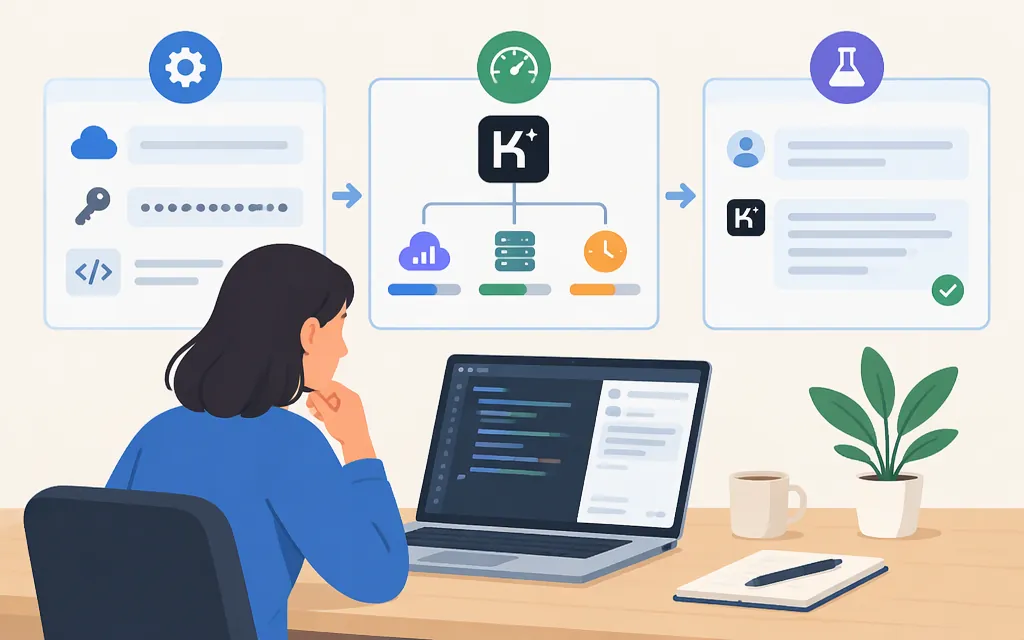
If your account is eligible to use K2.6 through the API, prepare an API key and Python. Kimi says keys are created and managed in the API console. Treat the key as a secret: keep it out of browser-side code, public repositories, and logs. (Kimi API overview)
- Sign in to the Kimi API Platform console using the account that has API access.
- Create an API key in the console’s key-management area and save it in a secure secret store or password manager.
- If your account cannot access K2, don’t assume a new key will bypass the K2 registration cutoff. If a request reports an insufficient balance, check the console balance and follow Kimi’s instructions.
The K2.6 quickstart identifies the API base URL as https://api.moonshot.ai/v1 and the model ID as kimi-k2.6. API credentials, model IDs, and endpoints from another provider are not interchangeable.
Make your first Kimi K2.6 API request
The shell commands below are for bash or zsh. Run them in the same terminal session where you will run the script:
python -m pip install --upgrade openai
export MOONSHOT_API_KEY='your_api_key_here'
Save this as kimi_test.py, then run python kimi_test.py:
import os
from openai import OpenAI

client = OpenAI(
    api_key=os.environ['MOONSHOT_API_KEY'],
    base_url='https://api.moonshot.ai/v1',
)

response = client.chat.completions.create(
    model='kimi-k2.6',
    messages=[
        {'role': 'user', 'content': 'Reply exactly: K2 API connection successful.'}
    ],
)

print(response.choices[0].message.content)
A successful call should return the requested text. This checks basic connectivity; it does not test the model’s quality for your application. See the K2.6 quickstart and Chat Completions API guide for the provider’s setup details.
If a request fails, inspect the returned error code and message, then check the API key, account access, request path, model ID, balance, and applicable limits against Kimi’s documentation and console. Kimi identifies HTTP 429 as a rate-limit response. (Kimi API error-code reference; rate limits)
As general application-design measures—not special Kimi requirements—you can reduce request frequency, queue work, or use exponential backoff when handling rate-limit responses.
Test whether Kimi K2 fits your task
For a small coding check, ask the model to write a function and tests:
Write a Python function
normalize_email(value)that trims whitespace and lowercases an email address. Include three pytest tests: a mixed-case address, leading and trailing spaces, and an empty string. State any assumptions.
Run the tests yourself. Note whether the code meets the requirements, how much correction it needs, how long the request takes, and the token usage reported by the API. This is a practical check for your own task, not a benchmark or a performance guarantee.
Kimi’s K2.6 guide describes text, image, and video input, thinking modes, tool calling, and a 256K-token context window. A returned tool call does not run the tool by itself: your application must provide the tool definition, execute the requested function, and send the result back to the model. Consult the guide for the documented capabilities of the specific model version you plan to use.
Check cost and operating limits before deployment
Kimi API inference is billed separately from Kimi membership and Kimi Code. Before estimating spend, check the current API pricing table and confirm the model row, rate categories, currency, and billing units that apply to your requests. Check the live pricing terms for any applicable taxes before estimating total cost.
Kimi documents four rate-limit dimensions: concurrency, requests per minute (RPM), tokens per minute (TPM), and tokens per day (TPD). Check the API console for the limits applicable to your account; do not assume one universal quota. (Kimi rate limits; API recharge and rate limits)
Before deployment, test authentication and insufficient-balance failures, track token usage, and decide how your application will handle 429 responses. Confirm that K2 remains available for your planned period: Kimi says it plans to retire the K2 series by the end of December 2026. (Kimi API pricing and model availability)
What older Kimi K2 advice may miss
Older articles describe individual experiments using Kimi K2 with tools such as Claude Code, but those reports are not current compatibility instructions. A July 18, 2025 Thoughtworks interview, for example, describes one engineer using K2 for backend Python work but does not provide API setup steps. Check current documentation for the specific model and product you intend to use.
Sources
Model Inference Pricing — Kimi API Platform
API Overview — Kimi API Platform
Quickstart — Kimi API Platform
Kimi API Error Code Reference — Kimi Help Center
Rate limits — Kimi Help Center
Recharge and Rate Limiting — Kimi API Platform