The quick answer
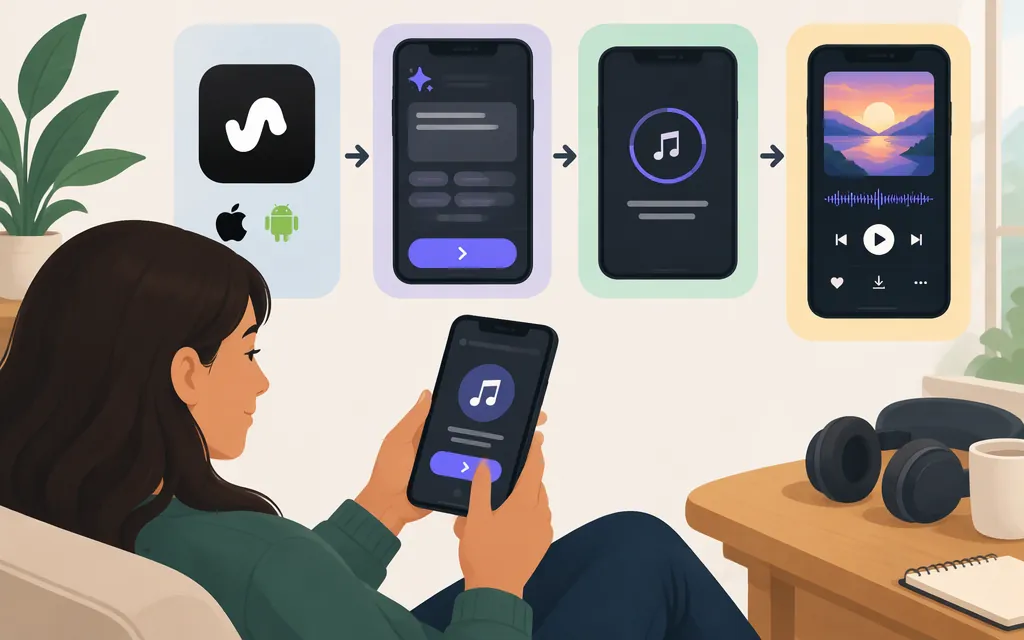
The app steps differ by platform. Android: tap Create, describe the song, then tap Create to generate. Suno’s Android guide says the versions appear in Library and that you’ll see a message when they’re ready to play. iPhone: tap Create, switch on Custom, enter lyrics or have Suno generate them, add a style and title, then tap Create. Suno’s Library guide says created songs are listed newest-first. It doesn’t spell out the exact playback gesture, so the review step below is limited to what the guides establish. (Android guide; iOS guide; Library guide)
1. Find the official app
Suno’s Help Center identifies Suno – AI Songs & Music Maker in the Apple App Store and Google Play Store and advises checking that the developer is Suno, Inc. Open the official listing for your device, install the app, and follow the sign-in options shown in the app if prompted. (Find the Suno mobile app; How do I log in?)
2. Create and review a song
Android: Simple Mode
- From the home screen, tap Create at the bottom center.
- Type what you want to hear. Suno’s guide gives “A rap song about flying dinosaurs” as an example.
- Tap Create. The guide says two versions appear in Library and that a message appears when they’re ready to play.
- Open Library to find the new versions. Suno says the newest songs appear first. The Android guide confirms they’ll be ready to play, but doesn’t describe a separate playback gesture. (Android Simple Mode guide; Library guide)
iPhone: Custom Mode
- From the homepage, tap Create at the bottom center.
- In the Create menu, switch on Custom.
- Enter your own lyrics or have Suno generate lyrics. The guide also describes an Instrumental option if you don’t want lyrics.
- Enter Styles and any Advanced options, add a title, then tap Create. Suno says it will notify you when the songs are ready.
- To locate your creation, open Library, beside Create. Suno says created songs are listed newest-first. Its available guidance doesn’t specify the exact playback gesture for an iPhone result. (iOS Custom Mode guide; Library guide)
3. Try a prompt and refine it
For Android Simple Mode, try: “Warm, upbeat indie-pop song about driving home after a long week, bright acoustic guitar, steady drums, hopeful chorus.” This is an illustrative description, not a guarantee of those exact sounds. Suno’s Simple Mode guidance says a prompt can be brief or include details such as genre, instrumentation, and song structure. (Simple Mode help)
After listening, identify the biggest mismatch and change one or two details on your next attempt—for example, replace “upbeat” with “gentle and reflective” if the result feels too energetic. A third-party guide recommends experimenting when an initial result misses a desired style or structure; that is creative advice, not a guarantee of precise control. (Learn Prompting guide)
Suno app versus a production API
The steps above describe creating music in the consumer app, not integrating song generation into your own service. Suno’s Platform page identifies itself as a place to manage a Suno API account, but the available information here does not establish a complete, reproducible API workflow—including documented model identifiers, authentication steps, request details, and result handling. Don’t treat the app instructions or an unofficial third-party integration as a verified production API specification. (Suno Platform)
Sources
How do I find the Suno mobile app?