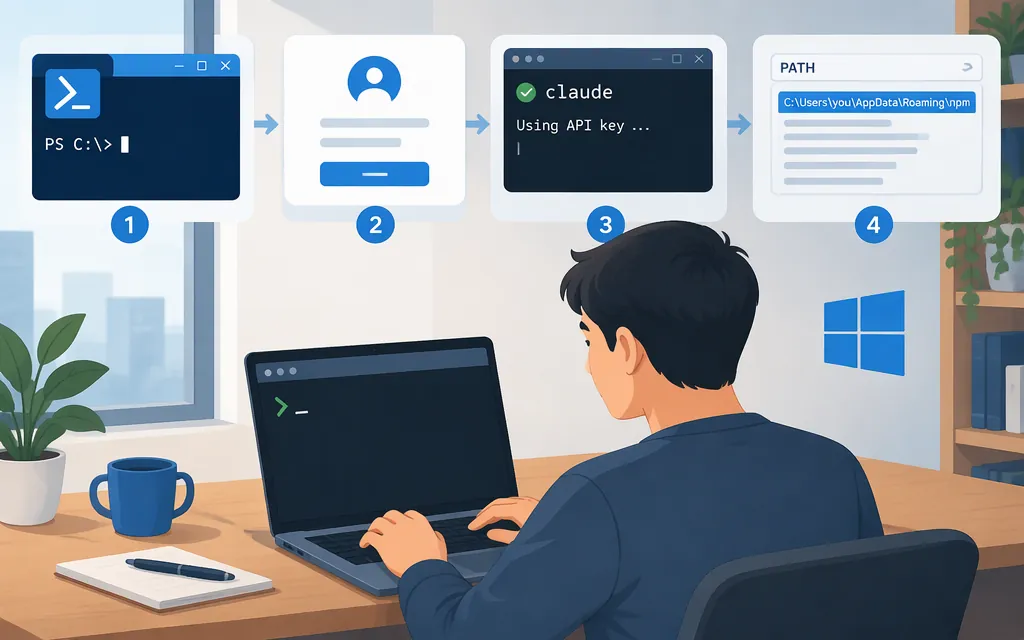
For most Windows users, the recommended route is Anthropic’s native installer in PowerShell: run irm https://claude.ai/install.ps1 | iex, open a new terminal, and check the installation with claude --version. Windows 10 version 1809 or later and Windows Server 2019 or later are supported. Claude Code requires at least 4 GB of RAM and an x64 or ARM64 processor. Git for Windows is optional; it enables the Bash tool, while Claude Code can use PowerShell without it. (Claude Code setup)
1. Install Claude Code
Recommended: install with PowerShell
-
Open PowerShell. Its prompt starts with
PS, for examplePS C:\Users\you>. -
Run:
irm https://claude.ai/install.ps1 | iex -
Wait for the installer to finish; it may not show download progress.
-
Close the terminal, open a new one, and verify the installation:
claude --version
A working installation prints a version number. Anthropic recommends the native installer, which updates in the background. (Claude Code setup)
Alternative: install from Command Prompt
In Command Prompt (CMD), use the CMD-specific command:
curl -fsSL https://claude.ai/install.cmd -o install.cmd && install.cmd && del install.cmd
Don’t run this && command in PowerShell: it uses CMD syntax. Conversely, irm is a PowerShell command, not a CMD command. (Claude Code setup)
Do you need Git or WSL?
You don’t need WSL to install Claude Code on Windows; Anthropic documents a native Windows installation. Git for Windows is optional and enables the Bash tool. Without it, Claude Code uses PowerShell as its shell tool. If you choose to use Claude Code inside WSL, install it within that Linux environment instead. (Claude Code overview)
2. Start Claude Code and choose an access route
Open PowerShell in your project folder and run:
cd C:\path\to\your\project
claude
On first launch, Claude Code normally opens a browser for sign-in. Complete the browser flow; if it displays a login code instead of returning to the terminal, paste the code into the terminal when prompted. Successful sign-in displays Login successful. (Claude Code authentication)
Choose an access route before signing in:
- Claude subscription: Sign in with a Claude Pro, Max, or Ultra account, or with the Claude account your Team or Enterprise administrator invited. A free Claude account by itself is not listed as an access route for the CLI. (Claude Code authentication)
- Anthropic Console: Choose the Console sign-in route and use Console credentials. Your administrator must invite you to the Console organization first; you can sign in with or without creating an API key. Console/API usage is billed separately from a Claude subscription, although some plans may include API credits under separate terms. (Claude Code authentication)
- Supported cloud provider: If your organization uses Amazon Bedrock, Google Cloud’s Agent Platform, or Microsoft Foundry, follow that provider’s setup instructions or select the third-party platform option at the login prompt. (Claude Code authentication)
To check that the CLI is installed, claude --version should print a version. To check that authentication is working, start claude and send a small test request; a normal response confirms that the current access route can answer. (Claude Code setup)
3. Connect to a production API or organizational gateway
For direct Anthropic API access, choose the Claude Console sign-in route above. Console API usage is separate from ordinary subscription usage; the applicable Console organization handles API billing. (Claude API billing)
Claude Code also documents connections to organizational cloud providers and LLM gateways. A gateway must expose an API format Claude Code supports; the gateway administrator supplies its URL, credential, and any model-selection instructions. Don’t assume that an arbitrary API endpoint or model is compatible. Anthropic does not endorse third-party gateways and does not support routing Claude Code to non-Claude models through them. (Claude Code gateway documentation)
Gateway configuration example — confirm your organization’s setup first
Claude Code’s gateway guide documents ANTHROPIC_BASE_URL for the gateway address and a gateway credential instead of a personal claude.ai login. Use the credential variable that matches the gateway’s expected header: ANTHROPIC_AUTH_TOKEN for an Authorization: Bearer credential, or ANTHROPIC_API_KEY for an x-api-key credential. Ask your gateway administrator which applies; don’t set both by guesswork. (Connect Claude Code to an LLM gateway; gateway rollout guide)
The following PowerShell block illustrates the basic environment-variable setup for a bearer-token gateway. Replace both placeholders with values provided by your administrator, and start Claude Code from the same PowerShell window:
$env:ANTHROPIC_BASE_URL = "https://<gateway-url-provided-by-your-admin>"
$env:ANTHROPIC_AUTH_TOKEN = "<gateway-credential>"
claude
This is not a complete recipe for every gateway or existing setup. Before using it, check the official connection guide’s “Conflicts with an existing login” section and your administrator’s instructions for existing credentials, managed configuration, or provider-specific settings. The exact changes needed depend on your setup; don’t assume that setting these two variables alone resolves every conflict. For an x-api-key gateway, follow the guide’s ANTHROPIC_API_KEY instructions instead. (Connect Claude Code to an LLM gateway)
To verify a configured gateway, run /status inside Claude Code. Check that it shows the gateway’s Anthropic base URL and an active gateway credential (ANTHROPIC_AUTH_TOKEN, ANTHROPIC_API_KEY, or an apiKeyHelper). If it instead identifies a claude.ai login, don’t assume the request is using the gateway. Send a test prompt; a normal response confirms the connection. If the route remains unclear, check the gateway’s usage or request logs with your administrator. (Connect Claude Code to an LLM gateway)
4. Fix “claude is not recognized” or “command not found”
First, open a new PowerShell window and retry:
claude --version
If it still fails, check whether Windows can find the command:
where.exe claude
Anthropic’s troubleshooting guidance identifies the native Windows install directory as C:\Users\you\.local\bin; the executable is claude.exe in that directory. The error may mean either that the executable is missing or that its directory is not on PATH. (Claude Code installation troubleshooting)
Check the native installer’s expected executable directly:
$bin = Join-Path $HOME '.local\bin'
$exe = Join-Path $bin 'claude.exe'
Test-Path $exe
-
If the result is
True, try the executable by its full path:& $exe --versionIf that prints a version but
claude --versiondoes not, add the confirmed$bindirectory to your userPath. Open System Properties (Win + R, entersysdm.cpl) → Advanced → Environment Variables. Under User variables, edit Path, add the full directory shown by$bin, and save. Close and reopen PowerShell, then runclaude --versionagain. Anthropic’s troubleshooting page directs users with this error to add the native install directory toPATH; don’t add a guessed path. (Claude Code installation troubleshooting) -
If the result is
False, the native executable is not at that location. Retry the official PowerShell installer or use Anthropic’s installation troubleshooting guide to diagnose the install error; don’t treat a PATH edit as a fix for a missing executable. (Claude Code setup)
In short
Run irm https://claude.ai/install.ps1 | iex in PowerShell, reopen the terminal, and verify with claude --version. Sign in with an eligible subscription, Console account, or supported cloud-provider setup. For a gateway, use the URL and credential supplied by its administrator, check the official connection guide for conflicts with existing settings, and confirm the active route in /status. If the command is missing, check whether claude.exe exists before changing PATH. (Claude Code setup)
Sources
Advanced setup — Claude Code Docs
Troubleshoot installation and login — Claude Code Docs
Authentication — Claude Code Docs
Connect Claude Code to an LLM gateway — Claude Code Docs
Roll out an LLM gateway for your organization — Claude Code Docs
Run Claude Code through a gateway — Claude Code Docs
Why is Claude API usage billed separately from my paid Claude plan? — Claude Help Center