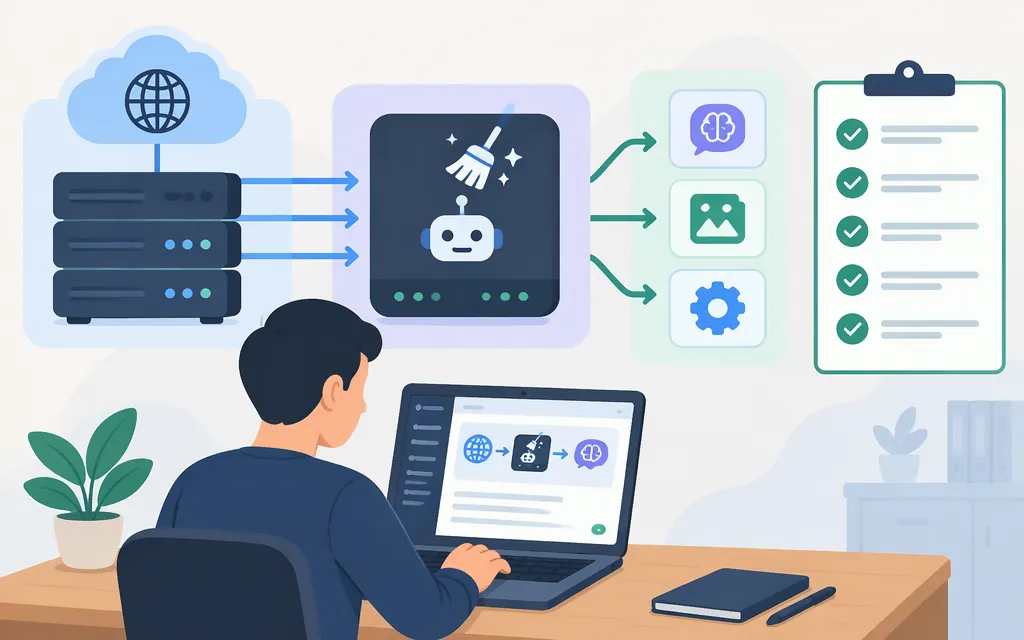
Short answer: “Janitor AI API” can mean using JanitorAI’s built-in model access or connecting an outside model provider to a chat through Proxy. JanitorAI’s official help center documents a janitor+ Router that provides supported third-party models without requiring an external provider key. A separate, provider-specific option is Proxy: NanoGPT documents how to connect its API this way. The sources cited here do not establish a general public JanitorAI developer API with its own documented endpoints and request schema.
Choose the kind of API access you need
- Want a simpler way to use models inside JanitorAI? The official janitor+ Router is for janitor+ subscribers and is currently web-only. JanitorAI says it provides access to supported models without requiring you to paste in an external provider API key. Its help page says each model’s per-token cost and context limit are shown alongside the model, with the per-token price visible before you start a chat. (
help.janitorai.com) - Want to use a provider’s own account and API key? Use the Proxy option if that provider documents an endpoint and model compatible with JanitorAI’s Proxy configuration. The exact endpoint, model ID, key requirements, price, and data terms depend on that provider.
- Looking for an API to build your own app around JanitorAI? Don’t assume that Proxy setup is the same thing as a public developer API. The official materials cited here describe chat features and model routing; they do not provide a general JanitorAI developer API specification. Treat third-party examples of a JanitorAI-owned endpoint or schema as unverified unless JanitorAI publishes documentation for them.
Connect an external provider through Proxy
The form labels and controls may change. JanitorAI’s official quickstart describes a chat-level API Settings flow, while NanoGPT’s integration guide gives a provider-specific example. Follow the provider’s current instructions as well as JanitorAI’s current interface.
- Check that the provider supports the connection you plan to use. Find its current JanitorAI instructions, or confirm that it documents an API endpoint and model compatible with the Proxy form. Don’t assume any provider’s URL will work just because another one does.
- Get an API key from the provider. Keep it private; don’t publish it or paste it into an example or public post.
- Open a chat in JanitorAI and go to API Settings. Select Proxy and add a configuration. NanoGPT’s guide calls this + Add under Proxy Configurations.
- Fill in the provider’s values: a label you’ll recognize, the exact model ID, the full proxy URL, and your provider API key.
- Apply and activate the configuration. Then send a real message in the chat. A reply is a practical check that the configuration works for that chat; it is not proof of production capacity or a guarantee the provider will remain available.
Example: NanoGPT’s documented configuration
NanoGPT’s integration guide specifies the following values for its own JanitorAI integration:
| JanitorAI Proxy field | NanoGPT example |
|---|---|
| Configuration name | Any label, such as NanoGPT |
| Model name | auto-model-basic as an example |
| Proxy URL | https://nano-gpt.com/api/v1/chat/completions |
| API key | Your NanoGPT API key |
NanoGPT says auto-model-basic selects a model included in the user’s subscription; for a specific model, it directs users to copy the exact current ID from its model or pricing listing. Its guide also specifically says to use nano-gpt.com, not api.nano-gpt.com, for this JanitorAI app integration. These are NanoGPT-specific instructions, not universal Proxy settings or a JanitorAI guarantee about every provider.
Is Token Forge Cloud ready to use with JanitorAI?
Token Forge Cloud’s site describes managed production APIs for models including Qwen, DeepSeek, GLM, and Seedance. That describes its API offering, but it does not by itself confirm that a Token Forge Cloud endpoint and model are compatible with JanitorAI Proxy. The materials cited here do not establish Token Forge Cloud’s JanitorAI-specific endpoint, required model IDs, Proxy compatibility, or account setup.
Before entering a Token Forge Cloud key in JanitorAI, ask the provider or consult its current API documentation to confirm all of the following:
- It supports the interface JanitorAI Proxy requires, and supplies the full compatible endpoint—not just a general API base address.
- The model you want is available through that endpoint and has an exact model ID accepted by the integration.
- The authentication method and account permissions work with the Proxy configuration.
- Current price, currency, billing unit, quotas, and rate limits for the specific model and account tier.
- The applicable data-handling terms, including how prompts and outputs are handled.
- Any requirements that matter to your use: availability, response time, support, and what to do if the service or connection fails.
If those details are not documented, don’t fill the gaps by copying another provider’s URL or by treating an OpenAI-compatible label as proof that the complete JanitorAI integration works. Confirm compatibility with the provider, configure a test chat, and evaluate the requirements that matter to your own use before relying on it.
Troubleshoot a failed Proxy connection
Check the configuration in this order:
- URL: Confirm the complete hostname and path match the provider’s JanitorAI instructions. For NanoGPT, its guide specifies
https://nano-gpt.com/api/v1/chat/completionsand warns againstapi.nano-gpt.comfor this integration. - API key: Check that you used the right provider key and didn’t include accidental spaces.
- Model ID and access: Copy the current exact model ID. Confirm your account can access that model and has any required subscription or balance.
- Active configuration: Make sure the intended Proxy configuration is selected and active, then try a real message again.
- Provider-specific error details: Read the provider’s own troubleshooting guidance. Error codes are not universal diagnoses.
For its NanoGPT integration, NanoGPT lists these as common causes: 401 — an incorrect key or extra spaces; 402 — a paid model not included in the subscription when the account has no balance; 404 — a model ID that is outdated, misspelled, or unavailable. These explanations apply to the NanoGPT guide, not automatically to other providers.
Bottom line
For third-party models without managing another provider’s key, consider janitor+ Router if you’re a subscriber using the web version. For a provider account you manage yourself, configure Proxy only with that provider’s current, compatible endpoint and model ID. NanoGPT supplies a concrete documented example; Token Forge Cloud’s general API offering alone does not confirm JanitorAI compatibility. In either case, verify access, current costs and limits, and data terms before relying on the connection.
Sources
janitor+ Router — JanitorAI Help Center
TL;DR Quickstart Proxy Instructions — JanitorAI Help Center