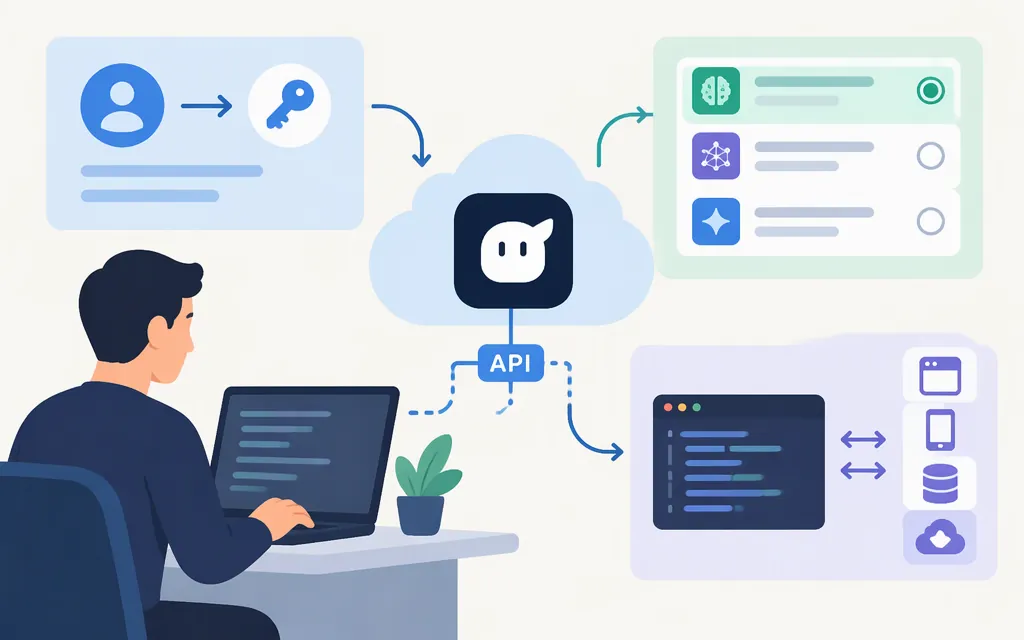
Short answer: Sign in to the Kimi API Platform, create a key from its API Keys page, and use a documented model ID with Chat Completions. The platform’s quick-start recommends kimi-k3.1-pro; its model catalog also lists kimi-k3 and kimi-k3.1-pro-highspeed. The example below follows the platform’s documented api.moonshot.cn endpoint. The documentation reviewed here does not establish that this endpoint and onboarding flow apply to every country or account, so confirm the correct endpoint and access requirements in your account before using it. (Official quick-start, model catalog)
Which Kimi API model should you choose?
The official catalog currently names these available models and distinguishes them from models marked as discontinued. Treat this as the catalog’s documented guidance, not a performance comparison across every possible use case. (Official model catalog)
| Use case | Model ID to consider | What the platform documentation says |
|---|---|---|
| General starting point, coding, or long-context work | kimi-k3.1-pro |
The quick-start recommends starting here and describes it as suited to coding and other long-running knowledge work. It advertises a 1-million-token context window. |
| Higher output speed is the priority | kimi-k3.1-pro-highspeed |
The platform describes it as the high-speed version of K3.1 Pro, with the same capabilities and approximately 2–3 times the speed. It does not give measurement conditions for that comparison. |
| Previous-generation flagship | kimi-k3 |
The model catalog calls it a previous-generation flagship and lists a 1-million-token context window. |
| Looking for Kimi’s coding model | kimi-k2.7-code |
The catalog says it is no longer available to users registered after November 1, 2026; users who registered before that date may continue using it. The catalog estimates full retirement by the end of December 2026. Check current model availability before building around it. |
What does “Kimi Code API” mean? The official documentation describes Kimi Code CLI as a coding tool that can connect to a Kimi API Platform key. The sources cited here do not establish a separate product called the “Kimi Code API”; distinguish the coding tool from the API itself. (Kimi Code CLI guide)
Query the model list
The documented model-list request is GET https://api.moonshot.cn/v1/models, authenticated with a Bearer API key. The response is a list object with a data array; model objects include fields such as id and context_length, as well as capability flags. The platform recommends checking this endpoint for model IDs and capabilities before making a completion request. Its documentation does not explicitly say whether results are filtered by account entitlement, so treat the response as the documented model-list result—not, by itself, proof that a particular request will succeed for your account. (List Models reference)
curl --request GET \
  --url https://api.moonshot.cn/v1/models \
  --header "Authorization: Bearer $MOONSHOT_API_KEY"
Kimi API context windows: what the figures mean
Context limits are model-specific. The platform advertises a 1-million-token context window for both kimi-k3.1-pro and kimi-k3. Its concepts documentation clarifies that input and output tokens combined must not exceed the selected model’s maximum context length. The full limit is therefore not available for prompt input alone. (Model catalog, API concepts)
Before designing a long-context workload, check the model’s current catalog entry and any model-specific constraints relevant to your inputs. Do not assume that one model’s context figure or capabilities apply to every Kimi model. The catalog marks kimi-k2.7-code as unavailable to newer registrants and scheduled for retirement by the end of December 2026, so it is a poor choice for a new integration that needs a durable model selection. (Model catalog)
Choose an API interface
The platform documents three API formats. Choose based on the compatibility your project needs, and consult the interface-specific reference before implementing it. (API overview)
- Chat Completions: OpenAI-compatible; the platform documents the endpoint and provides SDK and HTTP examples.
- Responses: OpenAI-compatible; the quick-start describes text or JSON output and function-tool calls.
- Messages: Anthropic-compatible; the quick-start associates it with the Anthropic SDK and tools such as Claude Code.
The formats do not necessarily share the same endpoint or request shape. Use the relevant interface-specific reference rather than adapting one interface’s request by guesswork. (API overview)
Create a key and make your first Kimi API call
The quick-start flow is to log in to the Kimi API Platform, open API Keys, and create and copy a key. Do not share or hard-code it; the documentation recommends storing it in the MOONSHOT_API_KEY environment variable. (Official quick-start)
The following example uses the platform’s documented api.moonshot.cn Chat Completions endpoint and kimi-k3.1-pro model ID. The cited documentation does not establish whether this endpoint and key flow apply to every country or account. If you are accessing the API from the United States or another region, confirm the endpoint and access requirements for your account in the platform before relying on this example.
For the Python SDK route, the quick-start specifies Python 3.9 or later and OpenAI SDK 1.0.0 or later. Install the SDK and set your key in the shell:
pip install --upgrade 'openai>=1.0'
export MOONSHOT_API_KEY="your_api_key"
Then send a Chat Completions request:
import os
from openai import OpenAI

client = OpenAI(
    api_key=os.environ["MOONSHOT_API_KEY"],
    base_url="https://api.moonshot.cn/v1",
)

completion = client.chat.completions.create(
    model="kimi-k3.1-pro",
    messages=[
        {"role": "user", "content": "What is 1 + 1? Reply briefly."}
    ],
)

print(completion.choices[0].message.content)
The base URL, model ID, and response-text access follow the official quick-start example. Its sample answer is illustrative; actual wording may differ. (Official quick-start)
Send the request with cURL
The documented HTTP request uses POST, Bearer authentication, and a JSON body containing model and messages:
curl https://api.moonshot.cn/v1/chat/completions \
  -H "Content-Type: application/json" \
  -H "Authorization: Bearer $MOONSHOT_API_KEY" \
  -d '{
    "model": "kimi-k3.1-pro",
    "messages": [
      {"role": "user", "content": "What is 1 + 1? Reply briefly."}
    ]
  }'
The platform’s balance reference states that inference API calls cannot be made when available balance is zero or less. If a request is denied, check your key, the model ID, your account’s endpoint and access requirements, and—where relevant—your available balance. (Balance reference)
Next steps
- Query the model-list endpoint for documented IDs, context lengths, and capabilities; do not assume the result proves account entitlement.
- For coding tools, follow the official Kimi Code CLI guide rather than assuming “Kimi Code API” is a separate API.
- For Responses or Messages, follow that interface’s own reference; do not reuse the Chat Completions endpoint or payload without documentation.
Sources
Quick Start — Kimi API Open Platform
Model List — Kimi API Open Platform
List Models — Kimi API Open Platform
Key Concepts — Kimi API Open Platform
API Overview — Kimi API Open Platform